How to add a MIME type in cPanel
cPanel MIME Types tell the browser what kind of file it is receiving when it opens a specific extension. This helps when a file downloads instead of displaying, is interpreted as plain text, or needs a special content type to work on your site.
On shared hosting, you usually do not need to change common types such as .jpg, .png, .css, or .js. Use this tool only when an application, provider, or developer asks you to associate an extension with a specific MIME type.
Before you start
- Have access to cPanel for the account where the site is hosted.
- Confirm the exact extension you want to configure, for example
.webp,.json, or.woff2. - Confirm the correct MIME type, for example
image/webp,application/json, orfont/woff2. - Make the change first with a test file if you are not sure about the result.
Check whether the change really applies
- Open the file in the browser and watch what happens: whether it downloads, displays as text, or shows an error.
- Check whether the problem happens with a single extension or with the whole site.
- Confirm that the file exists in the correct path using File Manager before editing MIME types.
- If the application already generates its own headers, review its settings before adding a rule in cPanel.
Add the MIME type in cPanel
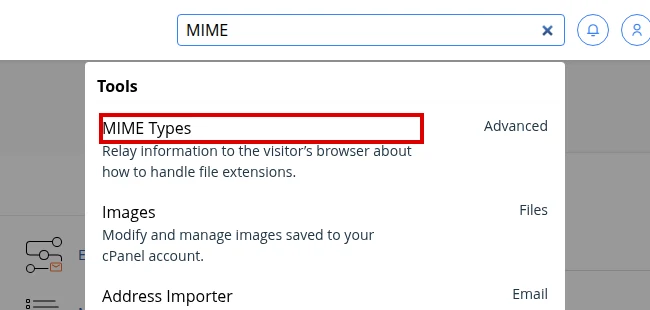
Log in to cPanel and find the Advanced section or use the top search box.
Open MIME Types. If your panel is localized, the tool may appear as Tipos MIME.
In the MIME Type field, enter the full value, for example
application/json.In Extension(s), enter the extension without a dot or spaces, for example
json. If you need to register multiple extensions for the same MIME type, separate them with a space.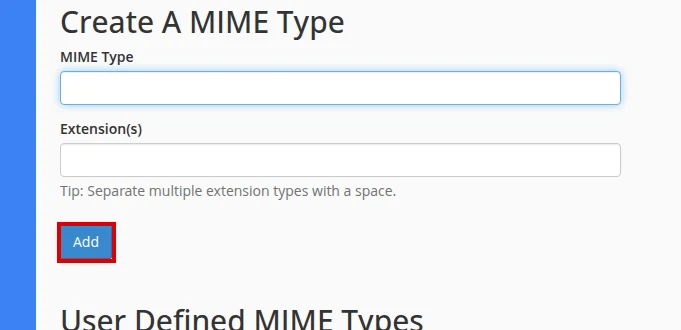
Click Add.
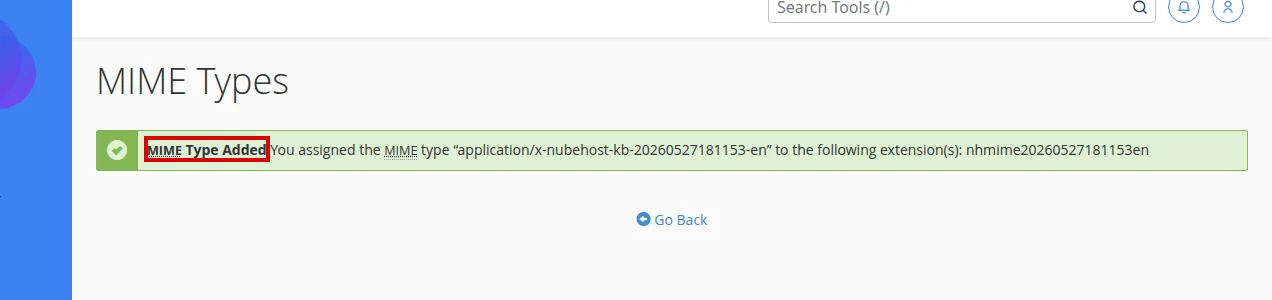
Confirm that cPanel shows the MIME Type Added message and lists the associated extension.
Test the affected file
- Upload or identify a real file with that extension on your site, for example
test.json. - Open it from an incognito window to avoid browser cache.
- If you use browser developer tools, check that the
Content-Typeheader matches the MIME type you configured. - If you do not use technical tools, at least verify that the file now displays, downloads, or loads as your application expects.
When to remove it or ask for help
- If the site starts showing unexpected downloads, remove the MIME type you just added and test again.
- If the file still appears with another
Content-Type, clear cache and confirm that you tested the correct domain. - If an application changes the header on its own, adjust the application or ask your developer.
- If the MIME type seems to depend on global server configuration, contact support with the file URL and the expected type.
Verify result
- The extension appears in cPanel’s custom MIME types list.
- The test file loads from the correct URL.
- The browser or your application handles the file as expected.
- No new errors appear for other extensions on the site.
Common errors
- The file still downloads: clear cache, test in incognito, and confirm that the MIME type is written completely.
- The extension is not saved: check whether cPanel expects the extension with or without a dot and remove spaces before saving.
- Another file changes behavior: remove the custom association and confirm with your developer which extension needed to be changed.
Recommended reading
Still need help?
If this guide didn’t solve your issue, our team can help you via ticket.