How to add a TXT record in cPanel Zone Editor
A TXT record lets you store text information in your domain’s DNS zone. On shared hosting it’s most often used to prove that you own the domain and to keep email delivering well with SPF, DKIM, and DMARC.
In this guide you’ll add a TXT record from cPanel Zone Editor, step by step and without touching anything on the server.
Before you start
- Confirm what you need the TXT for: verify domain ownership, validate a third-party service, or set up SPF, DKIM, or DMARC.
- Check where your DNS is authoritative. If your domain points to your hosting nameservers, edit here in cPanel; if it uses other nameservers (for example Cloudflare), make the change in that panel.
- Have the exact value your provider or service gave you ready, without changing quotes, spaces, or capitalization.
- Identify the name (host) the record asks for: sometimes it’s @ for the root domain and sometimes a subdomain like _dmarc.
Add the TXT record
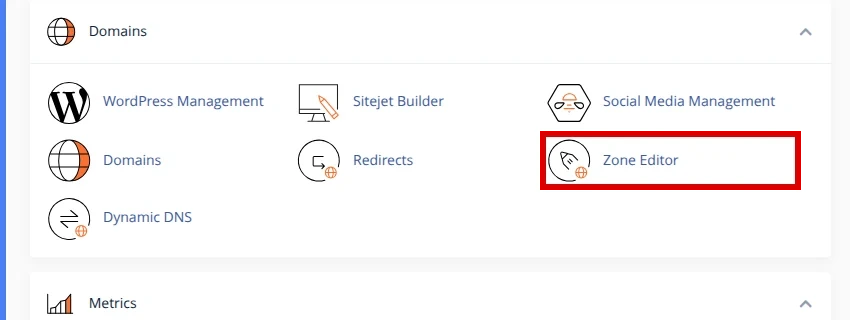
- Log in to cPanel and open Zone Editor, under the Domains section.
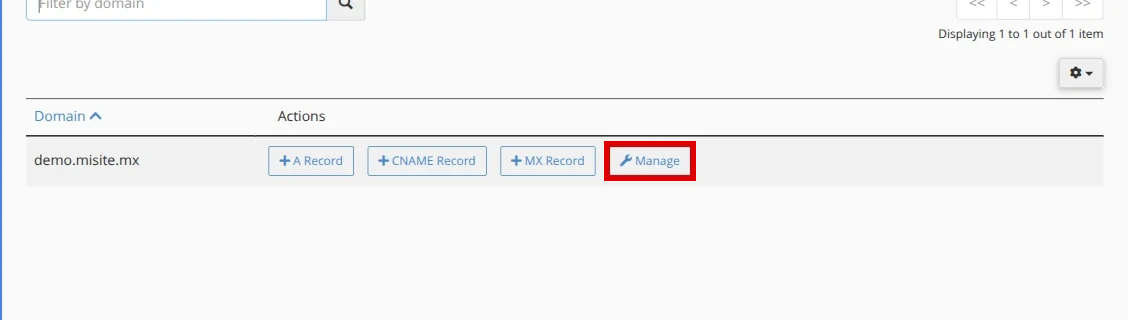
- Find the correct domain in the list and click Manage.
- Click Add Record and choose TXT under Type.
- In Name, enter the host you were given (for example @ for the domain or _dmarc for DMARC).
- In TTL, leave the default value shown by cPanel unless you’re asked for another.
- In Record, paste the exact TXT content, exactly as it was given to you.
- Save with Save Record.
Verify
- In the same Zone Editor, confirm the new TXT record appears in the list with the correct name and value.
- Wait for DNS propagation, which usually takes from a few minutes up to 24-48 hours.
- Run a DNS lookup (for example with an online TXT lookup tool) to see the published value.
- Go back to the service or provider and use its verification button to confirm it detects the record.
Common errors
- Creating a second SPF record. Only one SPF record should exist per domain; if you already have one, edit it instead of adding another.
- Pasting the value with extra quotes, leading spaces, or line breaks. Copy the value clean and exact.
- Using the wrong name, for example @ when the service asks for _dmarc or a specific host.
- Editing in cPanel when your DNS is authoritative at another provider; the change won’t take effect there.
- Verifying too soon, before DNS has propagated.
Recommended reading
Still need help?
If this guide didn’t solve your issue, our team can help you via ticket.