How to adjust max_execution_time in cPanel MultiPHP INI Editor
max_execution_time defines how many seconds a PHP process can run before the server stops it. On shared hosting, adjusting it from MultiPHP INI Editor can help when a CMS import, update, backup, or admin task stops because it runs too long.
Use it as a specific, gradual adjustment. If the process needs much more time than your plan allows, it is better to optimize the task or ask for help before raising values at random.
Before you start
- Have cPanel access for the account where the affected domain is hosted.
- Write down the action that fails and the exact message, for example
Maximum execution time exceeded. - Confirm the correct domain if you manage several sites in the same account.
- Avoid changing account-wide values if only one site is failing.
Adjust the execution time
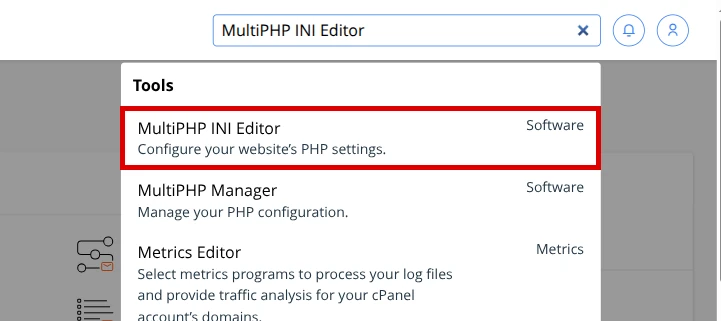
- Log in to cPanel and open MultiPHP INI Editor.
- In Basic Mode, select the affected domain from the location menu (
-- Select a location --). - Find
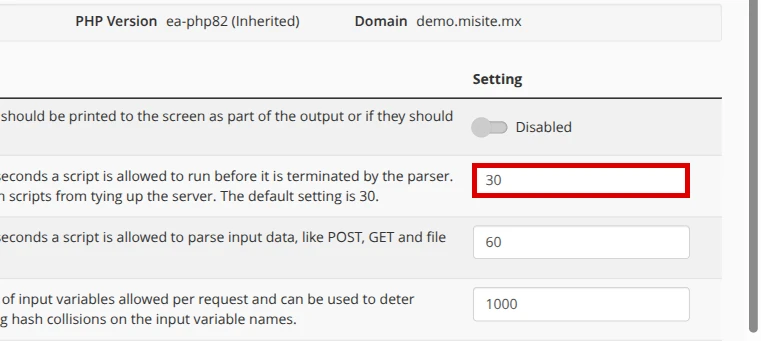
max_execution_time. If it does not appear in basic mode, review Editor Mode only if you know which domain you are editing. - Change the value gradually, for example from
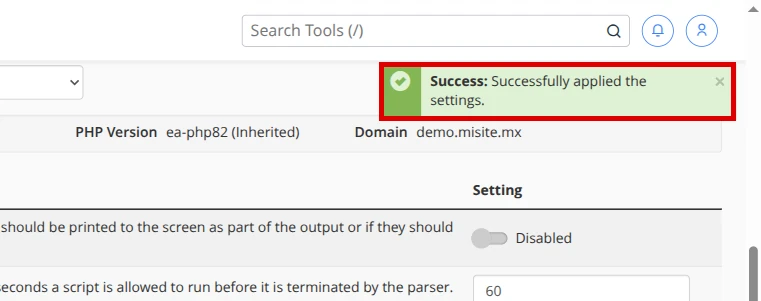
30to60or90seconds, depending on what your plan allows. - Save with Apply and wait for the confirmation Success: Successfully applied the settings.
- Repeat the action that failed without modifying other parameters at the same time.
These screenshots show where to find the tool, which field to edit, and what the confirmation looks like:
Verify the change
max_execution_timeshows the new value for the correct domain.- The action that failed goes further or finishes without showing the timeout error.
- Errors or your CMS log no longer repeats the same message when you test again.
- The site keeps loading normally after the test.
Common errors
- The error stays the same → another domain or location was edited → return to MultiPHP INI Editor and confirm the selector.
- The value saves, but does not go past the limit → the plan has a maximum allowed value → use a moderate value and contact support if you need more time.
- The import stops again → the file or process is too heavy → split the import, optimize the plugin, or use a method recommended by support.
- The site becomes slow during the test → the process consumes resources for longer → review Resource Usage before repeating it many times.
When to ask for help
Open a ticket if the limit does not change even after saving correctly, if the process needs very high times, or if the error appears together with CPU, memory, or I/O usage. Include the domain, approximate time, configured value, and full message so support can review the case without guessing.
Recommended reading
Still need help?
If this guide didn’t solve your issue, our team can help you via ticket.