How to adjust memory_limit in cPanel MultiPHP INI Editor
If your site shows memory exhausted errors, you can adjust memory_limit per domain from cPanel without changing server-level settings.
Before you start
- Confirm which domain is affected by the error.
- Identify the current
memory_limitvalue. - Pick an initial target value, for example
256M.
Steps
Sign in to cPanel and open MultiPHP INI Editor.
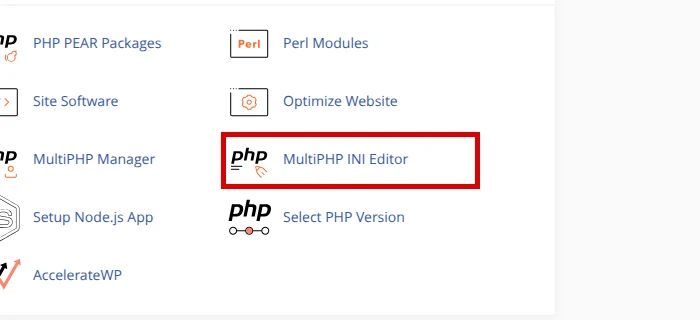
In Basic Mode, open – Select a location – and choose the domain where the error appears. Avoid Home Directory unless you want to apply the change to the account-level PHP configuration.
In the PHP Directive / Information / Setting table, find
memory_limitand enter the required value, for example256Mor512M.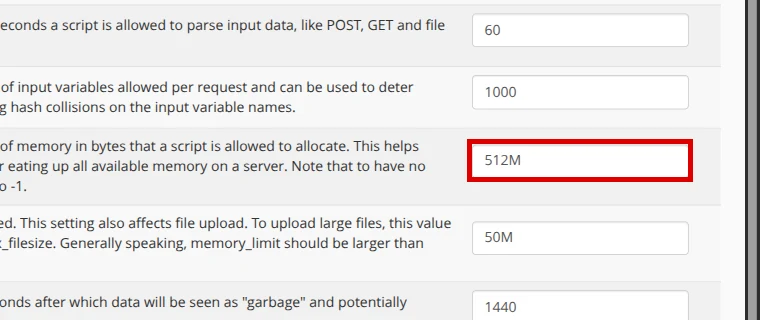
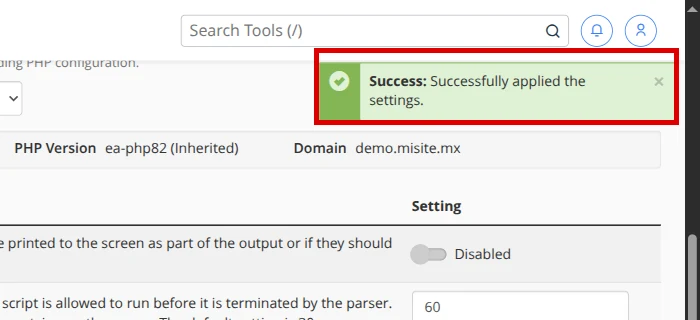
Click Apply.
Confirm that cPanel shows Successfully applied the settings.
Final verification
memory_limitshows the new saved value for that domain.- The action that failed no longer shows a memory exhausted error.
- The site stays stable after the adjustment.
Common errors
- The change does not apply → a different domain was edited → return to the editor and verify the selected domain.
- The same error still appears → the value is still too low for that process → increase it gradually and test again.
- The site becomes unstable after a high value → the setting is too aggressive for your plan → return to a moderate value and review plugins.
Recommended reading
Still need help?
If this guide didn’t solve your issue, our team can help you via ticket.