How to allow an IP address in cPanel Remote Database Access
By default, MySQL on shared hosting only accepts connections from the same server. If you need to connect from your computer, an external app, or a migration tool, you first need to register your public IP in cPanel’s Remote Database Access feature.
When you need Remote Database Access
- You want to use a desktop client such as MySQL Workbench, TablePlus, or HeidiSQL.
- An external application or script needs to read or write to your database.
- You are migrating data and connecting from another machine.
If your website connects to the database on the same server, you do not need this step: the connection already works by default using localhost as the host.
Important: if your hosting provider has the MySQL port (3306) blocked at the server level on your plan, adding an access host in cPanel alone will not be enough. Contact support to check this.
Before you start
- Have your cPanel login ready.
- Know your current public IP (look it up on a site like
whatismyip.comor in your network settings). - Have your database credentials: database name, MySQL username, and password.
- Make sure the MySQL user has permissions on the database you want to query.
Steps
Log in to cPanel with your hosting account.
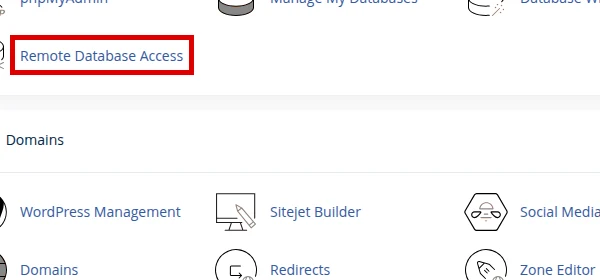
In the search bar or under Databases, click Remote Database Access.
In the Host (% wildcard is allowed) field, enter your public IP (for example:
201.130.45.22).- Use your exact IP whenever possible.
- The
%wildcard allows any IP and is not recommended unless support specifically asks you to use it.
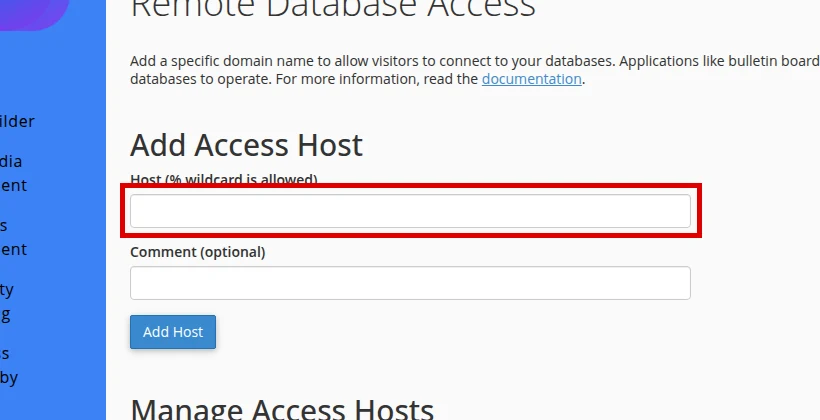
Click Add Host.
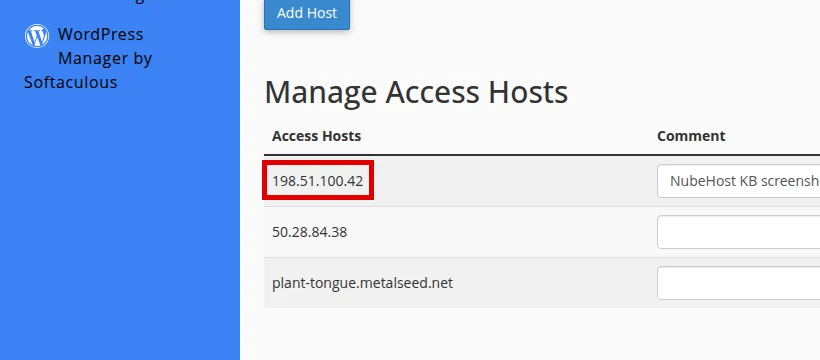
Confirm that your IP appears in the Manage Access Hosts table.
Verification from the external client
- Open your MySQL client (Workbench, HeidiSQL, TablePlus, etc.).
- Configure the connection with these details:
| Field | Value |
|---|---|
| Host | your hosting server name (e.g. server.example.com) |
| Port | 3306 |
| User | your full MySQL username (e.g. myaccount_dbuser) |
| Password | the MySQL user password |
| Database | the full database name (e.g. myaccount_mywp) |
- Try to connect. If the connection succeeds, remote access is working.
- If it fails, check the Common errors section below.
Note: the MySQL username and database name always include your cPanel account prefix (for example
myaccount_). Find them under cPanel → MySQL Databases.
Remove a temporary IP
Once you no longer need remote access (for example, after finishing a migration), remove the IP to reduce your attack surface:
- Go back to Remote Database Access in cPanel.
- In the Manage Access Hosts table, click Remove next to the IP you want to delete.
- Confirm the removal.
Common errors
- Connection refused or timed out: the registered IP does not match your current public IP. Check your IP and add it again.
- Access denied for user: the credentials are wrong, or the MySQL user does not have permissions on that database.
- Port 3306 not responding: the host provider may have the port blocked at the firewall level. Contact support.
- Dynamic IP: if your ISP changes your IP frequently, you will need to update the access host each time it changes.
Recommended reading
Still need help?
If this guide didn’t solve your issue, our team can help you via ticket.