Change your PHP version in cPanel Select PHP Version
If your monthly report says your PHP is no longer supported, or that your Moodle needs a newer PHP, you can make the change yourself from cPanel in a couple of minutes. An unsupported version no longer gets security fixes, and new versions of WordPress, Moodle and their plugins stop working on it.
On NubeHost servers, the PHP version is changed in Select PHP Version, not in MultiPHP Manager.
Before you change it
- Check which version your application accepts. WordPress works well with PHP 8.3 or newer. Moodle 4.5 needs PHP 8.1 or newer; Moodle 5.0 and 5.1, PHP 8.2; Moodle 5.2, PHP 8.3.
- Have a recent backup. Plans make daily backups, so you usually already have one. If you’re changing it right after editing something important, download a backup first.
- Update old plugins and themes first. They’re the ones that usually fail on a newer PHP.
Change the version
Log in to cPanel and, in the Software section, open Select PHP Version. You can also type
phpin the search box.PHP Selector opens on the Account Global Settings tab. In PHP version, open the list (the current one says “(current)”) and pick the new one, for example 8.3. If cPanel asks you to confirm, accept.
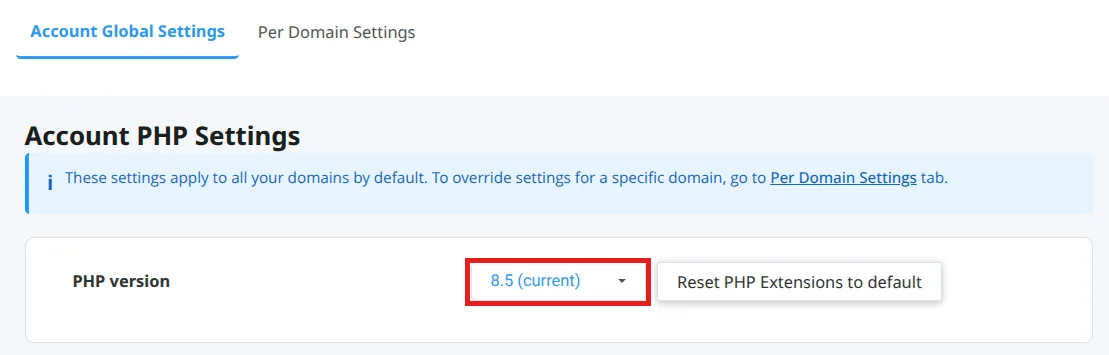
Scroll to the Extensions tab and check that the ones your site uses are still ticked. Each PHP version keeps its own list of extensions, so the new one may come with different ones. If your application asks for a missing one, tick it (which extensions each application needs).
Open your site and its admin panel, and test what you use most: a form, the cart, uploading a file.
This change applies to every domain in your account, except those with their own version (see below).
Check which version each domain uses
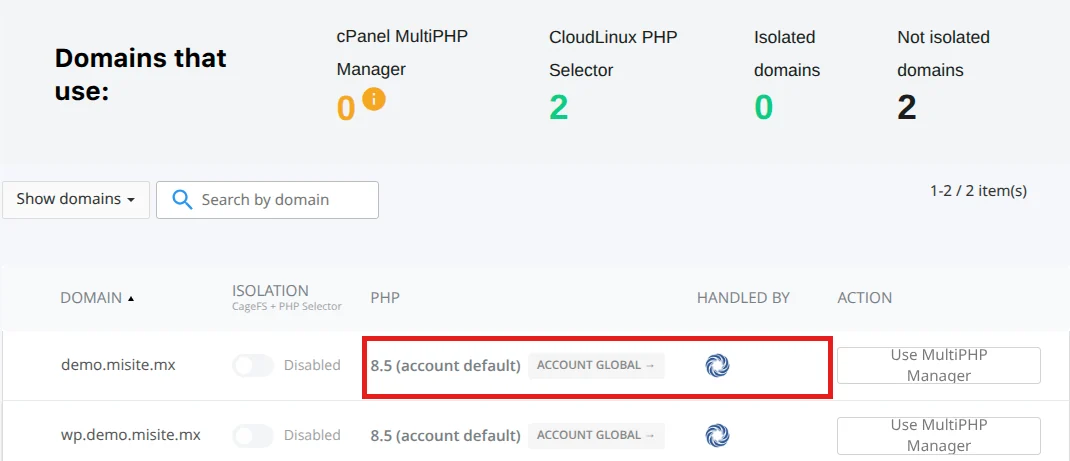
In PHP Selector, open the Per Domain Settings tab. The table shows, for each domain, the PHP version it uses and the Handled by column:
- If it says (account default), the domain uses the version you chose above.
- If a domain has a fixed version or is handled by cPanel MultiPHP Manager, it ignores the account version. Change it right there, or set that domain to inherit in MultiPHP Manager.
If something goes wrong
- Your site shows a 500 error or a blank page: go back to the previous version in PHP version. The site comes back instantly. Then find the incompatible plugin or theme in website errors in cPanel.
- Moodle says an extension is missing (
intl,sodium,zip, etc.): tick it in the Extensions tab. - A cron job keeps failing with the old version: its command has a fixed PHP path. See how to create and check cron jobs.
Would you rather we do it? Open a ticket and we’ll change the version, check the extensions and test your site. With Moodle hosting we keep PHP and extensions aligned with your Moodle version.
Recommended reading
Still need help?
If this guide didn’t solve your issue, our team can help you via ticket.