How to change PHP version with MultiPHP Manager in cPanel
When a plugin or theme breaks, changing the domain PHP version is usually the first safe adjustment to recover site stability.
Before you start
- Identify which domain is showing the issue.
- Keep a recent backup of files and database.
- Confirm the PHP version recommended by your CMS or plugin.
Steps
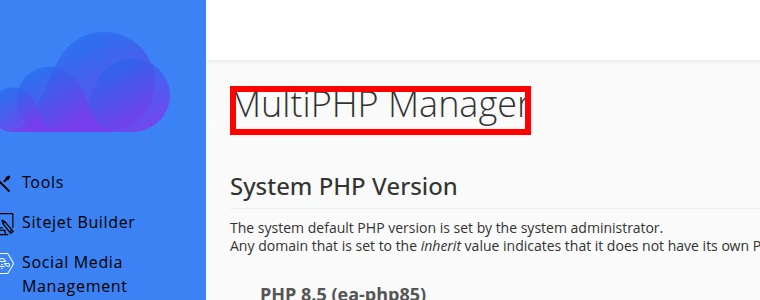
- Sign in to cPanel and open MultiPHP Manager.
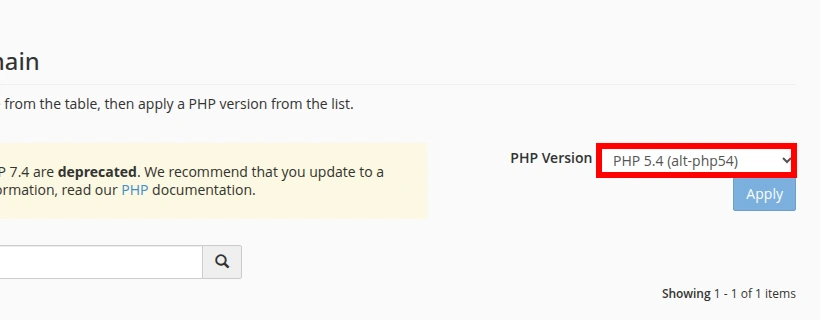
- In Set PHP Version per Domain, select the domain you want to adjust.
- In PHP Version, choose a compatible version. If you want to return to the server default, select inherit; cPanel shows it as Inherited in the table.
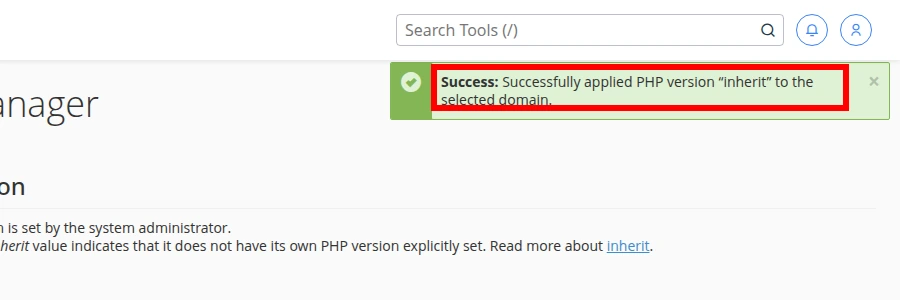
- Click Apply and wait for the success notice.
Reference screenshots
Final verification
- The domain shows the selected version in MultiPHP Manager.
- The site loads without Error 500 or blank pages.
- Your CMS admin area opens correctly.
Common errors
- The site still fails after the change → the change was applied to the wrong domain → return to MultiPHP Manager and verify the selected domain.
- A missing extension error appears → the selected version does not include what your app needs → try another compatible version.
- The site works but feels slow → the issue was not PHP version alone → review plugins, cache, and error logs.
Recommended reading
Still need help?
If this guide didn’t solve your issue, our team can help you via ticket.