How to check bandwidth usage in cPanel
cPanel Bandwidth helps you review how much transfer your hosting account uses and when usage increases the most. Use it when you receive monthly transfer warnings, notice traffic spikes, or want to confirm whether a domain, download, or resource is consuming more than usual.
Bandwidth usage can come from real visits, images, downloadable files, bots, external links to your files, or backups published inside the site. Reviewing it from cPanel gives you a first clue before opening a ticket or changing plans.
Before you start
- Have access to cPanel for the account you want to review.
- Identify the domain or subdomain that may have generated the usage.
- Have the period you want to validate ready: last 24 hours, week, current month, or previous months.
- If you received a limit warning, keep the date and percentage shown in the notice.
Open Bandwidth in cPanel
- Log in to cPanel.
- Find the Metrics section. If your panel is in Spanish, you may see it as Métricas.
- Open Bandwidth. In the Spanish interface it appears as Ancho de banda.
- Wait for cPanel to load the account transfer summary.
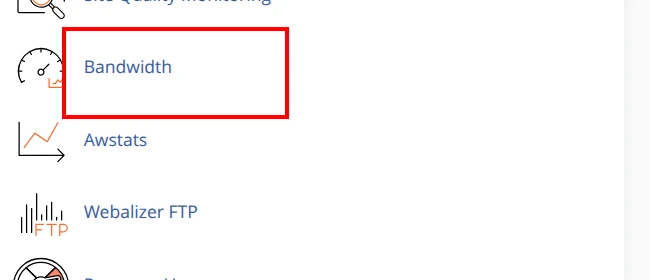
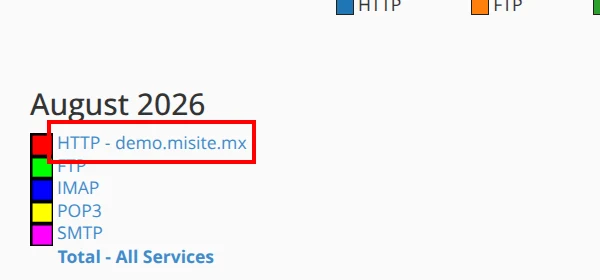
This screen shows transfer charts and month-by-month blocks. Inside each month you will see service links such as HTTP - your-domain, FTP, IMAP, POP3, SMTP, and Total - All Services.
Review the account summary
Start with the general view. Compare the accumulated monthly usage with your plan limit and check whether growth was gradual or if there is a strong jump within a few days.
In the current month block, locate the service or domain with the highest usage. To review web traffic details for the site, click HTTP - your-domain; to review all traffic for the month, use Total - All Services.
An isolated spike usually points to a download, bot, campaign, external link, or heavy file. Steady growth usually indicates real traffic, very large images, poorly configured cache, or content requested many times.
Compare periods
- In the main summary, compare the current month against the previous months cPanel keeps.
- Click HTTP - your-domain to open the daily web traffic detail for that domain.
- In the daily detail, select a day number if you need to review the hourly chart.
- Write down the domain, service, day, and month where the highest usage appears.
Comparing periods helps you avoid making decisions from a single data point. If usage already dropped, it may have been a temporary campaign or bot. If it keeps increasing over several days or months, review files, statistics, and link protection.
Identify domain and likely cause
When cPanel separates usage by domain or subdomain, review which one concentrates most of the transfer. Then compare that data with what happened on the site during those dates.
Frequent causes:
- Large images loaded many times on public pages.
.zip,.pdf, video, or installer files downloaded frompublic_html.- Bots or crawlers visiting many URLs in a short time.
- Hotlinking: other sites displaying images hosted in your account.
- Backups or private files saved in a public path.
If the domain with the highest usage is not the one you expected, review subdomains, additional domains, and folders inside File Manager.
Validate with AWStats or logs
Bandwidth tells you how much was consumed, but it does not always explain in detail who generated it. To complete the diagnosis, open AWStats from Metrics and review the same domain and month.
Look for days with many hits, repeated URLs, heavy files, unusual HTTP codes, or external referrers. If you have log access from cPanel, compare the spike hours with specific paths. You do not need server commands: AWStats and cPanel tools are usually enough to confirm the trend.
What to do if usage stays high
- Optimize images and heavy files before uploading them again.
- Move large downloads or videos to an external service if they are requested often.
- Enable Hotlink Protection if you detect other sites using your images directly.
- Review cache or security plugins if you use a CMS such as Joomla, Moodle, or another web application.
- Remove old backups that are inside a public folder.
- Contact support if the usage does not match your visits or if you need help reviewing a specific case.
Do not delete files randomly just to lower transfer. First confirm which domain, date, and resource generated the usage.
Final verification
- The Bandwidth tool opens for the correct account.
- The domain or subdomain with the highest usage is identified.
- You wrote down the period where the main spike appears.
- The data was compared with AWStats, public files, or real site activity.
- You defined a concrete action: optimize, protect hotlinks, move downloads, clean public files, or contact support.
Common errors
- Monthly usage increases even when visits look normal: there may be bots, hotlinking, or downloadable files; review AWStats and external referrers.
- You only review the monthly total: without a date and domain, finding the cause is difficult; compare day, week, and affected domain.
- You delete files without a backup: you can break the site; identify the path first and keep a copy if you will remove something important.
Recommended reading
Still need help?
If this guide didn’t solve your issue, our team can help you via ticket.