How to Check and Repair a MySQL Database in cPanel
When a site shows database errors, loads intermittently, or a CMS such as Joomla or Moodle cannot read information, Manage My Databases in cPanel gives you a safe first check. From there you can check and repair a specific database without using SSH or changing server settings.
Before repairing, identify which database the application uses and save a copy if you can still export it. Repair can help with damaged tables, but it does not replace a backup or fix incorrect credentials.
Before you start
- Confirm that you are in the cPanel account for the correct domain.
- Identify the affected database; check files such as
wp-config.php,configuration.php, orconfig.phpif you need to confirm the name. - If the site still lets you export data, create a backup before making changes.
- Avoid repairing several databases at random; work only with the database related to the site that is failing.
Check the database
On the main cPanel screen, the feature appears as Manage My Databases inside Databases.
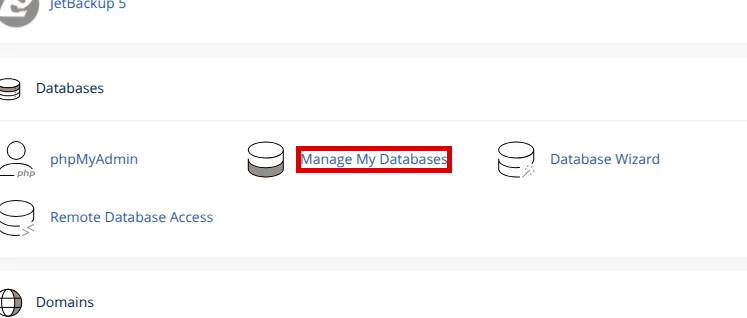
- Log in to cPanel and, in the Databases section, open Manage My Databases.
- In Modify Databases, find the Check Database block.
- In that block’s dropdown menu, choose the database you identified for your site.
- Click Check Database and wait for the result.
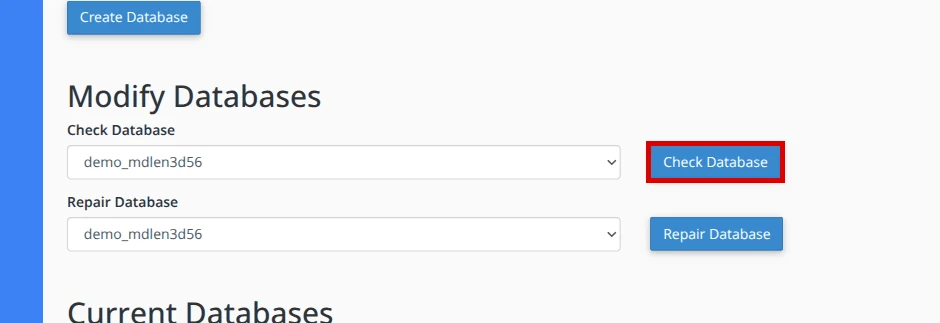
During the check, cPanel shows Checking Database and a list of tables with their status. If the tables appear as OK and there are no errors, the database is probably not damaged. In that case, review credentials, MySQL user privileges, or application errors before repairing.
Repair the database
- Go back to Modify Databases in Manage My Databases.
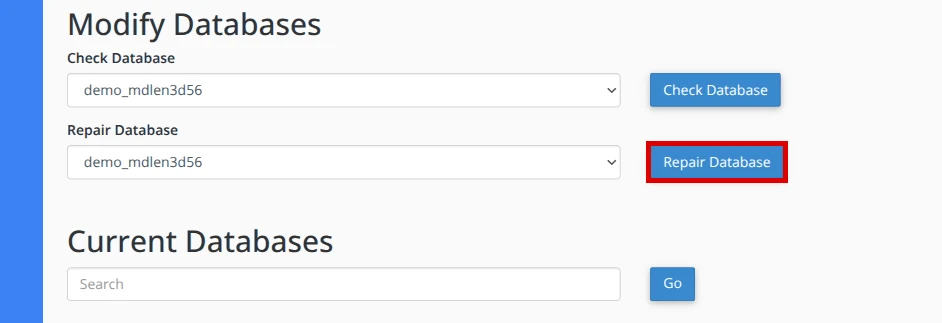
- In the Repair Database block, select the same database you just checked.
- Click Repair Database and wait until cPanel finishes the process.
- Read the final message before closing the screen. In the live test, cPanel showed Repair Complete!; if your account shows repaired tables or remaining errors, save that text for support.
Do not repeat the repair many times across different databases without knowing which one your site uses. If the problem returns right away, a plugin, theme, extension, or query may be damaging tables again.
Confirm the site responds again
- Open the site in a new tab and reload without cache if your browser allows it.
- Try to access the CMS admin area that was failing, such as Joomla or Moodle.
- If cPanel has a site errors section available for your account, check whether database messages stopped appearing.
- If you use application or plugin cache, clear only that cache after confirming the site loads again.
Common errors
- The site still shows “Error establishing a database connection” → the database was not the problem or the credentials do not match → review the database name, username, and password configured in the application.
- cPanel does not show the database in the selector → you are in another cPanel account or the application uses another database → confirm the domain and the site configuration file.
- The repair finishes with remaining errors → one or more tables could not be repaired from cPanel → copy the exact message and open a ticket before making more changes.
When to ask for help
Ask for help if the site keeps failing after checking and repairing the correct database, if the message mentions tables that cannot be repaired, or if you do not know which database belongs to your application. Include the domain, database name, cPanel message, and approximate time of the error so support can review faster.
Recommended reading
Still need help?
If this guide didn’t solve your issue, our team can help you via ticket.