How to check and fix SPF and DKIM in cPanel
If your emails land in spam or bounce, check SPF and DKIM first. They’re two DNS records that tell Gmail and Outlook the email really came from your domain. cPanel checks them for you and, if your DNS is on your hosting, repairs them in one click.
Check SPF and DKIM
Log in to cPanel and, in the Email section, open Email Deliverability.
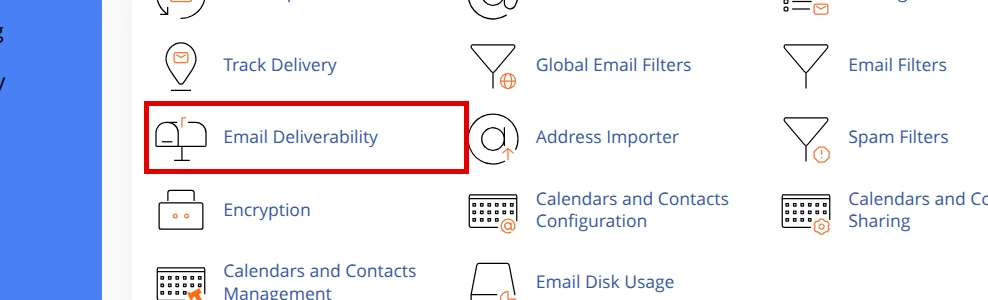
Find your domain in the Email Deliverability Status column. If it says Valid, there’s nothing to do.
If it says Problems Exist, click Manage to see the DKIM, SPF and DMARC details.

If your DNS is in cPanel: use Repair
In the domain list, click Repair next to the domain with problems. cPanel shows the records it’s about to write; confirm them. Within minutes the status changes to Valid.
Before repairing SPF, check whether you send mail from another service (Google Workspace, Microsoft 365, Mailchimp, your invoicing system). The value cPanel suggests only includes your hosting. If you accept it as is, those other services stop being authorized. In that case, use the suggested value as a base and add their include: as explained below.
If your DNS is outside cPanel
If your domain uses Cloudflare, your registrar or another DNS provider, Repair won’t help you: it changes the cPanel zone, which nobody looks at. Copy the Name and Value that Manage shows (each field has its own Copy button) and create them in the DNS panel your domain actually points to.
You have two SPF records: merge them into one
A domain can only have one TXT record that starts with v=spf1. With two, mail servers treat both as invalid and your mail loses validation. It happens a lot when an external service asks you to “add an SPF” and you add it as a new record.
To merge them, put the mechanisms together in one record, with a single v=spf1 at the start and a single ending. In the example, lines 1 and 2 merge into the last one:
1: v=spf1 +a +mx +ip4:203.0.113.10 ~all
2: v=spf1 include:_spf.google.com ~all
=  v=spf1 +a +mx +ip4:203.0.113.10 include:_spf.google.com ~all
If your DNS is in cPanel, click Customize in the SPF section of Manage to enter the merged value, or edit it in Zone Editor and delete the other record.
Your SPF ends in +all: change it today
The end of the SPF says what to do with servers that aren’t on the list:
| Ending | Meaning |
|---|---|
~all | Others are suspicious. This is the one we recommend. |
-all | Others are rejected. Stricter. |
+all | Any server in the world can send as your domain. |
With +all, anyone can send fake emails in your name and they pass validation. On top of that, Gmail and Outlook distrust domains that use it. Change +all to ~all.
How to confirm it worked
- Email Deliverability shows the domain as Valid.
- Send yourself an email at a Gmail account, open it, click the three dots → Show original and check that it says
SPF: PASSandDKIM: PASS.
If you still have problems
- It’s valid but your emails still go to spam: add a DMARC record too.
- After the change, an external service stopped sending: it’s missing its
include:. Ask that provider for the value and add it to the SPF. - You don’t know which services send as your domain: open a ticket and we’ll review your records with you.
Recommended reading
Still need help?
If this guide didn’t solve your issue, our team can help you via ticket.