How to clone a repository with Git™ Version Control in cPanel
With Git™ Version Control you can pull a project’s files from a Git repository straight into your cPanel account, without requesting server access. It is handy when you want to publish a site, a theme, or a template that lives in a public repository.
When to use Git™ Version Control
- When your site or theme code lives in a public Git repository.
- When you want a copy of the files inside your hosting without uploading them one by one.
- When you want to update the site by pulling new changes from the repository.
- If the repository is private, you usually need to set up an SSH key from the command line. If you do not see that option or lack that access, contact support.
Before you start
- Have your cPanel login ready.
- Get the repository’s Clone URL, for example:
https://github.com/user/project.git. - Decide on a safe Repository Path, such as
/home/user/repositories/projector a staging folder. - If you plan to clone into
public_html, back up first: cloning there can mix or replace files that already exist.
Clone the repository
Log in to cPanel using your hosting account.
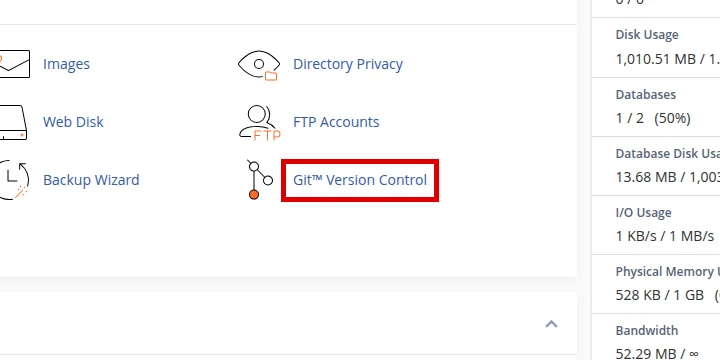
In the Files section, open Git™ Version Control.
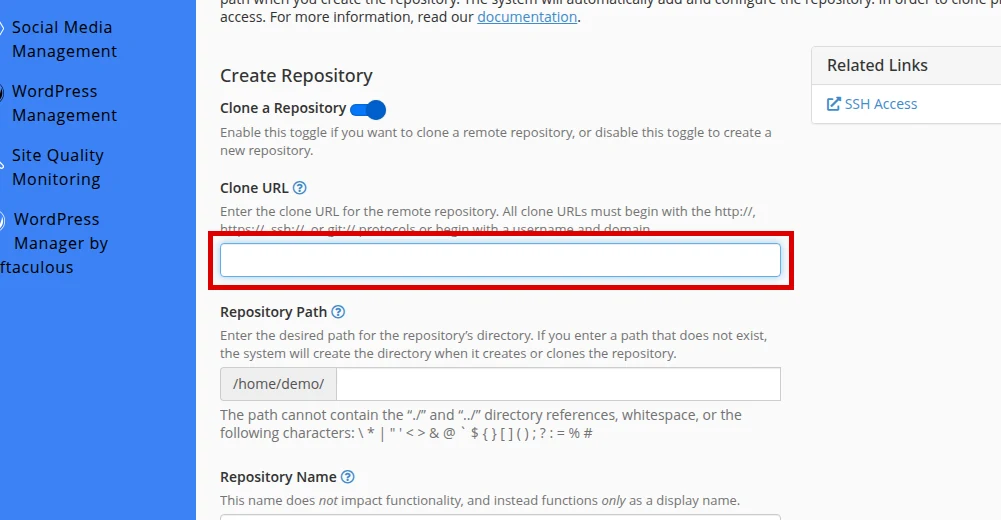
Click Create. On the Create Repository screen, confirm that Clone a Repository is enabled.
In Clone URL, paste the public repository address (for example:
https://github.com/user/project.git).In Repository Path, enter a safe path that does not overwrite a production folder. cPanel may suggest a path based on the repository name; replace it if you need a different folder.
In Repository Name, type a clear label to identify it.
Click Create. cPanel should show an information notice that it successfully initiated the clone process; large remote repositories can take longer.
Review the path and deployment
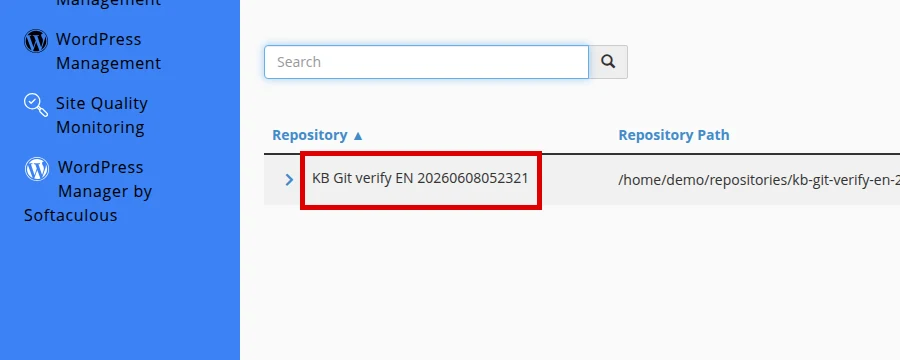
- When it finishes, use Manage in the repository list to review the configuration.
- In Basic Information, confirm the Repository Path, Checked-Out Branch, HEAD Commit, and Remote URL.
- If your plan includes deployment, open Pull or Deploy and review Update from Remote, Deploy HEAD Commit, and Last Deployment Information.
- Use Return to Repository List to go back to the main list.
Final verification
- The repository appears in the Git™ Version Control list.
- The Repository Path is the one you chose and did not overwrite a production folder.
- The project files are present in that path (you can review them in File Manager).
- The Last Deployment Information shows the expected commit.
- If you cloned into a folder visible on the site, the page loads without errors.
Common errors
- Cloning into
public_htmlwithout a backup: it can mix or replace your current site. - Wrong URL: make sure the Clone URL ends in
.gitand points to a public repository. - Private repository without a key: without SSH setup you cannot clone; contact support.
- Path already in use: choose a different name or folder if the path already has content.
- Expecting automatic deployment: cloning brings the files, but advanced deployment may need extra steps or support help.
Recommended reading
Still need help?
If this guide didn’t solve your issue, our team can help you via ticket.