How to Clone WordPress with Softaculous in cPanel
Before updating plugins, switching themes, or making significant changes, creating a clone gives you a fully functional, independent copy where you can test everything without putting your live site at risk.
Before you start
- You have access to cPanel on your hosting account.
- The site is already installed through Softaculous on your account.
- You have a destination domain or subdomain ready for the clone (for example,
staging.yourdomain.com). If it doesn’t exist yet, create it first under Domains → Subdomains in cPanel. - You have enough free disk space for a second installation (check under Files → Disk Usage).
Steps to create the clone with Softaculous
- Log in to cPanel.
- Under the Software section, click Softaculous Apps Installer.
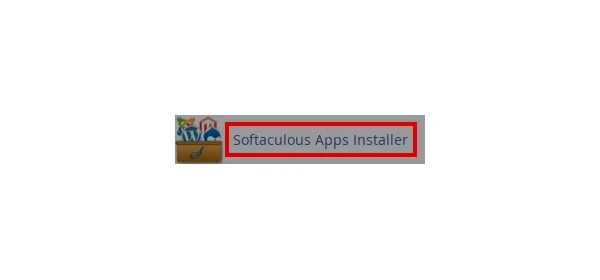
- In Softaculous, open All Installations to view the active installations in your account.
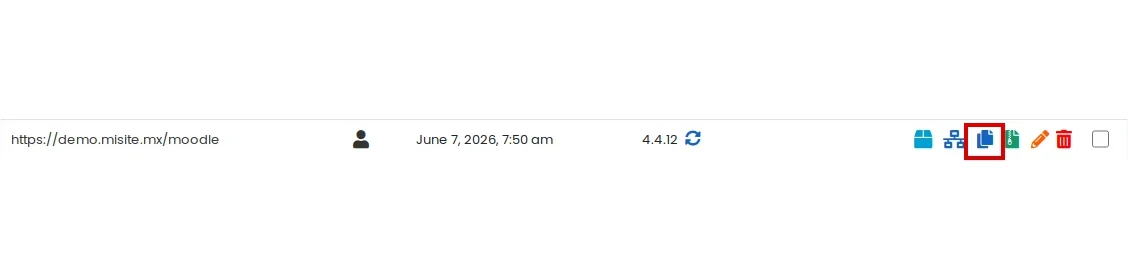
- Find the WordPress installation you want to clone and click the Clone icon — it appears as two overlapping squares.
- On the clone screen, fill in the following fields:
- Choose Protocol: choose
https://if the destination domain already has SSL. - Choose Domain: select the destination domain or subdomain (for example,
staging.yourdomain.com). - In Directory: leave blank to clone at the domain root, or type a folder name if preferred (for example,
test). - Database Name: Softaculous assigns a new name automatically; you can leave it as is or customize it.
- Choose Protocol: choose
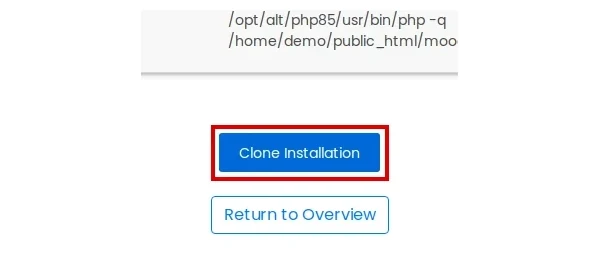
- Click Clone Installation to start the process.
- Wait for Softaculous to finish. When it’s done, a confirmation message appears with the cloned site’s URL.
Note: Softaculous copies both the site files and the database. The clone is completely independent from the original — changes you make to the copy do not affect your live site.
Final verification
- Open the cloned site’s URL in your browser and confirm the homepage loads.
- Log in to the clone’s admin dashboard (
/wp-admin) using the original site’s credentials to verify the database was copied correctly. - Check that the active plugins and theme match the original site.
- Visit the original site and confirm it’s still working without any changes.
- In the clone’s
wp-admin, go to Settings → General and verify that “WordPress Address (URL)” and “Site Address (URL)” point to the destination subdomain, not the original domain.
Common errors
The Clone icon is not visible Some older versions of Softaculous or certain hosting configurations restrict the clone option. Contact support to confirm whether the feature is available on your plan.
“Insufficient disk space” error The cloning process requires free disk space roughly equal to the size of your current installation. Free up space or remove unused installations before trying again.
The cloned site shows the original site’s URL
WordPress stores the site URL in the database. Softaculous usually updates it automatically during cloning; if it doesn’t, fix it from Settings → General in the clone’s wp-admin.
Broken images or files in the clone
This can happen if the site uses absolute URLs pointing to the original domain. Check Settings → General in the clone’s wp-admin and make sure both URL fields point to the correct subdomain.
Recommended reading
Still need help?
If this guide didn’t solve your issue, our team can help you via ticket.