How to compress and extract ZIP files in cPanel File Manager
Compressing and extracting ZIP files from cPanel File Manager lets you upload a full bundle of your site (for example a CMS, a theme, or a plugin) and unpack it in a single step, or create a ZIP of a folder to download it without FTP. The key is to always extract into the correct folder: if you unpack in the wrong place you can mix files or overwrite your live site.
Before you start
- Have your cPanel access ready (your hosting panel).
- Identify the target folder, normally
public_htmlor your domain’s document root. - Make a backup before replacing existing files so you can roll back if something goes wrong.
Steps
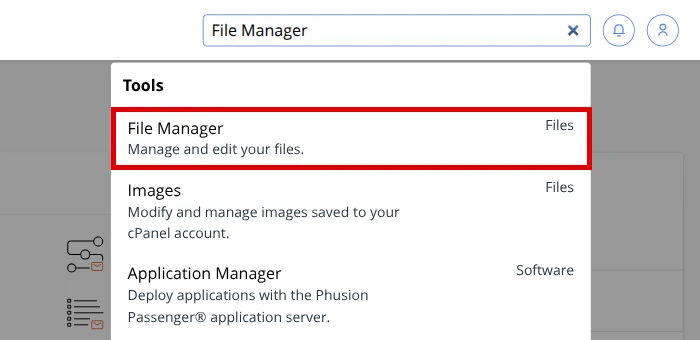
Log in to cPanel and open File Manager.
If you don’t see the right folder, open Settings (top right) and confirm you are starting from Web Root (public_html or www); turn on Show Hidden Files (dotfiles) if you need to see items like
.htaccess.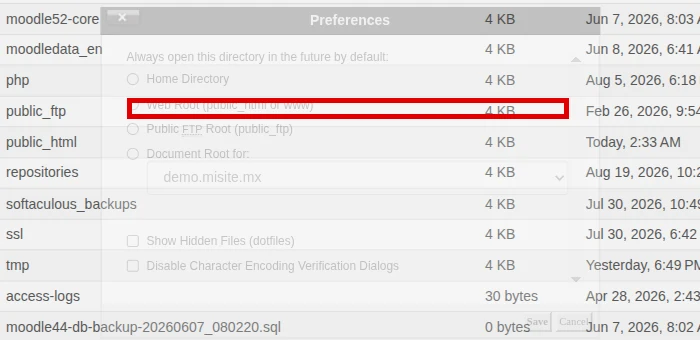
Browse to the target folder, for example
public_htmlor your domain root.To extract: use Upload to add your
.zipfile (or select one already in the folder), then select it and click Extract in the toolbar.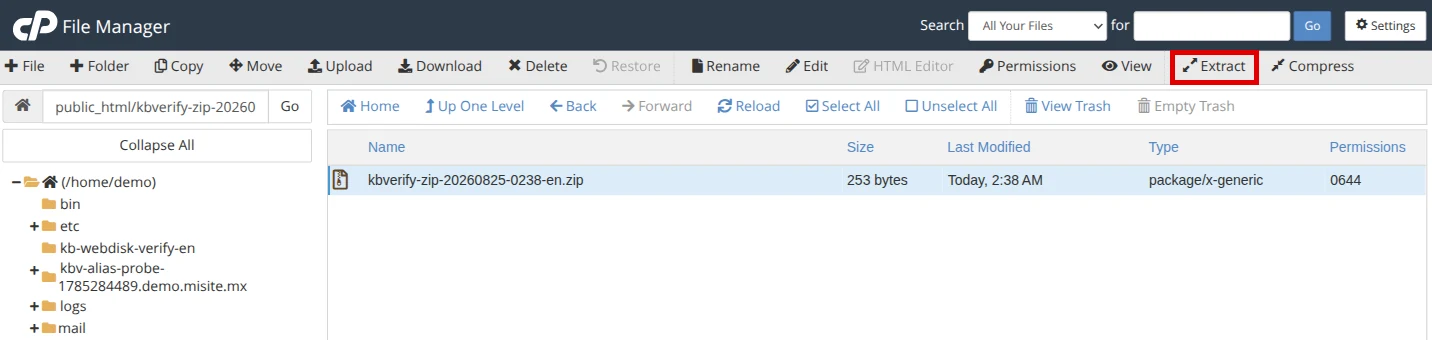
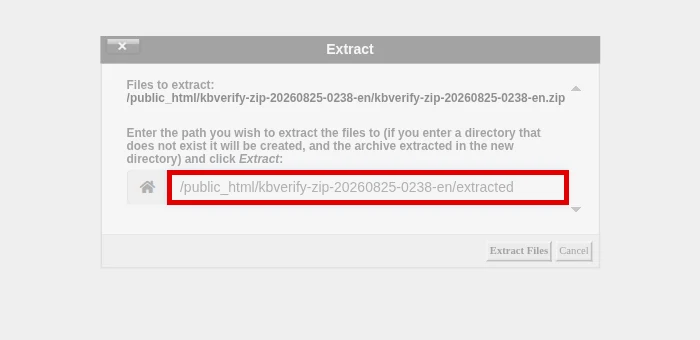
In the Extract window, confirm the destination path shown before you click Extract Files, so you don’t unpack into the wrong folder.
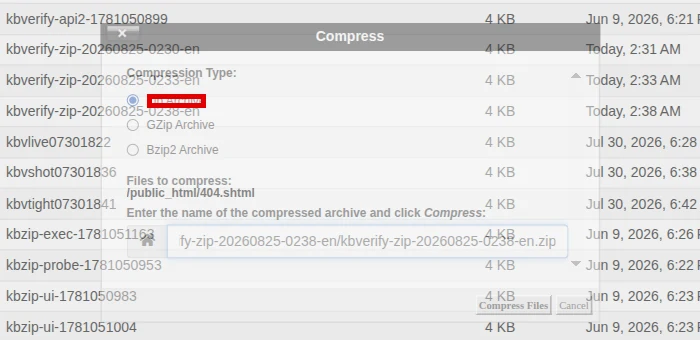
To compress: select the file or folder you want to bundle, click Compress, choose Zip Archive, and click Compress Files; you can then select the ZIP file and use Download.
Final verification
- The extracted files appear inside the correct target folder, not in an unexpected subfolder.
- The
.zipfile you created shows in the list with its size and you can download it. - Your site loads normally after extracting, with no duplicate files or broken paths.
Common errors
- Files extract into an extra subfolder → the ZIP already included its own root folder → move the contents up one level or extract again pointing to the correct folder.
- The extraction replaced your live site files → you extracted over
public_htmlwithout a backup → restore from your backup and extract into a test folder first. - The Extract or Compress button doesn’t appear → you don’t have a single item selected or the format isn’t supported → select the file or folder and use a standard Zip format.
Recommended reading
Still need help?
If this guide didn’t solve your issue, our team can help you via ticket.