How to configure the default email address in cPanel
When someone types saless@yourdomain.com instead of sales@yourdomain.com, that mailbox does not exist and the server has to decide what to do with the message. Default Address in cPanel makes that decision: you can discard the message and tell the sender the address does not exist, or send it to a real mailbox that collects everything unmatched. Many people call that second option a “catch-all”.
What the default address does
The rule applies only to addresses that do not exist on your domain. The mailboxes and forwarders you already created keep working exactly as before; this setting never touches them.
- Discard: the server rejects the message during the SMTP connection and the sender gets a notice that the address does not exist. Nothing is stored on your hosting account.
- Forward to Email Address: every message addressed to a nonexistent mailbox is delivered to the account you choose.
For most shared-hosting accounts, discarding is the healthier option. Forwarding everything to a real mailbox means you also receive the junk aimed at made-up names (info, admin, contact1, and hundreds of variants spammers try blindly). That mailbox fills up fast and eats into your account quota.
Before you start
- Have your cPanel sign-in details ready.
- Identify the exact domain you are configuring: if you have addon domains or subdomains, each one has its own default address.
- If you plan to forward, decide which mailbox will receive everything and confirm it exists and has free space.
- Write down a nonexistent address to use in the final test, for example
nonexistent-test@yourdomain.com.
Discard email sent to nonexistent addresses
- Sign in to cPanel and open the Email section.
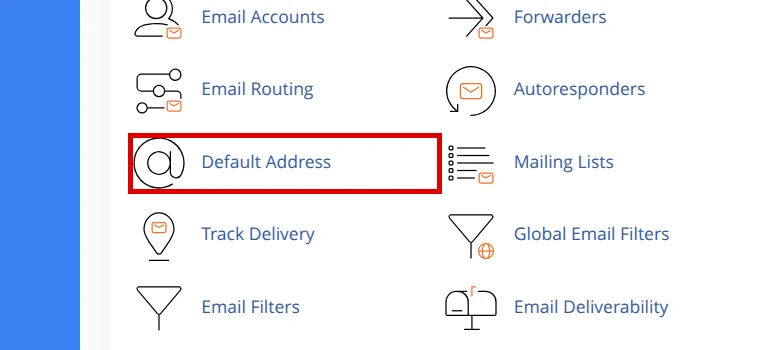
- Click Default Address.
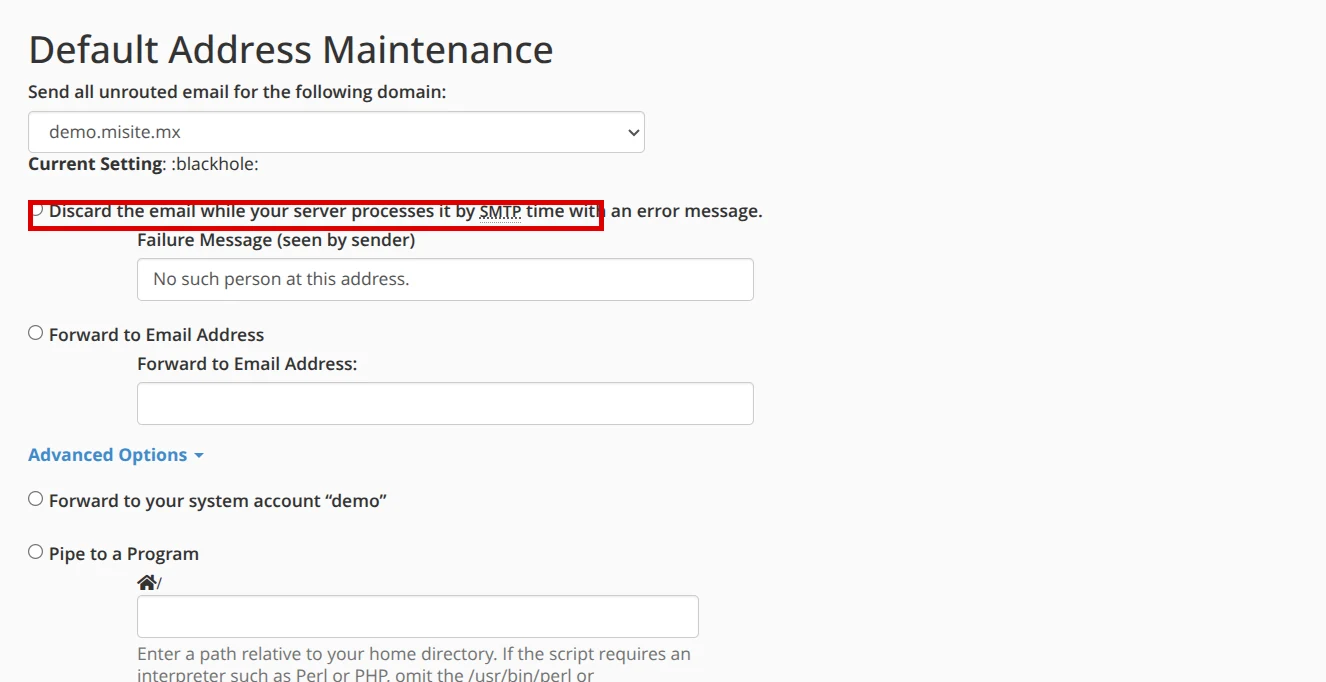
- In the domain list, pick the domain you are configuring.
- Select Discard the email while your server processes it by SMTP time with an error message. cPanel shows the Failure Message (seen by sender) field with a predefined rejection text; you can leave it as it is.
- Click Change and wait for the cPanel confirmation message.
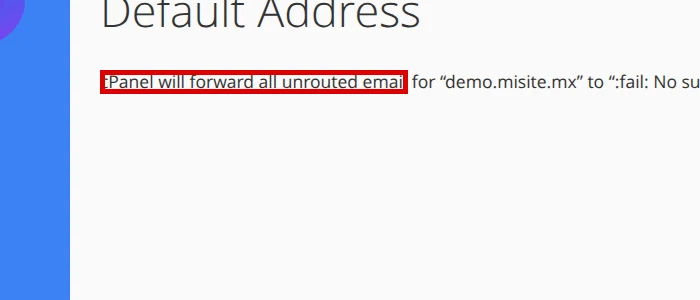
With this in place, anyone who mistypes your address gets an immediate notice and can correct it, instead of assuming the message went through.
When forwarding makes more sense than discarding
Forwarding is worth it in specific, time-boxed situations:
- You changed your internal naming convention (for example, from
name@toname.lastname@) and do not want to lose messages during the transition. - You hand out many different addresses in campaigns or forms and have not created the matching mailboxes yet.
- A mailbox was removed recently and you want to catch whatever still arrives for a few days.
To set it up:
- In Default Address, pick the domain.
- Select Forward to Email Address.
- Type the full address that will receive those messages, including the domain.
- Click Change and confirm the screen shows the new setting.
Important: treat forwarding as temporary. Once you know which legitimate addresses were landing there, create them as mailboxes or individual forwarders and set the default address back to Discard.
There is a side effect worth knowing: if you forward to an external mailbox (Gmail, Outlook, a coworker’s address at another company), that provider receives from your server all the spam aimed at nonexistent names. When the volume is high, it can flag your domain as a junk-mail source and hurt delivery of your legitimate messages.
About Advanced Options
Opening Advanced Options reveals choices such as Pipe to a Program and Discard (Not Recommended). Pipe to a Program hands messages to a script inside your account instead of a mailbox. Only use it if a developer gave you the exact script path and confirmed it is built to read mail from standard input. If you enter a path that does not exist or the script fails, messages are lost with no copy left in any mailbox. When in doubt, contact support before saving.
Test with a nonexistent address
- From an external account (Gmail, Outlook, or your personal address), send a message to the nonexistent address you wrote down.
- If you chose Discard, wait a few minutes: you should get a rejection notice in the account you sent from.
- If you set up forwarding, check the destination mailbox, including its spam folder.
- Send a message to a real mailbox on your domain too, to confirm it still receives normally.
Verification checklist
- The Default Address screen shows the correct domain and the option you saved.
- Mail to a nonexistent address behaves as expected: a rejection to the sender, or delivery to the destination mailbox.
- Real mailboxes on the domain keep receiving messages unchanged.
- If you forward, the destination mailbox has enough quota and is not near its limit.
- Every addon domain on the account has its own setting reviewed, not just the main domain.
Common errors
- You saved the change on the wrong domain: the domain list goes back to the first entry when the page reloads; open it again, select the correct domain, and save once more.
- The mailbox receiving the forward fills up within days: it is collecting spam aimed at made-up names; switch to Discard and create mailboxes or forwarders only for the addresses you actually use.
- A customer says they wrote and you never replied: the message went to a mistyped address and was discarded without a trace; check the exact address they used and, if it is a name you should have, create it as a mailbox.
- The rejection notice never arrives: some providers delay or filter those notifications; confirm from a different provider before assuming the setting failed.
- No mail reaches the domain at all, not even real mailboxes: the problem is general delivery, not the default address; review why am I not receiving emails.
Recommended reading
Still need help?
If this guide didn’t solve your issue, our team can help you via ticket.