How to configure Global Email Filters in cPanel
Global Email Filters in cPanel let you create rules that apply to every mailbox in your account at once, instead of setting up the same rule mailbox by mailbox. They are ideal when you want to apply a common policy across the whole domain, for example diverting certain messages to a folder or stopping unwanted mail before it reaches any mailbox. In this guide you will learn how to create a global filter, choose safe conditions and actions, test it, and know when to ask the support team for help.
Before you start
Before creating a global rule, keep the following in mind:
- Key difference: Global Email Filters affect all mailboxes in the cPanel account. In contrast, Email Filters (mailbox level) only affect the mailbox you select. If the rule is for a single person, use Email Filters; if it is for the whole domain, use Global Email Filters.
- Have access to your cPanel account.
- Define precisely which messages you want to affect so you do not catch legitimate mail by mistake.
- If you plan to use the Discard Message action, remember the mail is deleted with no copy kept: use it very carefully.
Create a global filter
- Log in to cPanel.
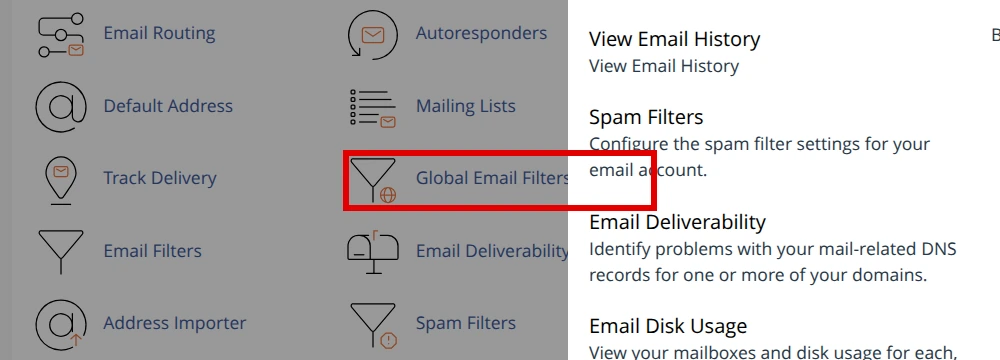
- In the Email section, open Global Email Filters.
- Click Create a New Filter.
- For Filter Name, type something descriptive, for example
Newsletters to folderorBlock sender X. A clear name will help you identify it later.
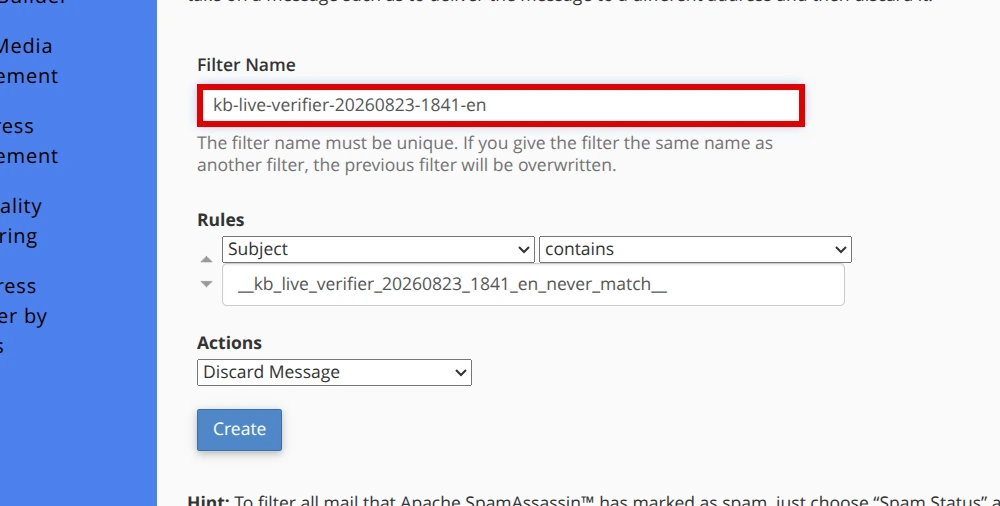
In Rules, choose the condition you need without making it too broad:
- From: to act based on the sender.
- Subject: to act based on words in the subject.
- To: to act based on the recipient.
- Spam Score: to act based on the message’s spam rating.
Use specific terms. A condition that is too generic (for example, a single common word in the subject) can catch legitimate mail.
In Actions, choose what to do with messages that match the rule:
- Deliver to Folder: the safest option, moves the mail to a folder instead of deleting it.
- Redirect to Email: forwards the message to another address.
- Discard Message: permanently deletes the mail. ⚠️ Use it only if you are completely sure, because no copy is kept.
- Stop Processing Rules: prevents later rules from applying to that message.
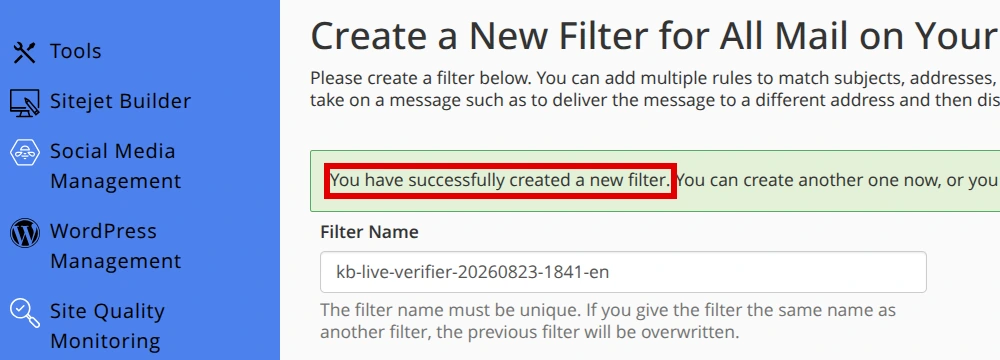
Click Create. cPanel should show You have successfully created a new filter.
Test and adjust the rule
After creating the filter, confirm it works as expected:
- Send a real test email that matches the condition you defined.
- Verify the message received the correct action (it arrived in the folder, it was redirected, and so on).
- Also check that legitimate mail still reaches the mailboxes normally.
- If the rule catches more mail than expected, edit it to make the condition more specific, or delete it and create it again with stricter criteria.
See How to configure email filters in cPanel if you prefer to apply the rule to a single mailbox only.
Final verification
- The filter appears listed under Global Email Filters with its descriptive name.
- The test email received the expected action.
- Legitimate mail still reaches every mailbox without issues.
- If you used Discard Message, you confirmed beforehand that no legitimate address matches the condition.
If you need to check what happens with a specific message, How to review email delivery with Track Delivery in cPanel will be useful.
Common errors
- Condition too broad: a rule with generic criteria can divert or discard legitimate mail. Use specific terms.
- Using Discard Message without testing: it deletes mail with no copy. It is better to start with Deliver to Folder and only discard once you are sure.
- Confusing global filters with mailbox filters: if you only wanted to affect one mailbox, use Email Filters at the mailbox level.
- Not testing the rule: always send a test email before trusting the filter.
- Rules that override each other: if you have several rules, order matters; use Stop Processing Rules wisely.
If your case involves regular expressions, email routing, or deliverability problems, contact the support team before making changes that could affect mail for the entire domain.
Recommended reading
Still need help?
If this guide didn’t solve your issue, our team can help you via ticket.