How to create a custom error page in cPanel
cPanel Error Pages let you show a clearer message when someone opens a URL that does not exist, does not have permission, or fails temporarily. This is useful after moving pages, changing links, or launching a new site on shared hosting.
The most common case is customizing the 404 error, but you can also review 403 and 500 if you need to guide visitors better. If your site uses a CMS such as Joomla or another application, confirm first whether the theme or plugin already handles those errors.
Before you start
- Have access to cPanel for the account where the domain is hosted.
- Decide which domain or subdomain will use the custom page.
- Prepare a short message with a link back to the home page or contact page.
- Avoid including internal paths, usernames, PHP versions, or technical server details.
Choose domain and error type
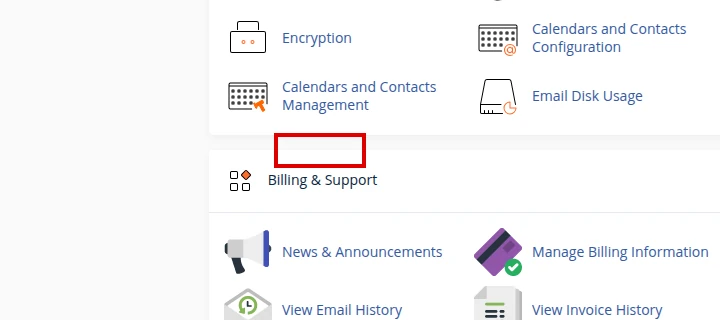
- Log in to cPanel and open Error Pages. If your panel is localized, the tool may appear as Páginas de error.
- Under Step 1 - Select Domain to Manage Error Pages, confirm that Managing shows the correct domain or subdomain.
- Under Step 2 - Edit Error Pages for:, keep Edit Common Error Codes active if you are editing a common error.
- Click 404 (Not found) if you want to customize the page shown when a URL does not exist.
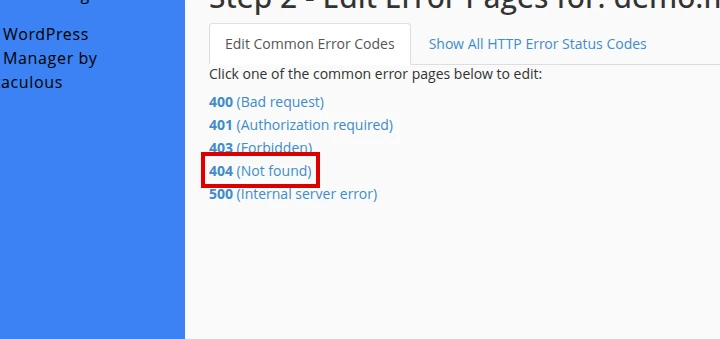
- Use 403 (Forbidden) only if you want to explain blocked access, such as protected folders or restricted permissions.
- Use 500 (Internal server error) carefully; if it appears often, it is better to fix the error cause first.
- Confirm that you are working on the correct domain before editing the content.
Write the page message
- On the 404.shtml (Not found) screen, write a short text that explains the problem in simple language, for example:
We could not find this page, but you can go back home. - Add a link to the home page or a contact page so the visitor is not stuck.
- If you need automatic data, use the buttons under Select Tags to Insert:, such as Requested URL, Referring URL, Visitor’s IP Address, Server Name, Visitor’s Browser, or Redirect Status Code. Use them only if you understand which data visitors will see.
- Do not publish sensitive information such as file paths, account names, internal emails, or complete technical messages.
- Keep the design lightweight; if you need a very visual page, create your own HTML file and link it from your site or CMS.
Save and test
- Click Save.
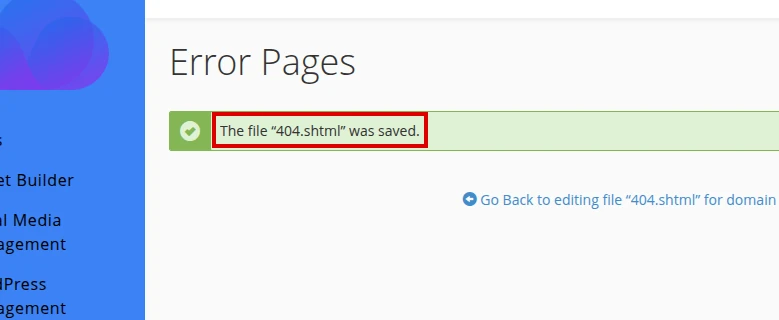
- Confirm that cPanel shows The file “404.shtml” was saved..
- Open an incognito window to avoid browser cache.
- Visit a made-up URL under the domain, for example
https://yourdomain.com/page-that-does-not-exist. - Check that your custom message appears and that the internal links work.
When to use the CMS instead of cPanel
- If your CMS already loads for missing URLs, the theme usually controls the 404 page.
- If you use a cache plugin, clear the cache after changing the page.
- If the error appears only on CMS posts or pages, check permalinks before changing cPanel.
- If the browser shows a CMS page instead of the cPanel page, adjust the design from the CMS.
Verify result
- The made-up URL shows your custom message.
- The link back to the home page or contact page opens correctly.
- The page does not reveal internal paths or sensitive technical information.
- The real site error did not change; only the message visitors see improved.
Common errors
- The generic browser page still appears: clear cache, test in incognito, and confirm that you edited the correct domain.
- The CMS shows another 404 page: edit the theme template or settings because the CMS is responding before cPanel.
- The 500 error continues after customizing the page: check the error cause in files, plugins, or
.htaccess; the custom page does not fix the failure.
Recommended reading
Still need help?
If this guide didn’t solve your issue, our team can help you via ticket.