How to create an FTP account in cPanel
When you hire someone to update your site, you don’t have to hand over your cPanel password: a separate FTP account lets that person see only the folder you assign, with no way into your email, your databases or the rest of your hosting. The same trick works for keeping a test project apart from the live site, or for letting an external system drop files into one specific folder.
Before you start
- Have your cPanel login details ready.
- Decide the exact path the account will land in:
public_htmlfor the main site,public_html/shopfor a project inside the site, or the subdomain’s folder. - Generate a long, unique password with your password manager. You’re going to share it with another person, so don’t reuse one you already use elsewhere.
- Check how much free space you have left, because whatever that account uploads counts against your plan’s disk: how to check disk usage in cPanel.
Create the FTP account
- Log in to cPanel and open FTP Accounts, in the Files section. If you can’t spot it, type
FTPin the search bar at the top. - In Log In, type the user name, for example
designer. cPanel completes the domain to the right of the field, so the full user name ends up asdesigner@yourdomain.com, and that’s how it has to be typed when connecting. If your account has more than one domain and cPanel shows Domain, pick the project’s domain or subdomain. - Paste the password into Password and repeat it in Password (Again). Watch the Strength meter before moving on.
- Fix the Directory. cPanel suggests a new folder named after this account; clear that text and type the real path, for example
public_htmlorpublic_html/shop. Anything outside that path is invisible to the account. - In Quota, type a limit in MB (for example
2000), or mark it unlimited only if you’re the one using the account and you already keep an eye on your plan’s space.
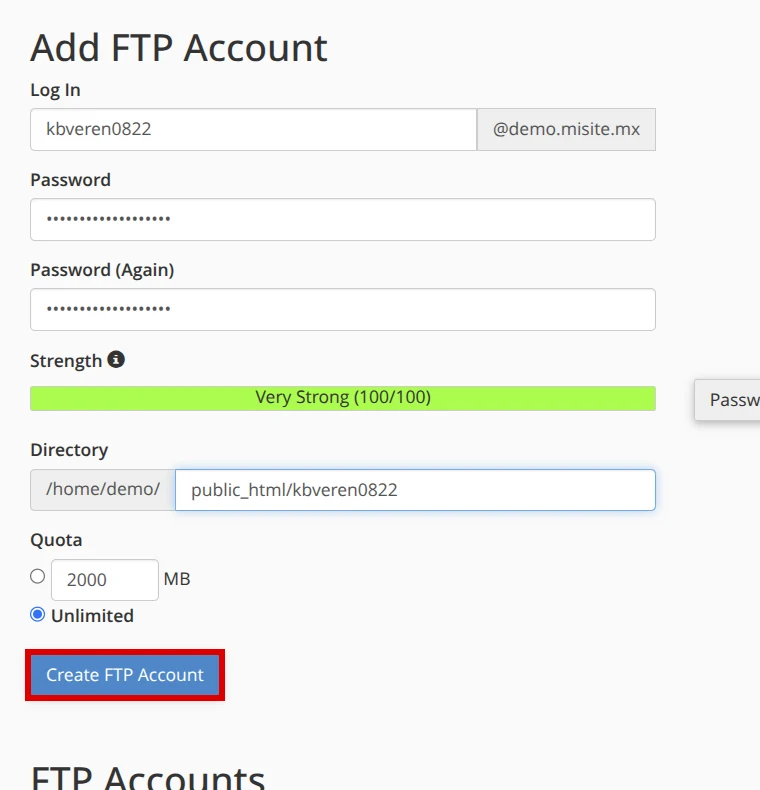
- Click Create FTP Account and wait for the account to show up in the FTP accounts table.
- On the new account’s row, open Configure FTP Client. Under Manual Settings, copy FTP Username, FTP server and FTP & explicit FTPS port for whoever will use the account.
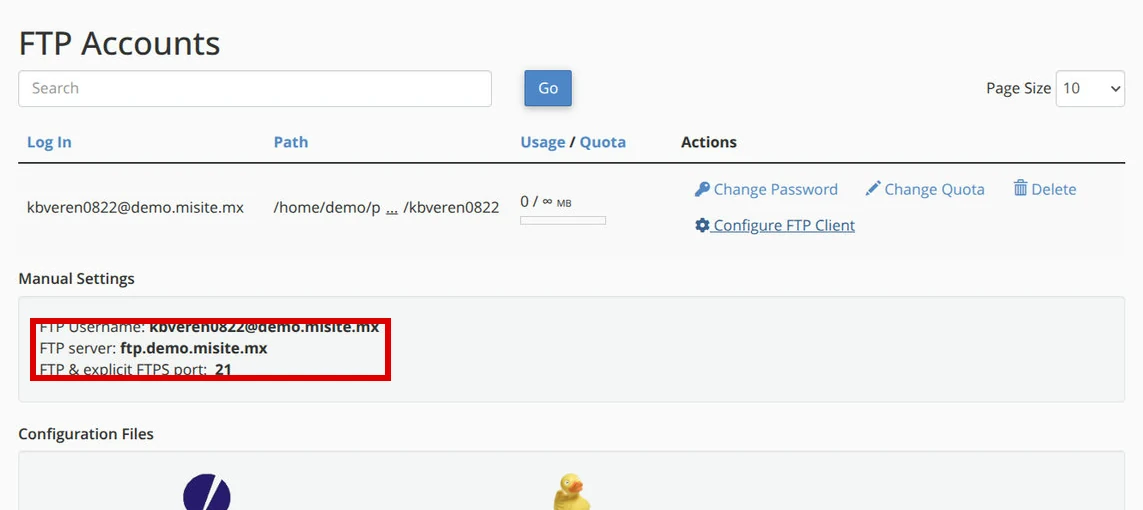
Note: if you leave Directory empty, the account lands in the root of your hosting account and sees folders such as
logs, plus every one of your domains. Always type the project path unless full access is genuinely what you want.
Test access in FileZilla
- Open FileZilla and in Host type your domain (
yourdomain.com) or the server name you saw in Configure FTP Client. - In User, type the full name with the domain included:
designer@yourdomain.com. The short name on its own won’t get in. - In Password, paste the one you assigned, and in Port type
21. - Connect and, if FileZilla shows a notice about the server certificate, review it and accept it to continue.
- Look at the server panel: it should show the contents of the folder you assigned and nothing above it. Upload a small test file and delete it to confirm the account can write too.
Adjust or delete the account later
- Go back to FTP Accounts and find the account in the table.
- To change the password — say, when your collaborator finishes the job — use Change Password on that row, type the new one and save.
- To raise or lower the space limit, use Change Quota on the same row and type the new value in MB.
- To cut off access, use Delete. cPanel asks whether to remove only the account or its directory’s files as well: pick the option that keeps the files, or your site goes with it.
Final verification
- The account shows in the FTP accounts table with the directory you set, not the folder cPanel suggested for it.
- Connecting with FileZilla shows only that folder, with no way to move up a level.
- A test file uploads and deletes with no permission errors.
- Your cPanel password is still yours: all you shared was the FTP user and its password.
Common errors
- You get
530 Login authentication failed→ you typed only the short name → connect with the full user nameuser@yourdomain.com. - The connection opens but the folder looks empty → the directory points at the new folder cPanel suggested → delete the account keeping files and create it again with the site’s real path.
- Your collaborator sees
mail,logsand every domain you host → you left Directory empty → recreate the account pointing at the project folder. - Uploads stop with a space warning → the account hit its Quota → raise the limit from its row in the table, or delete old files from that folder.
- FileZilla hangs on “Retrieving directory listing” → the transfer mode doesn’t work on that network → switch between passive and active mode in FileZilla’s settings and try again.
Recommended reading
Still need help?
If this guide didn’t solve your issue, our team can help you via ticket.