How to download a backup with Backup Wizard in cPanel
cPanel Backup Wizard helps you download a compressed copy of your full hosting account or specific parts of it, such as files, databases, and email rules.
Use it before editing important files, moving a site, saving a database, or keeping a local copy for safety.
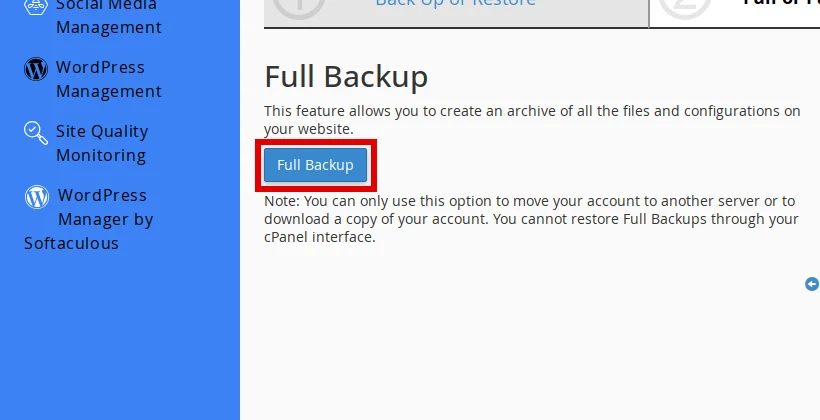
Keep in mind that a full backup is useful for storage or migration, but on shared hosting you usually cannot restore the full account directly from cPanel. If you need to recover the whole account, contact support to review the best option.
Before you start
- Confirm that you have enough space on your computer to save the downloaded file.
- Decide whether you need a full account copy or only a partial backup, such as files or databases.
- If you are downloading a database, identify the correct name before opening the wizard.
Choose the backup type
- Log in to cPanel and find the Files section.
- Open Backup Wizard.
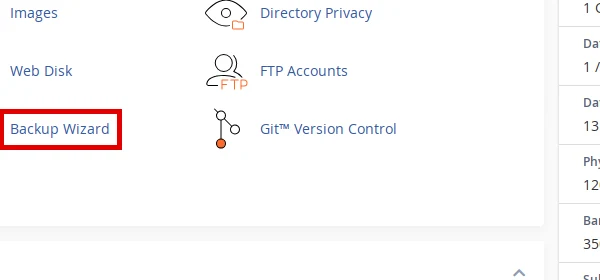
- Click Back Up to start the download flow.
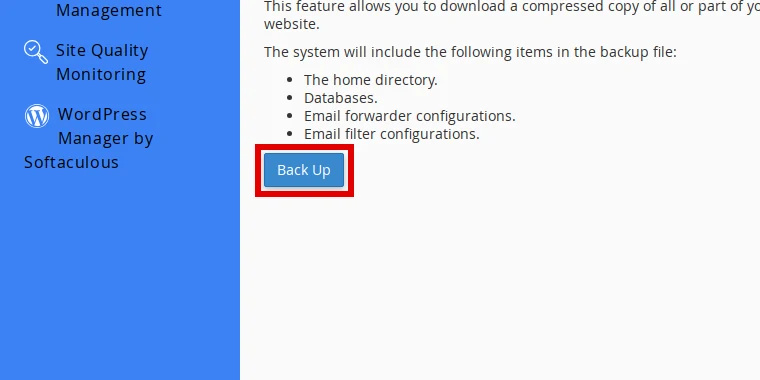
- On the Full or Partial Backup screen, decide whether you need a full backup or a partial download.
Download a full backup
- Click Full Backup if you want to generate a copy of the entire account.
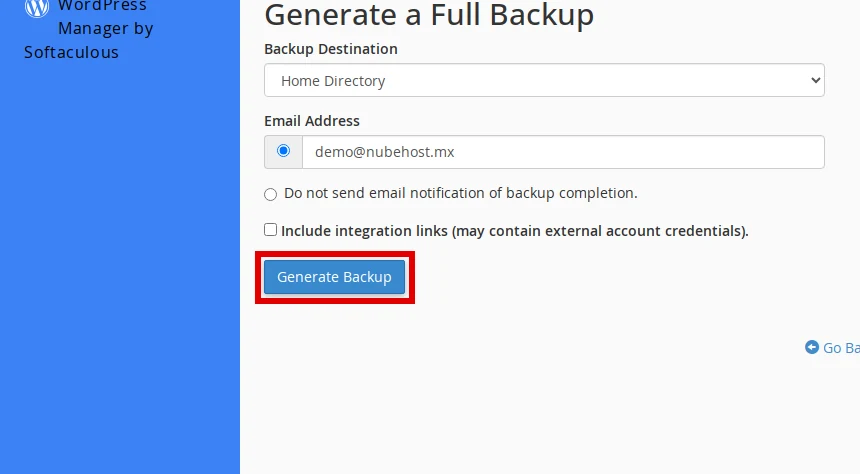
- Under Backup Destination, leave Home Directory selected so cPanel generates the file inside your account.
- Under Email Address, keep your email if you want to receive a notification when the process finishes. You can also choose Do not send email notification of backup completion.
- Click Generate Backup and wait while cPanel creates the file. Do not sign out if you are still checking the status.
- When the backup is available, return to this screen and download the file from Backups Available for Download.
Download partial backups
- Go back to Backup Wizard and enter Back Up again if you need a partial copy.
- Click Home Directory to download site files without including the full account package.
- Click Databases to download each database used by your CMS, online store, Moodle, or another app.
- Click Email Forwarders & Filters if your email setup depends on those rules.
Verify and store the files
- Confirm that the downloaded file has the expected extension, such as
.tar.gz,.sql.gz, or.gz. - Check that the file size is not
0 KBand that the download finished without interruptions. - Store the copy in a dated folder, for example
backups-2026-07-31. - Keep the backup outside your hosting account if you will use it as a real safety copy.
Common errors
- The full backup does not appear right away: cPanel is still generating it; wait for the notification email or check Backups Available for Download again in a few minutes.
- The file is
0 KBor will not open: the download was interrupted; delete that copy and download it again from cPanel. - You do not know which database to download: check your application configuration file or open Databases inside the wizard to find the correct name.
Recommended reading
Still need help?
If this guide didn’t solve your issue, our team can help you via ticket.