How to enable display_errors in cPanel MultiPHP INI Editor
When your site or CMS shows a blank page or a 500 error, the real PHP message stays hidden and you have nothing to start from. Turning on display_errors for a few minutes in the MultiPHP INI Editor shows the failing file and line on screen; once you copy the message, turn it off again, because those errors expose internal paths in your account and the name of the plugin or theme that’s failing.
Before you start
- Have your cPanel login ready.
- Identify the exact domain where the blank page or 500 error appears.
- Reproduce the error once and write down the URL and the action that triggers it (saving a form, opening the admin panel, loading a post).
- Test during a quiet traffic window: while
display_errorsisOn, any visitor can see those technical messages.
Enable display_errors temporarily
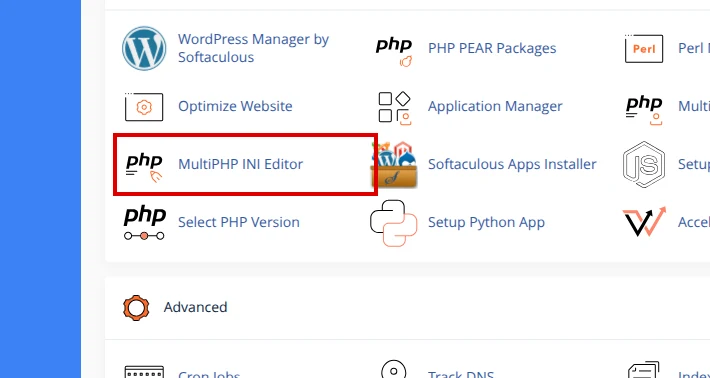
- Log in to cPanel. If you can’t spot the tool, type
MultiPHPin the search box at the top of the page. - Open the MultiPHP INI Editor and stay in Basic Mode.
- In – Select a location –, choose the domain where the error happens (don’t leave the main domain selected if the failure is on a subdomain or addon domain).
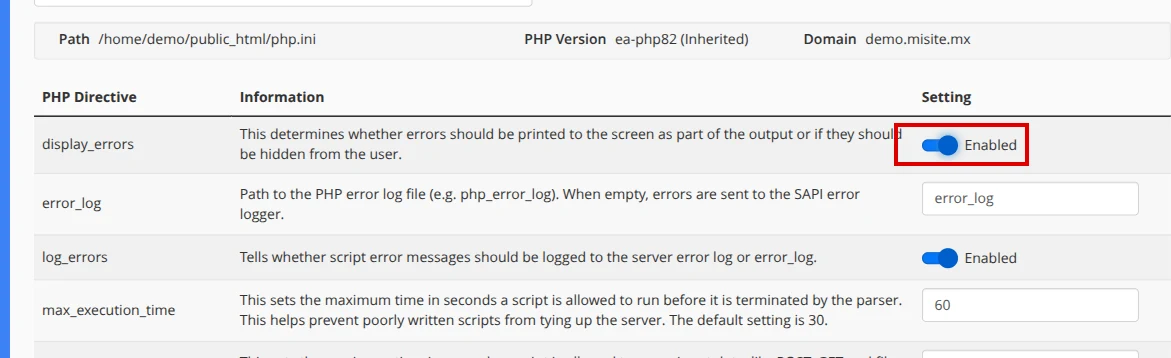
- Find the
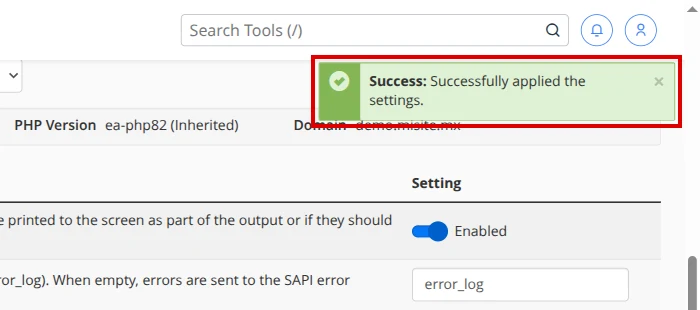
display_errorsdirective in the list and switch it until the toggle shows Enabled. - Click Apply and wait for Success: Successfully applied the settings. before leaving the screen.
Note: if
display_errorsisn’t listed in Basic Mode, switch to Editor Mode, add the linedisplay_errors = On, and save. Some label names change slightly between cPanel versions.
Verify the error and hide it again
- Open the same URL that showed the blank page or 500 error in your browser and repeat the action that triggers it.
- Copy the full text of the message: error type, file, line number, and the plugin or theme mentioned.
- Save that text in a file or note; you’ll need it to fix the problem or to open a ticket.
- Go back to the MultiPHP INI Editor, select the same domain, switch
display_errorsuntil it shows Disabled, and click Apply. - Reload your site and confirm no technical message shows up on screen anymore.
If no error appears
- Confirm you’re testing the domain you picked in step 3: the INI settings are per domain, and a subdomain doesn’t inherit the main domain’s change.
- Clear your browser cache or open the page in a private window; a cached copy of the blank page can hide the new message.
- Check the error log from cPanel: Errors shows the latest web server messages, and if you run a CMS, check its own log too.
- If there’s still no clue, open a ticket with support and include the domain, the exact URL, the action that triggers the failure, and roughly what time you reproduced it.
Common errors
- The page is still blank and no message shows → your CMS forces
display_errorstoOfffrom its own configuration → check the error log from cPanel instead of the screen. - The change has no effect → you saved the directive on a different domain → the INI file is per domain, go back to the location selector and confirm which one is chosen.
- Visitors see file paths and plugin names → you left
display_errorsenabled → turn it off as soon as you have the message copied. - The error mentions exhausted memory (
Allowed memory size ... exhausted) → the problem isn’t visibility but a PHP limit → adjustmemory_limitfrom the same editor.
Recommended reading
Still need help?
If this guide didn’t solve your issue, our team can help you via ticket.