How to change the password of an email account in cPanel
Changing an email account password is a common task when you need to improve security or when a user forgot their current password. In cPanel you can do this in a few steps without affecting other email settings.
Before you start
- You need access to cPanel for the hosting account.
- You must know the full email account name, for example
user@yourdomain.com. - Prepare a new, secure password.
- We recommend using uppercase letters, lowercase letters, numbers, and symbols.
Steps
1. Access cPanel
Log in to your cPanel account using your main username and password.
2. Open Email Accounts
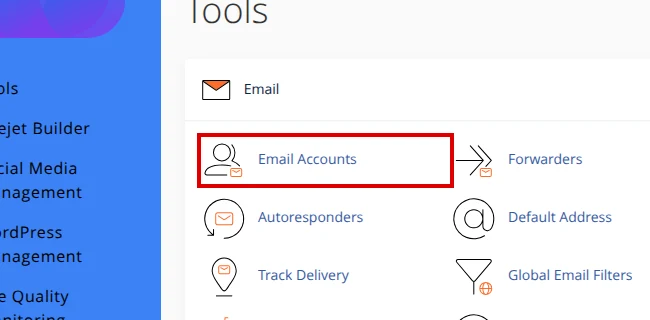
On the cPanel main page, locate the Email section and click Email Accounts.
3. Find the email account
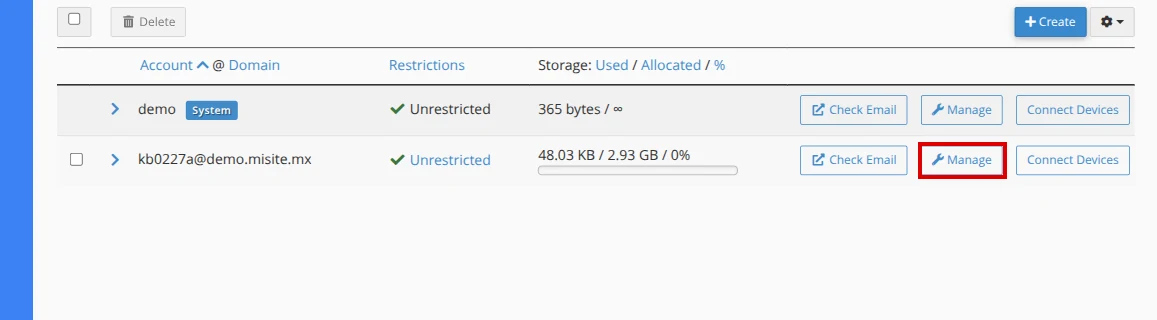
You’ll see a list of all email accounts for your domain. Look for the account you need to modify.
4. Click Manage
To the right of each email account, cPanel shows a Manage button. Click the button for the account you want to change.
5. Change the password
On the account management page:
- Look for the Security section.
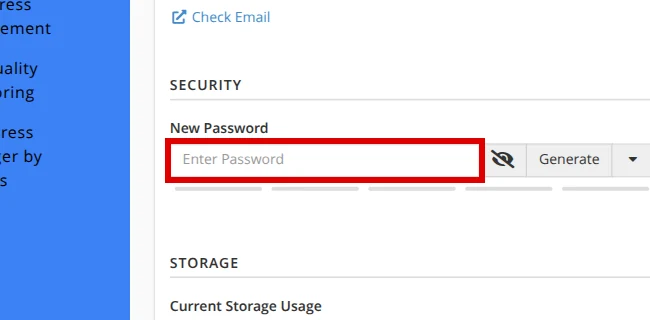
- Type the new password in the New Password field. cPanel will show whether the password strength meets the minimum requirement.
- If you prefer, use the Generate button to create a secure password automatically.
- Save the password in a safe place before continuing.
- Click Update Email Settings.
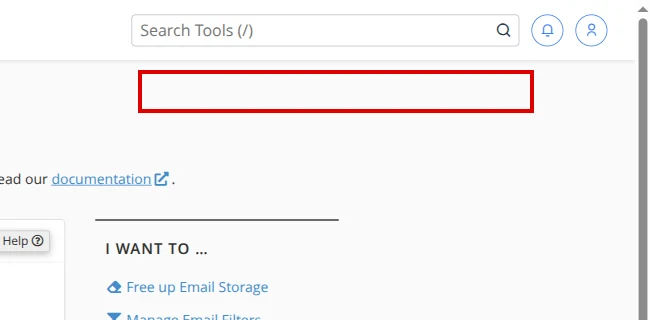
cPanel returns to the account list and shows a Success notice confirming that the changes were saved.
Final verification
To confirm the change worked correctly:
- Try accessing webmail with the new password.
- If you use an email client (Outlook, Thunderbird, etc.), update the password there too.
- Send a test email to verify everything works.
Common errors
Password does not meet requirements
The password doesn’t meet the minimum requirements. Make sure to:
- Use at least 8 characters.
- Include letters and numbers.
- Not use spaces at the beginning or end.
Can’t find Email Accounts
If you don’t see the Email Accounts option:
- Verify you’re in cPanel and not in your customer area.
- Check if your plan includes email accounts.
- Contact support if the problem persists.
Email client keeps asking for password
After changing the password in cPanel:
- Update the password in your email client.
- Check that you’re using the full address as username (
user@yourdomain.com). - Verify ports and SSL/TLS configuration.
Recommended reading
Still need help?
If this guide didn’t solve your issue, our team can help you via ticket.