How to check disk usage in cPanel and free up space safely
When you receive a quota-full warning or your site shows errors, the first step is to identify which folders and files are consuming your storage. cPanel includes the Disk Usage tool that shows you a visual breakdown and helps you decide what you can safely delete.
This guide explains how to check disk usage in cPanel, interpret the results, and free up space without breaking your website or deleting important email.
Check disk usage from the cPanel home page
- Log in to cPanel.
- If your theme shows a statistics panel, look for the Disk Usage indicator to see how much space you have used out of your total allocation.
- Use that value as a quick warning: it tells you if you are near the limit, but it does not show where the usage is coming from yet.
To find large folders or files, open the full tool.
Open the full Disk Usage tool
On the cPanel home page, locate the Files category.
Click Disk Usage.
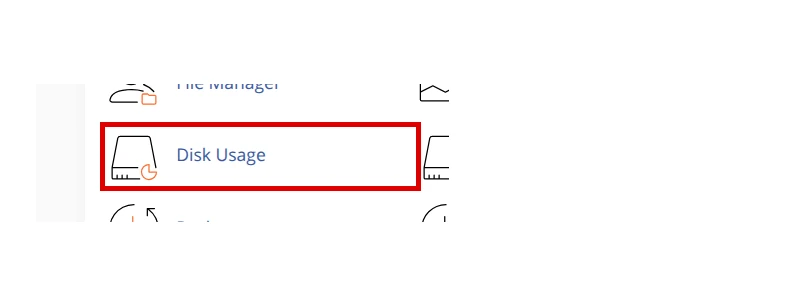
The Disk Usage page loads a summary by location and a directory table.
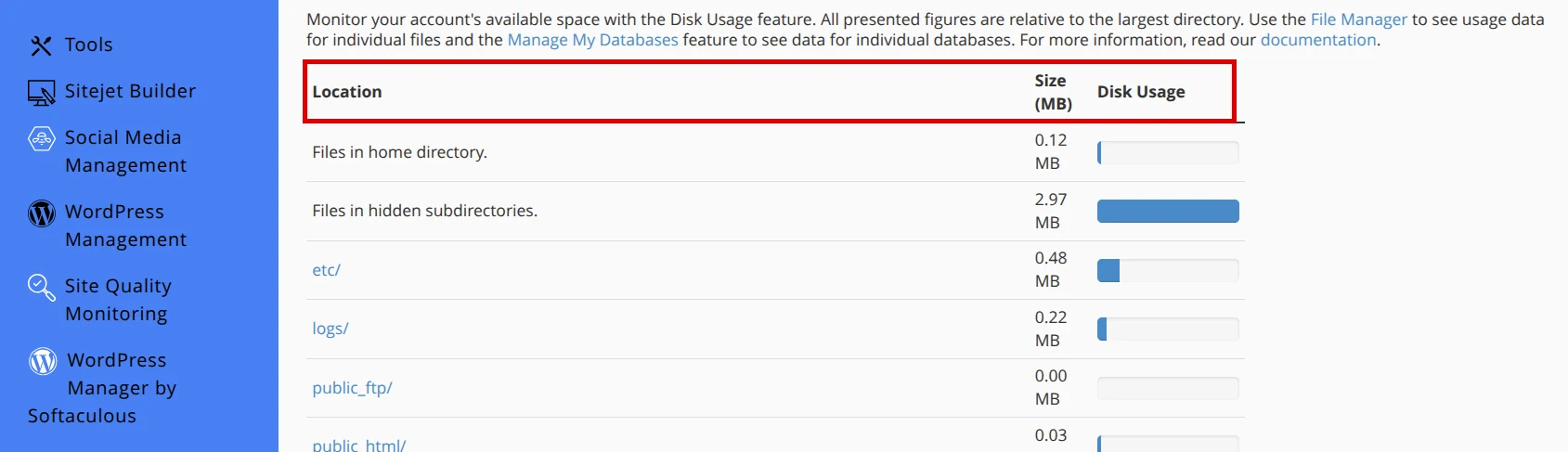
At the top, you will see columns such as:
- Location: folder or area of the account.
- Size (MB): space used by that location.
- Disk Usage: visual usage bar.
Farther down, the directory table uses columns such as Directory, Contained Disk Usage, MB, and Bytes so you can drill down in more detail.
Identify the folders consuming the most space
Review the list from top to bottom. The most common folders that consume space in shared accounts are:
- mail: stores all email from email accounts. If you have accounts with years of uncleaned messages, this folder can grow large.
- public_html: contains your website files. Look for subfolders like
uploads,images,media,cache,tmp, or old backup folders. - backups: if you’ve generated manual backups from cPanel and haven’t downloaded or deleted them, they accumulate here.
- .trash: email account trash. Deleted messages can remain here taking up space.
- logs: server log files. In shared accounts, cPanel usually rotates these logs automatically, but check for large old logs.
Navigate inside folders to find specific files
- Click on any folder name in the Disk Usage table.
- The tool reloads and shows the contents of that folder, with the same breakdown.
- Keep clicking on subfolders until you find the large files or folders.
For example, if public_html takes up 2 GB, click on it. Then check if the site files folder takes up 1.8 GB. Inside that path, check uploads, media, or cache.
Free up space safely
Once you’ve identified the problem folders, follow these recommendations:
Email (mail folder)
- Don’t delete the entire mail folder: you’d break all email accounts.
- Access each email account from a client (Webmail, Outlook, Thunderbird) and delete old messages, spam, or emails with heavy attachments.
- Empty the trash of each account from the email client.
- If an account is no longer used, delete it from Email Accounts in cPanel.
Website files (public_html folder)
- Old backups: look for
.zip,.tar.gz,.sqlfiles or folders with names likebackup_2023,old_site,sitio_viejo. If you no longer need them, delete them. - Plugin cache: some cache plugins generate temporary files inside folders such as
cache. You can empty that folder from the plugin or delete it manually after confirming it only contains cache. - Old uploads: check upload or image folders. Delete duplicate files, unoptimized images, or old versions of media files.
- Temporary folders: look for
tmp,temp,cachefolders inside your site. If you don’t know what they contain, check before deleting.
Backups generated in cPanel (backups folder)
- If you generated full backups from Backup Wizard and already downloaded them, delete the
.tar.gzfiles from thebackupsfolder. - Don’t delete backups if you don’t have a local copy or one in another safe location.
Email trash (.trash folder)
- This folder stores deleted messages from email accounts.
- You can safely empty it if you no longer need to recover those messages.
- Access from File Manager, navigate to the
.trashfolder insidemail/yourdomain.com/user/and delete its contents.
Use File Manager to delete files and folders
- From the cPanel home page, open File Manager.
- Navigate to the folder you identified in Disk Usage.
- Select the files or folders you want to delete (use Ctrl+click or Cmd+click to select multiple).
- Click Delete in the top bar.
- Confirm the deletion.
Caution: File Manager has no recycle bin. Deleted files cannot be recovered unless you have a backup.
Verify that you freed up space
- Return to the Disk Usage tool in cPanel.
- Reload the page.
- Check that the total used, the Size (MB) values, or the Disk Usage bars have dropped.
If the change doesn’t reflect immediately, wait a few minutes. cPanel updates disk statistics periodically.
Prevent the disk from filling up again
- Clean email regularly: set up retention rules in your email client or delete old messages every month.
- Optimize images before uploading: use compression tools or optimization plugins for your application.
- Delete old backups: if you generate backups from cPanel, download them and delete them from the server.
- Check cache plugins: configure size limits or automatic purging.
- Monitor disk usage: check Disk Usage every month to detect abnormal growth.
What to do if you can’t free up enough space
If after cleaning you’re still near the limit, consider these options:
- Move large files off the server: use external services to store backups, videos, or heavy media files.
- Upgrade your hosting plan: if your site has grown and you need more storage, contact support to review upgrade options.
Recommended reading
Still need help?
If this guide didn’t solve your issue, our team can help you via ticket.