How to create an email account in cPanel Email Accounts
With Email Accounts in cPanel you can create new mailboxes for your domain and use them immediately in Webmail or in a client like Outlook. This is useful when you need new addresses for a team or for a specific department. Creation is immediate, although some mail clients can take a few minutes to refresh their configuration.
Before you start
- Have a domain added to your cPanel account.
- Define the username and a secure password for the mailbox.
Open the tool finder in cPanel
At the top right, locate the Search Tools (/) field and type email or accounts. You can also enter from the Email section in cPanel.
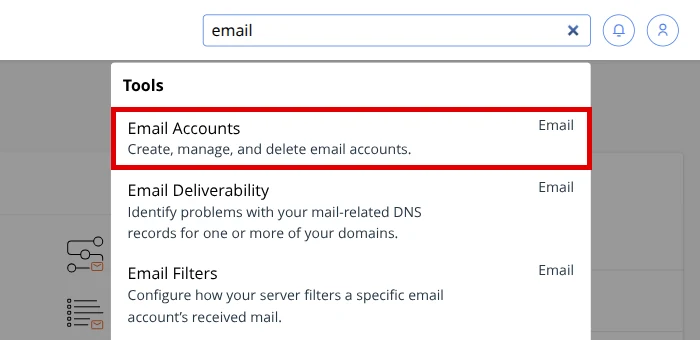
Enter Email Accounts
Click Email Accounts. cPanel opens the List Email Accounts screen, where you can see existing mailboxes and available actions.
Open the creation form
On the accounts screen, click Create. cPanel opens the Create an Email Account page.
Set up the new mailbox
In Username, enter only the account identifier, for example sales; cPanel adds the domain after the at sign. In Password, type a secure password or use Generate if you want cPanel to suggest one. If you need to adjust storage options, open Optional Settings with Edit Settings. When you finish, click Create.
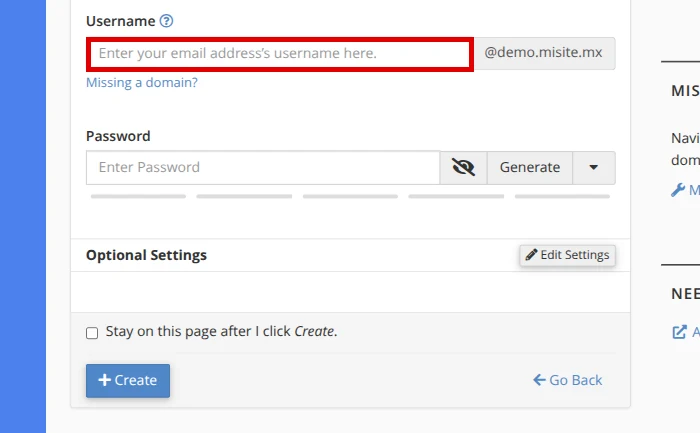
Confirm the account and test Webmail
When cPanel finishes, the mailbox appears in the list. In that same row you will see Check Email, Manage, and Connect Devices. Click Check Email to open Webmail and confirm that mailbox access works.
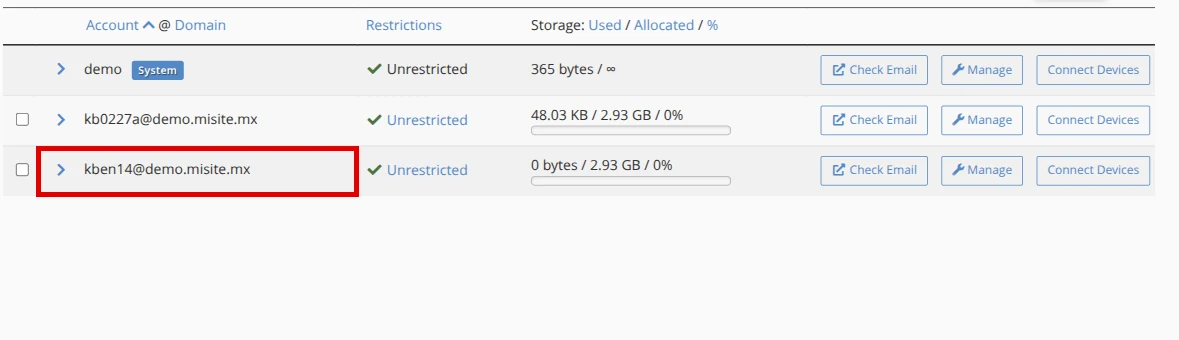
Final verification
- The new email address appears in the Email Accounts list.
- The Check Email action opens Webmail for that mailbox.
- The mailbox row shows actions such as Manage and Connect Devices.
Common errors
- The mailbox does not appear in the list → Create was not pressed or the form showed an error → return to the form, review the username and password, and save the account.
- Webmail shows “invalid credentials” → the password entered does not match the registered one → reset the password from Manage.
- Email Accounts does not appear when searching → clear the Search Tools (/) field and type
emailagain.
Related readings
Still need help?
If this guide didn’t solve your issue, our team can help you via ticket.