How to fix an error 500 using File Manager in cPanel
An error 500 after editing your website usually means a file has invalid syntax, an .htaccess rule is not valid, or a plugin/theme change left the site unstable. From cPanel you can open File Manager, back up the affected file, and revert the change without using FTP.
Before touching anything, identify which file you changed and keep a copy. If you are not sure which change caused the issue, restore the newest version that was working or ask for help before deleting content.
1. Open File Manager
In cPanel, find the Files section and open File Manager.
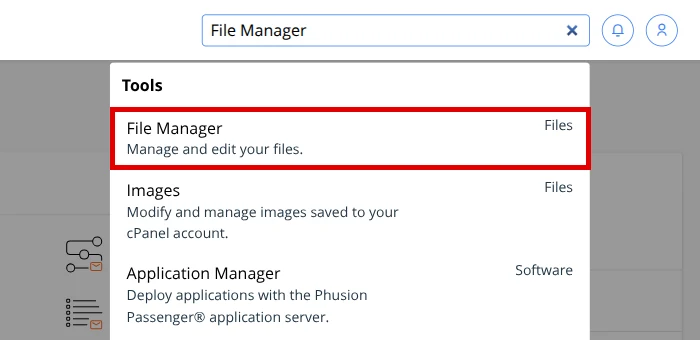
2. Open the website folder
In File Manager, open public_html if the error affects the main domain. If the issue is on a subdomain or an additional folder, open the folder that belongs to that site.
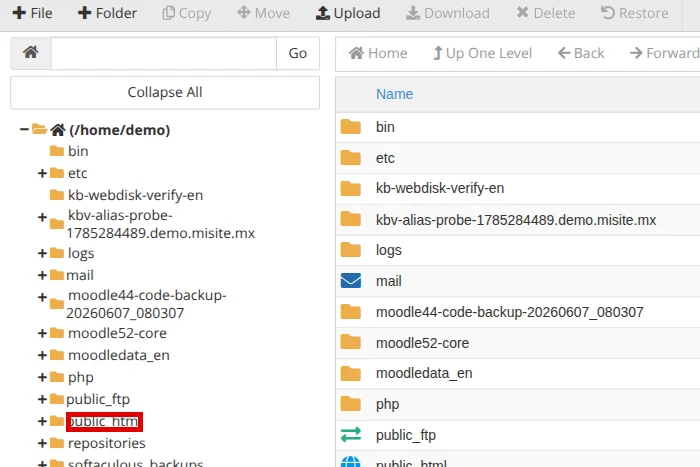
3. Download a backup of the problematic file
Select the file you modified, for example .htaccess, index.php, a theme file, or the configuration file you just changed. Before editing it, use Download to save a copy to your computer. You can also use Copy if you want to keep a duplicate inside cPanel.
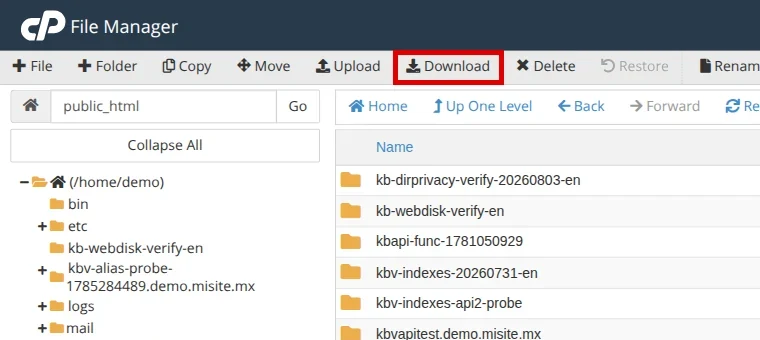
4. Edit the file and revert the recent change
With the file selected, click Edit. cPanel will show a backup and encoding warning; if you already backed up the file, confirm with Edit to open the editor.
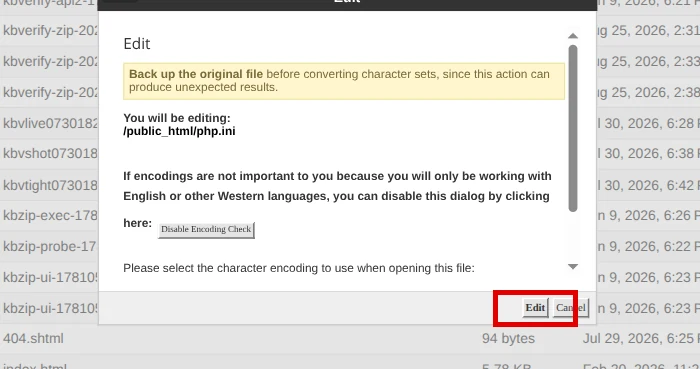
Inside the editor, revert only the most recent change or paste the working version of the file. Use Save Changes, then open your website in an incognito window. If the error 500 disappears, stop editing: document which line caused the problem and review the change carefully.
Final verification
- The file was opened from File Manager in the correct folder, usually
public_html. - A local backup or copied version exists before saving any change.
- After using Save Changes, the website loads without an HTTP 500 error.
- If the error continues, you restored the backup and avoided deleting additional files.
Common errors
- Editing the wrong file → Make sure you are in
public_htmlor the real subdomain folder before saving. - Skipping the backup → Download a copy first; if the change makes the site worse, you can roll back.
- Deleting the entire
.htaccesswithout checking it → Rename it temporarily or comment only the suspicious rule; do not remove rules you do not understand. - The site still shows error 500 → Check cPanel error logs or contact support with the exact failure time and the file you modified.
Related readings
Still need help?
If this guide didn’t solve your issue, our team can help you via ticket.