How to restore backups with the Backup Wizard in cPanel
The cPanel Backup Wizard lets you restore specific parts of your account, such as the home directory, databases, or email settings. Use it when you accidentally deleted content or need to roll back to a previous version. The restore may take a few minutes depending on the file size.
Before you start
- Have the partial backup file on your computer, for example
home.tar.gzfor the home directory ormysql.sql.gzfor a database. - Confirm which component you need to restore: Home Directory, Databases, Email Forwarders, or Email Filters.
- If the site is in production, notify the team before uploading the backup. Restoring the wrong file can replace current content.
Steps
- Log in to cPanel using your hosting account.
- At the top of the page, use Search Tools (/) and type
backup. - In the results, open Backup Wizard.
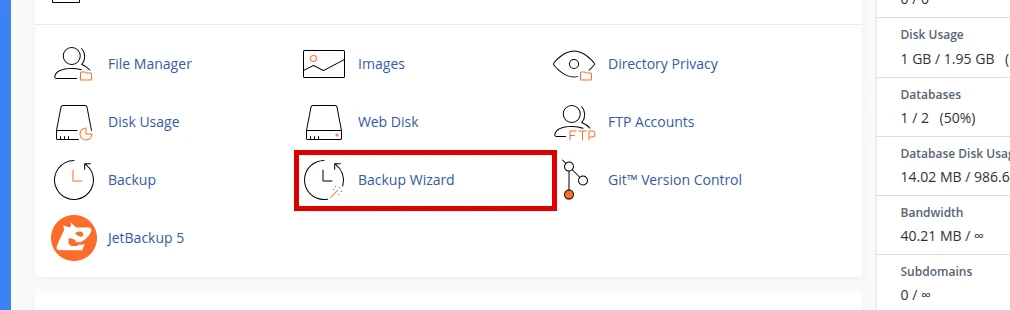
- Confirm that the header says Backup Wizard and that the Steps: section shows Back Up or Restore.
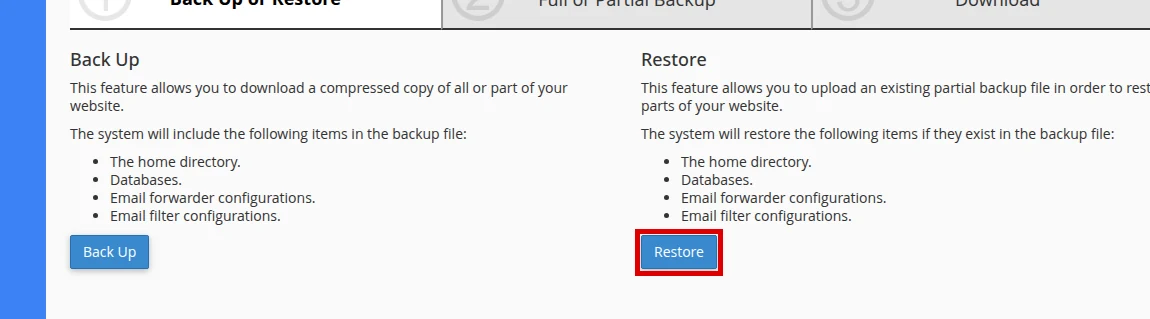
- In the Restore block, click Restore. Do not use the Back Up block, because that flow downloads copies instead of uploading them.
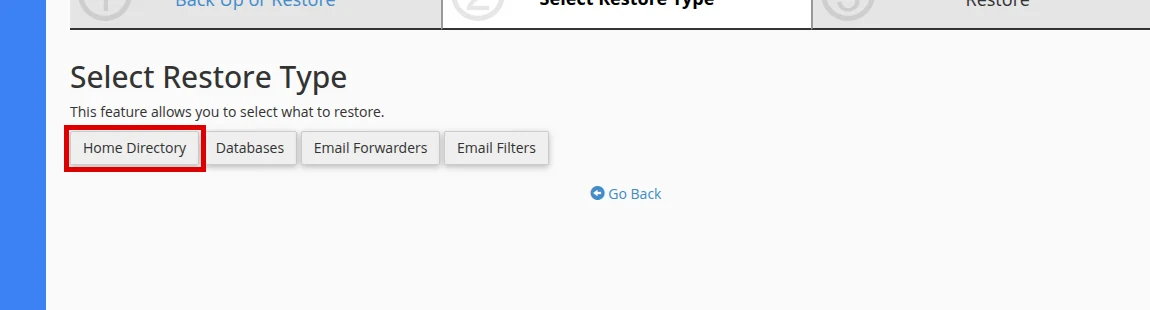
- On Select Restore Type, choose the correct component. For site files, use Home Directory. For SQL backups, use Databases.
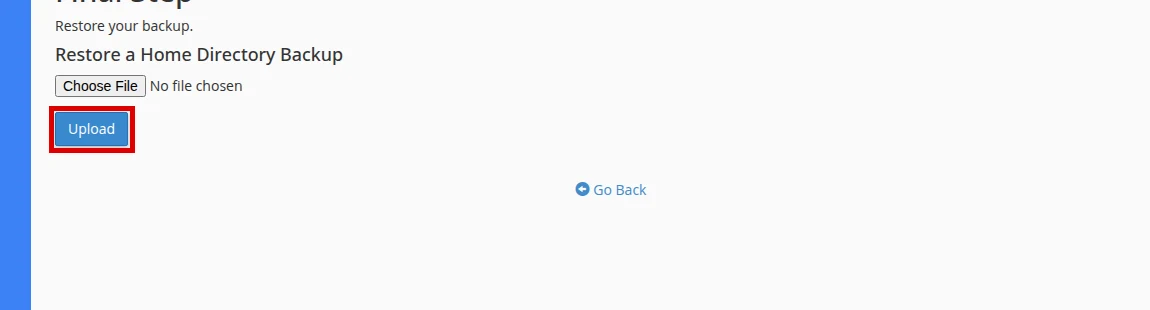
- On the Final Step, check that the heading matches what you are restoring, for example Restore a Home Directory Backup.
- Select the backup file from your computer and click Upload. Wait for cPanel to finish before closing the window.
Final verification
- The Final Step form matches the restore type you selected.
- The selected file is the correct backup for that type, for example
home.tar.gzfor Home Directory ormysql.sql.gzfor Databases. - After cPanel finishes, the restored content appears when you reload the site, check the files, or check the database.
Common errors
- No result appears when searching: type
backupin Search Tools (/) and confirm that the account has the Files section enabled. - You selected the wrong type: go back to Select Restore Type and choose Home Directory, Databases, Email Forwarders, or Email Filters according to the file.
- The Upload button does not continue: the cPanel session may have expired. Reload cPanel, sign in again, and repeat the flow.
- The file does not match the selected type: upload the correct backup. For example, do not use a database backup in the Home Directory flow.
Related readings
Still need help?
If this guide didn’t solve your issue, our team can help you via ticket.