How to use File Manager in cPanel to edit files with a backup
File Manager lets you browse and edit your site files directly inside cPanel. Use it when you need to adjust a file quickly without FTP, but always download a backup first so you can revert. Changes are applied immediately on the server.
Before you start
- Identify the path of the file you are going to modify, usually
public_html. - Be clear about the exact file name to edit, for example
index.php,.htaccess, orkbtest.txt. - If the file controls a production site, download a copy before changing it.
Steps
Open File Manager from the cPanel search
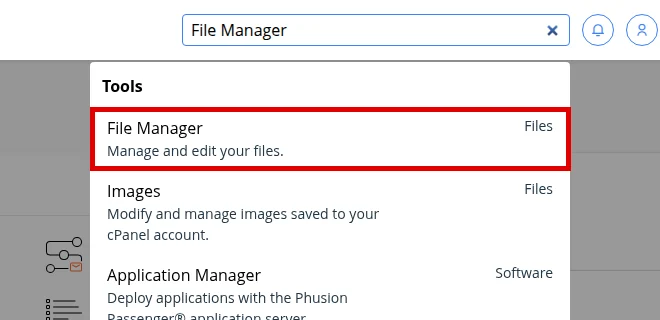
On the cPanel home page, use the Search Tools (/) field to type File Manager. Open the File Manager result inside the Files section.
Go to the correct path on your site
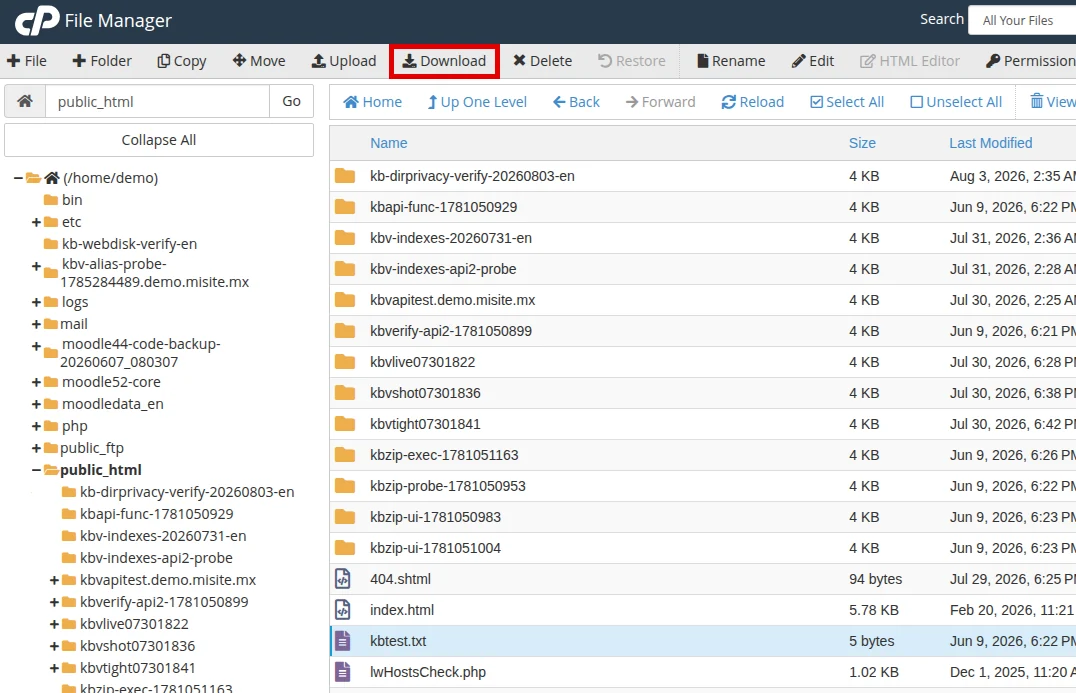
In File Manager, find the public_html folder in the left pane and open it. If you are working on a subdomain or addon domain, open the folder for that site instead. The right pane will show the contents of the selected path.
Download a copy of the file before editing
Select the file you are going to modify and click Download in the top bar. Save the file on your computer as a backup in case you need to revert the change.
Open the file editor
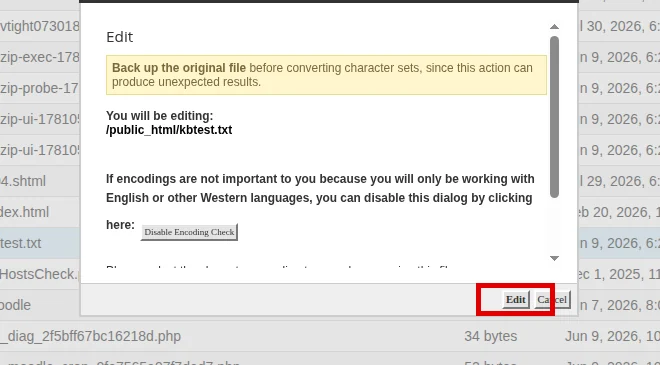
With the file still selected, click Edit. cPanel may show an encoding dialog before opening the editor; if you do not need a specific character encoding, leave the default option and click Edit again.
Save and review the result
Make only the changes you already understand and use the editor save button. When you return to the file list, confirm that the file shows a recent date in the Last Modified column. Then reload the site in your browser to confirm it looks as expected.
Final verification
- The edited file shows a recent date in the Last Modified column.
- The site reflects the change when you reload the page in the browser.
- The downloaded backup is saved on your computer.
Common errors
- The file does not appear in the list → you are on the wrong path → go to public_html or the correct domain folder.
- The Edit button is disabled → you did not select a file → click once on the file.
- The site shows error 500 after saving → the change has a syntax error → restore the backup and fix the file.
Related readings
Still need help?
If this guide didn’t solve your issue, our team can help you via ticket.