How to increase an email account quota in cPanel
When a mailbox starts showing “almost full” warnings or stops receiving new messages, it usually means the email account has reached its storage quota. In cPanel you can raise that quota in a few minutes, as long as your hosting plan still has space available. Here’s when it makes sense to increase it, how to do it, and how to confirm that email is working again.
When to increase the quota vs. clean up first
Before raising the quota, think about which problem you’re solving:
- Clean up first if the mailbox is full of old emails, heavy attachments, or spam and trash folders you never empty. Freeing space is often enough and doesn’t use more of your plan’s resources.
- Increase the quota if you’ve already removed what you don’t need and the legitimate mailbox still grows naturally (for example, a sales or support account with high daily volume).
A good practice is to combine both: clear out what you don’t need, and if real usage is still high, give the mailbox a larger quota with some headroom.
Before you start
Have the following ready:
- Access to your hosting cPanel.
- The full name of the email account you’ll adjust, for example
sales@yourdomain.com. - A sense of how much total space your plan has, so you don’t assign a quota larger than what’s actually available.
How to increase the email account quota
Follow these steps inside cPanel:
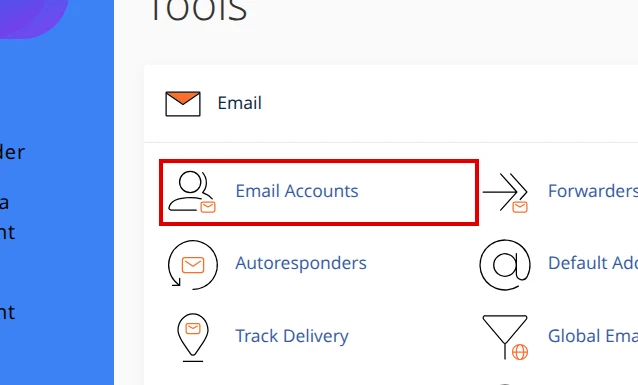
Log in to cPanel and, in the Email section, open Email Accounts.
Find the account you want to adjust in the list and click Manage.
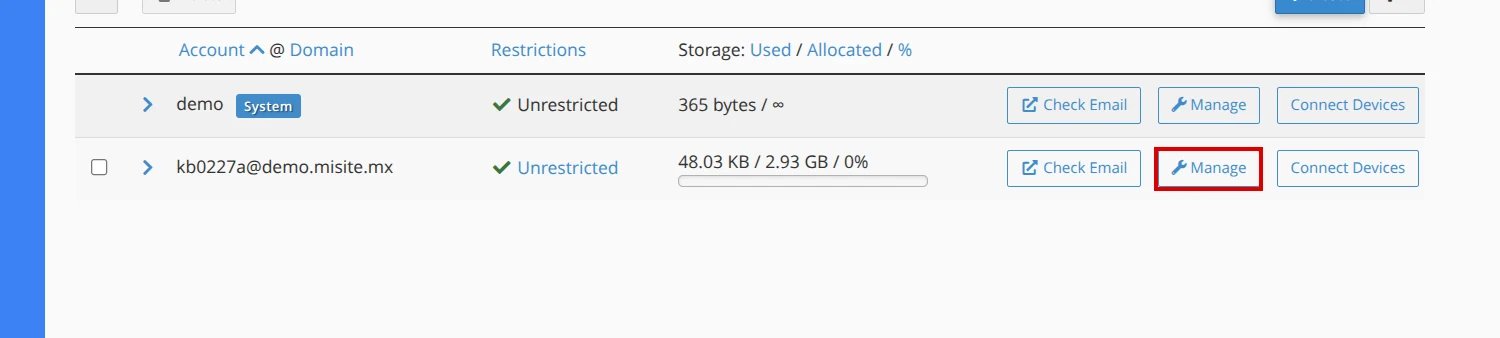
Check the mailbox’s current usage: cPanel shows how much space is used against the assigned quota. This helps you decide the new value.
Look for the Allocated Storage Space option. Enter a larger value (in MB or GB), leaving headroom over current usage; for example, if the mailbox uses 1.8 GB, a quota of 3 GB or 4 GB gives room to grow.
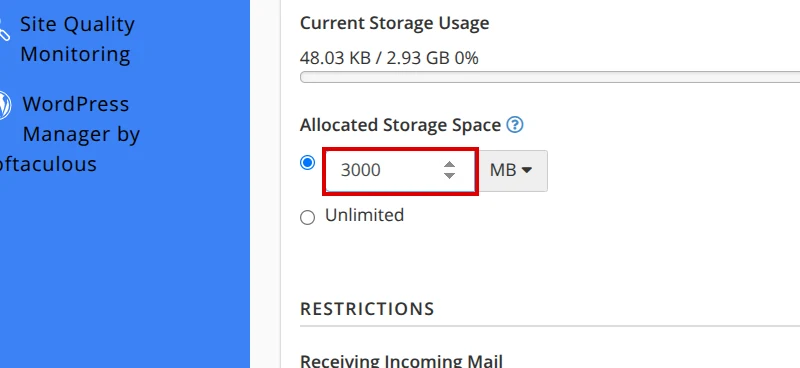
Keep the new value within what your plan allows. If you choose “Unlimited,” remember the real limit is still the total space of your hosting account.
Save the changes with Update Email Settings.
The new quota applies immediately and does not delete any existing messages.
If your cPanel account is out of space
Increasing a mailbox quota does not increase your hosting plan’s total disk allocation. The quota only divides the space you already have among your mailboxes.
If the entire cPanel account is at its limit, raising one email’s quota won’t fix the problem and other services may start to fail. In that case:
- Free up email space by deleting messages and attachments you no longer need.
- Remove old files, backups, or logs that are taking up disk space.
- If you still have no space after cleaning up, consider upgrading your plan or contact support to review your options.
Verification checklist
Before you consider the change finished, confirm everything works:
- The account shows the new quota in Email Accounts.
- The mailbox’s current usage is below the assigned quota.
- You sent a test email from the account and it went out without error.
- You received a test email in the account with no mailbox-full bounce.
- The cPanel account’s total space still has headroom available.
Recommended reading
Still need help?
If this guide didn’t solve your issue, our team can help you via ticket.