How to increase the file upload limit with MultiPHP INI Editor in cPanel
Does your site throw an error when you try to upload a theme, a plugin, a heavy image, or a Moodle course? Most of the time it’s because PHP has an upload size limit that’s smaller than the file you’re trying to load. On shared hosting with cPanel you can raise that limit yourself with the MultiPHP INI Editor, without touching server files or needing root access.
In this guide you’ll adjust the two key directives (upload_max_filesize and post_max_size), check a couple of related values, and verify the change right inside your application.
Before you start
Gather this before you change anything:
- Access to your cPanel account.
- The exact domain or subdomain where the problem site lives.
- The real size of the file you want to upload (for example, a 60 MB theme).
A couple of things worth understanding:
upload_max_filesizesets the maximum size of one file.post_max_sizesets the maximum size of the whole form submission (it can include several files plus data).- That’s why
post_max_sizemust always be greater than or equal toupload_max_filesize. If you leavepost_max_sizelower, the upload keeps failing even after you raiseupload_max_filesize.
A good rule: if you want to upload files up to 64 MB, set upload_max_filesize to 64M and post_max_size to something like 80M to leave headroom.
Adjust upload_max_filesize and post_max_size
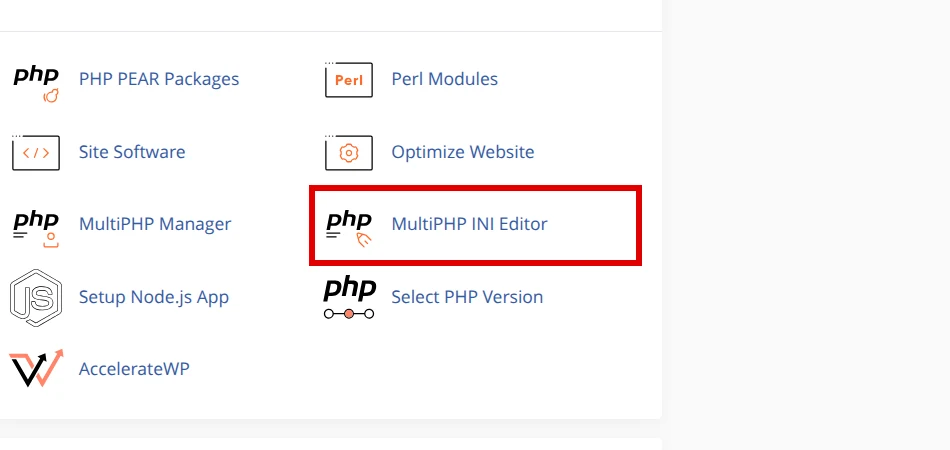
In cPanel, the tool appears inside the Software section as MultiPHP INI Editor:
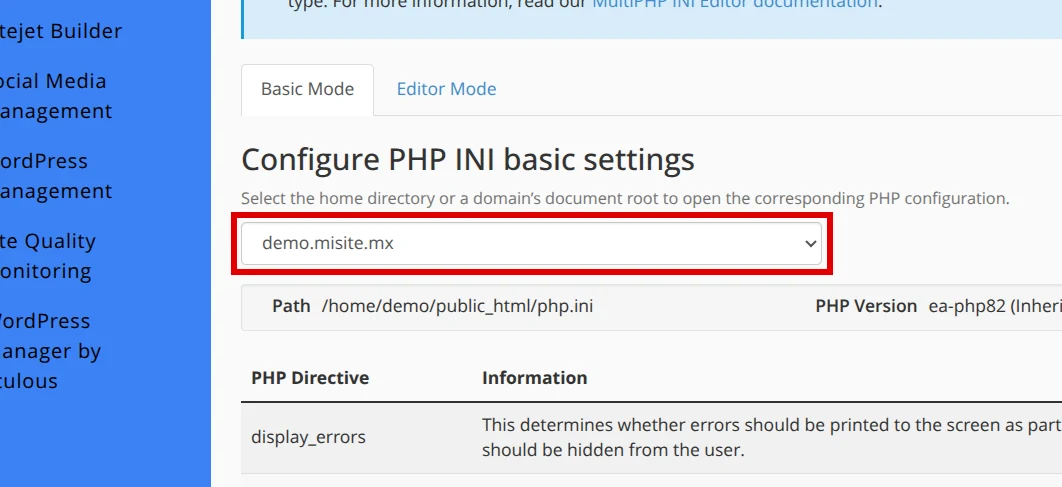
After you open it, confirm that you are in Basic Mode and select the correct domain from the location list:
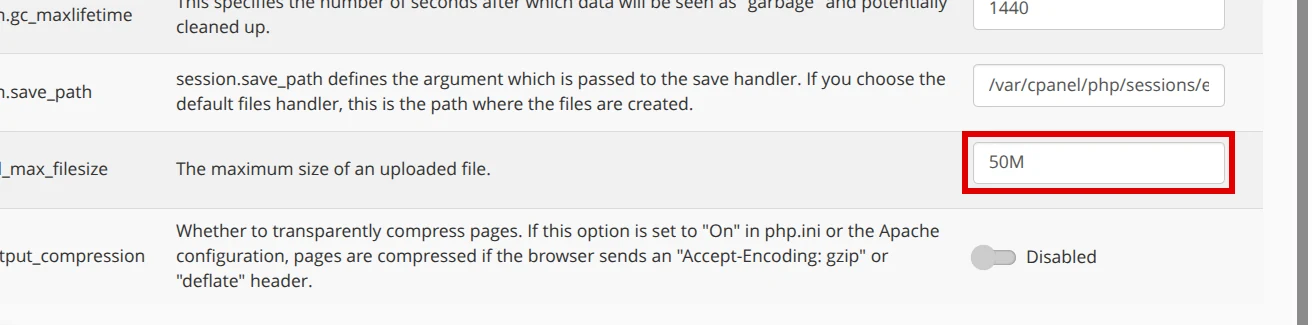
The values appear in the directive table; start with upload_max_filesize, then adjust post_max_size so it is equal to or higher:
- Log in to cPanel and, under the Software section, open MultiPHP INI Editor.
- Select the correct domain or subdomain from the – Select a location – list. On shared hosting you pick your site from the list; you don’t need to choose a global PHP version.
- Stay in Basic Mode, which shows each directive in its own field.
- Find
upload_max_filesizeand type the new value with the unit right next to the number, no spaces. For example:64M. - Find
post_max_sizeand set it equal to or higher than the previous one. For example:80M. - Save with Apply.
If you’d rather see everything as text, Editor Mode lets you type the same lines by hand:
upload_max_filesize = 64M
post_max_size = 80M
Always use M for megabytes (64M), never 64MB or 64. A badly written value makes PHP ignore it.
Check memory_limit and max_execution_time
Sometimes you raise the upload size and the large file starts loading, but the operation cuts off halfway. That’s no longer about the allowed size, it’s because the process runs out of memory or time. Check these two values in the same MultiPHP INI Editor:
memory_limit: it should be comfortably larger thanpost_max_size. If you upload 80M files, amemory_limitof 256M is a reasonable starting point.max_execution_time: large uploads or slow connections need more seconds. Going from 30 to 120 is usually enough.
Adjust them the same way as before: change the field, save with Apply, and test again.
If the panel won’t let you raise a value (it reverts or caps it on save), that’s a plan or server limit. Don’t try to bypass it by editing server files on your own: contact support with the domain and the value you need, and they’ll tell you how high it can go.
Verify the change
Don’t leave it to chance; confirm it in the application where you upload files:
- Your CMS or online store: open the upload screen or the system information page; it usually shows the active upload limit.
- The maximum upload text should reflect the new value or a value compatible with your plan.
- As a final check, try uploading the file that failed before.
If the new value doesn’t appear, wait a minute and reload the page; the change can take a moment to take effect.
Common errors
post_max_sizeended up lower thanupload_max_filesize. The upload fails even when the file is smaller thanupload_max_filesize. Raisepost_max_sizefirst.- Writing the unit wrong.
64MBor64 Mdon’t work; use64M. - Picking the wrong domain. If you have several sites, make sure you adjust the one for the domain throwing the error.
Recommended reading
Still need help?
If this guide didn’t solve your issue, our team can help you via ticket.