How to install PrestaShop with Softaculous in cPanel
If you want to set up an online store with PrestaShop, Softaculous lets you install it from cPanel without uploading files by hand or creating the database yourself. This guide follows the current Softaculous screen: choosing the domain, confirming the install path, creating the admin account, and saving the final store links.
Before you start
- Access to cPanel on your hosting account.
- Your plan includes Softaculous Apps Installer under the Software section in cPanel.
- The domain or subdomain where you want the store already points to your account. If you need a subdomain like
store.yourdomain.com, create it first under Domains. - A valid email address for the PrestaShop admin account.
- Recommended: confirm SSL for the domain first so you can choose
https://from the start. - Make sure you have enough disk space under Disk Usage.
Choose the domain and path
Log in to cPanel.
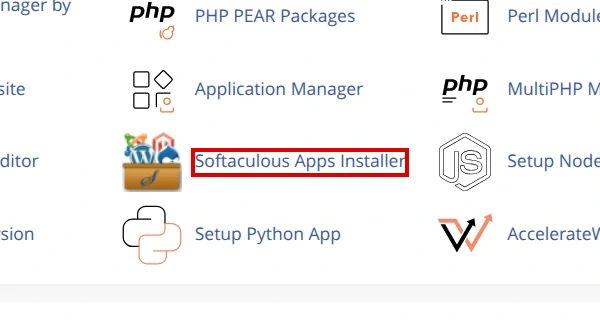
In the Software section, click Softaculous Apps Installer.
In Softaculous, search for PrestaShop or open E-Commerce → PrestaShop.
On the PrestaShop page, open the Install tab.
Under Software Setup → Choose Installation URL, review these fields:
- Choose Protocol: select
https://if the domain already has active SSL. - Choose Domain: pick the domain or subdomain where the store will run.
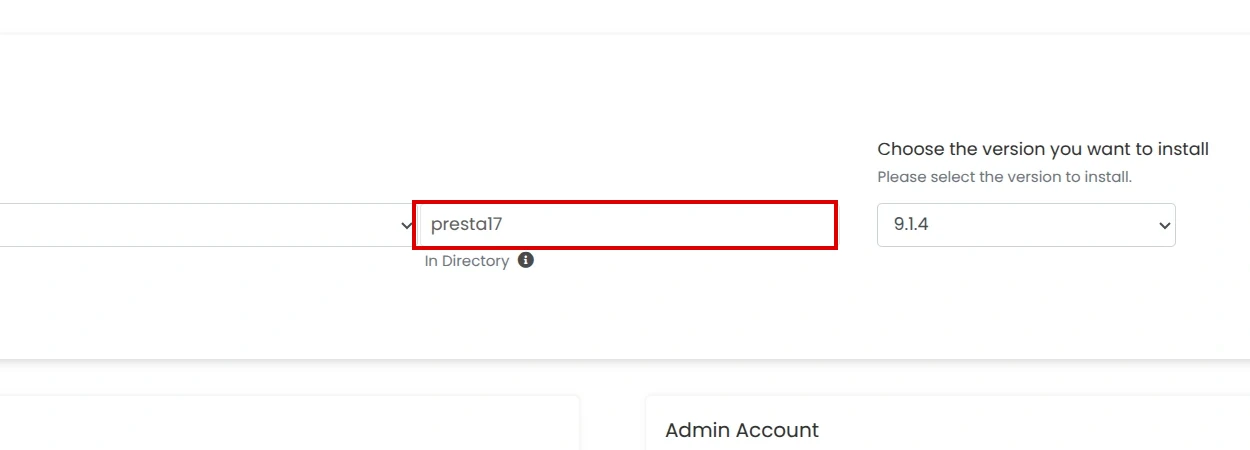
- In Directory: leave it blank to install in the domain root, or enter a folder such as
storeif you prefer a path likeyourdomain.com/store. - Choose the version you want to install: keep the recommended version unless support tells you otherwise.
- Choose Protocol: select
Configure the installation
Under Site Settings, enter the Store Name visitors will see. You can change it later from PrestaShop.
Review Admin Folder. Softaculous uses this folder in the PrestaShop admin URL; save it because it is not always simply
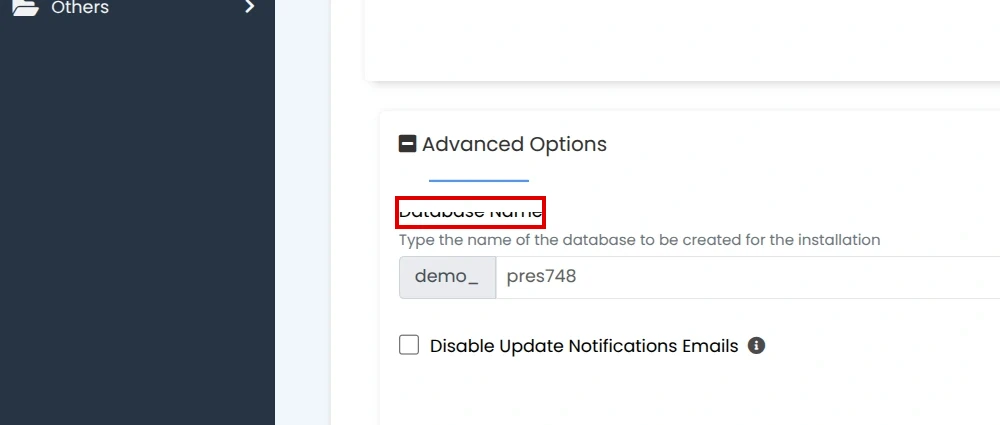
/admin.Open Advanced Options only if you need to adjust technical details. There you will see Database Name and Table Prefix. For most sites, leave the values Softaculous generates automatically.
Create the admin login
In Admin Account, fill in:
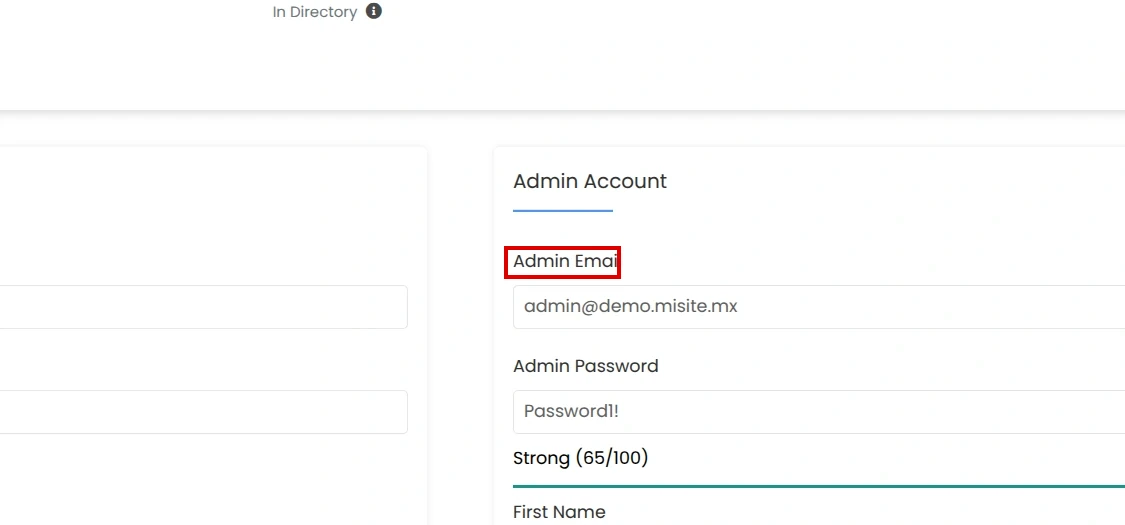
- Admin Email: use an email address you can actually access.
- Admin Password: choose a long, unique password. Avoid reusing your cPanel password.
- First Name and Last Name for the administrator.
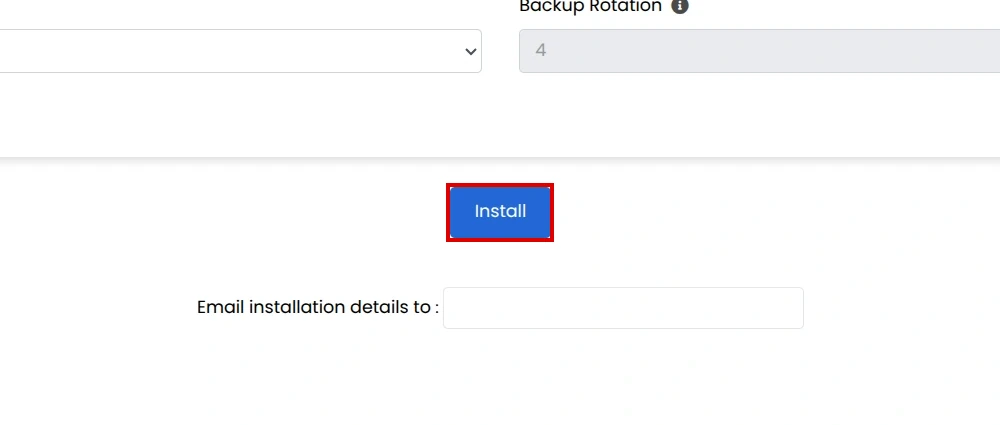
If you want a copy of the install summary by email, fill in Email installation details to.
When everything is correct, click Install and wait for Softaculous to finish.
When the process is done, Softaculous shows the store URL and the admin dashboard URL. Save both, especially the admin URL because it includes the Admin Folder.
Verify the store
- Open the store URL and confirm the homepage loads without errors.
- Log in to the admin dashboard with the email and password you set.
- If you chose
https://, confirm the padlock appears in the browser bar. If not, check SSL for the domain. - Adjust the store information from the PrestaShop dashboard.
- Before selling for real, remove sample data if you installed it and configure payments, shipping, and taxes.
- Create an initial backup so you have a restore point before making major changes.
Common errors
I can’t find PrestaShop in Softaculous Use the Softaculous search box or open E-Commerce → PrestaShop. If it still does not appear, your plan may not include it; contact support to confirm.
Disk space error during installation PrestaShop needs free space for files and the database. Check Disk Usage, free up space or remove installations you do not use, and try again.
The store loads without styles or with broken images
This usually happens when you install with http:// and later force HTTPS, or the other way around. Confirm SSL is active and that the store URL uses the same protocol in PrestaShop.
I can’t reach the admin dashboard
Use the exact URL Softaculous showed when the install finished. PrestaShop uses an admin folder, shown as Admin Folder, that may be different from /admin.
I forgot the admin password Use the recovery option on the dashboard login screen, as long as the admin email receives messages correctly.
Recommended reading
Still need help?
If this guide didn’t solve your issue, our team can help you via ticket.