How to use Sitejet Builder in cPanel when Site Publisher is not available
In current cPanel versions, Site Publisher may no longer appear as an available tool. In the verified NubeHost demo, the current entry point for creating or editing a simple site is Sitejet Builder under Domains.
This guide replaces the old Site Publisher flow with the labels that are visible in cPanel now. If your account still shows Site Publisher, you can use it; if it does not appear, use Sitejet Builder.
Before you start
- Have your cPanel login ready.
- Confirm the domain or subdomain where you want to create or edit the site.
- Decide the public information to show: name, short description, phone number, or contact email.
- Avoid publishing private data or information that should not be visible on the internet.
Steps
- Log in to cPanel using your hosting account.
- On the main cPanel screen, scroll to the Domains section.
- Open Sitejet Builder.
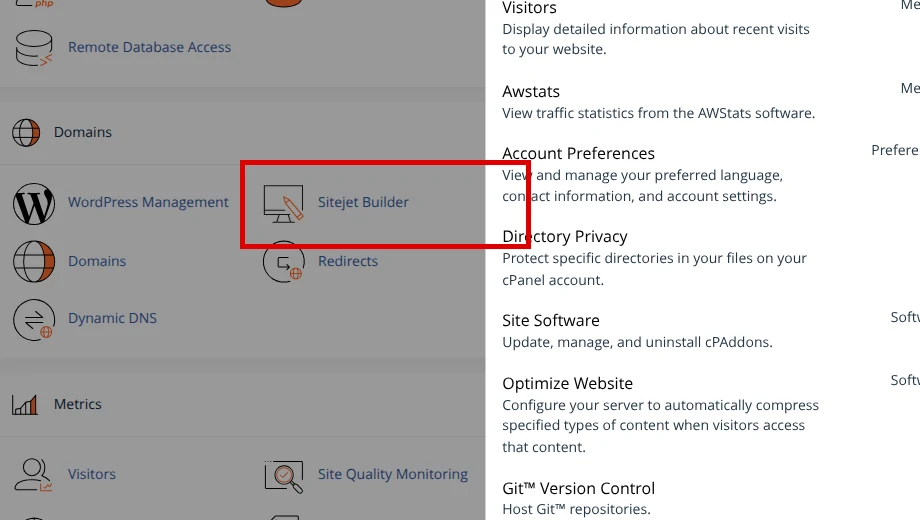
- Sitejet should open the website management screen for your account. From there, continue with the site or create a new one if the option is available.
- If cPanel shows Error with Failed to create a Sitejet account associated with your cPanel account., click Click here to retry. once.
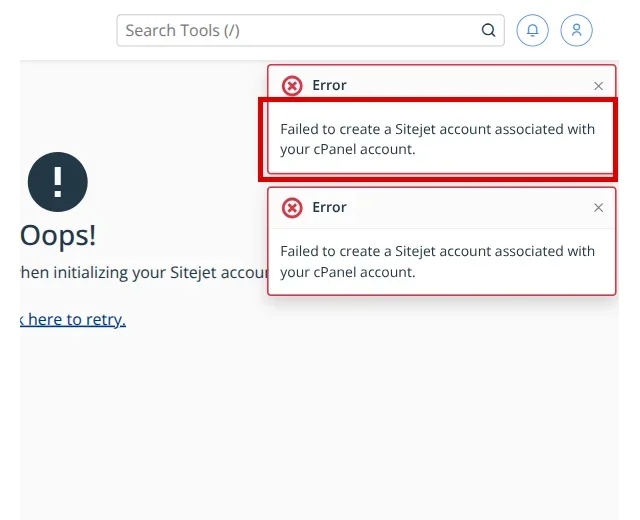
- If the same error appears again, open a support ticket so the Sitejet account initialization can be reviewed for your hosting account.
- When Sitejet opens correctly, complete or edit the site inside Sitejet Builder and publish the changes from the editor.
- Open your domain in the browser to confirm the site loads correctly.
Final verification
- Sitejet Builder appears in cPanel under Domains.
- Sitejet opens the website management screen, or cPanel shows the exact initialization error that support needs to review.
- The site opens when you visit your domain in the browser after publishing.
- The page does not show private information you did not intend to publish.
Common errors
- Site Publisher does not appear: in current cPanel it may be replaced by Sitejet Builder. Use that tool from Domains.
- Sitejet does not open the editor: use Click here to retry. if that button appears. If the error persists, contact support.
- The old site still shows: this is usually browser cache; try a private window or clear the cache.
- Recent DNS changes: if the domain just started pointing to your hosting account, propagation can take several hours.
- Previous content in the domain folder: if an
index.htmlor a previous site already exists in the document root, that content may show instead of the new site.
Recommended reading
Still need help?
If this guide didn’t solve your issue, our team can help you via ticket.