How to scan for malware with Imunify360 in cPanel
Imunify360 helps you review suspicious files inside your hosting account when your provider makes it available in cPanel. Use it if your site shows security warnings, if you received a notice about infected files, or if you want to review a folder before restoring content.
The tool can show detections and, depending on the server license, cleanup or quarantine options. Before deleting files, confirm the path, keep a site copy, and check whether the file belongs to your CMS, store, or course platform so you can reinstall it without losing data.
Before you start
- Have access to cPanel for the account where the affected site is hosted.
- Confirm which domain or folder you want to review, usually
public_htmlor a subdomain folder. - Create a recent backup if you are going to clean, replace, or delete files.
- If the site handles payments, forms, or sensitive information, pause manual changes and ask for help before deleting files.
Open Imunify360 in cPanel
- Log in to cPanel from your client area or through your secure hosting URL.
- Find the Security section.
- Open Imunify360.
- Wait for the Imunify360 screen to load. In the demo account, the visible module is Malware Scanner.
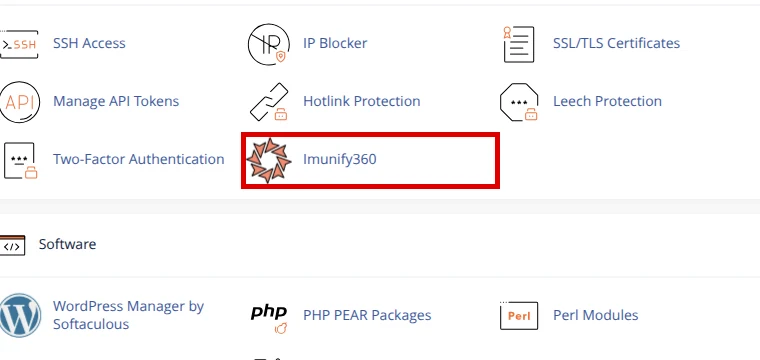
Note: if you do not see Imunify360, your plan may use another security tool or the provider may manage scanning. In that case, open a ticket with the domain and the alert message you received.
Review the malware scanner
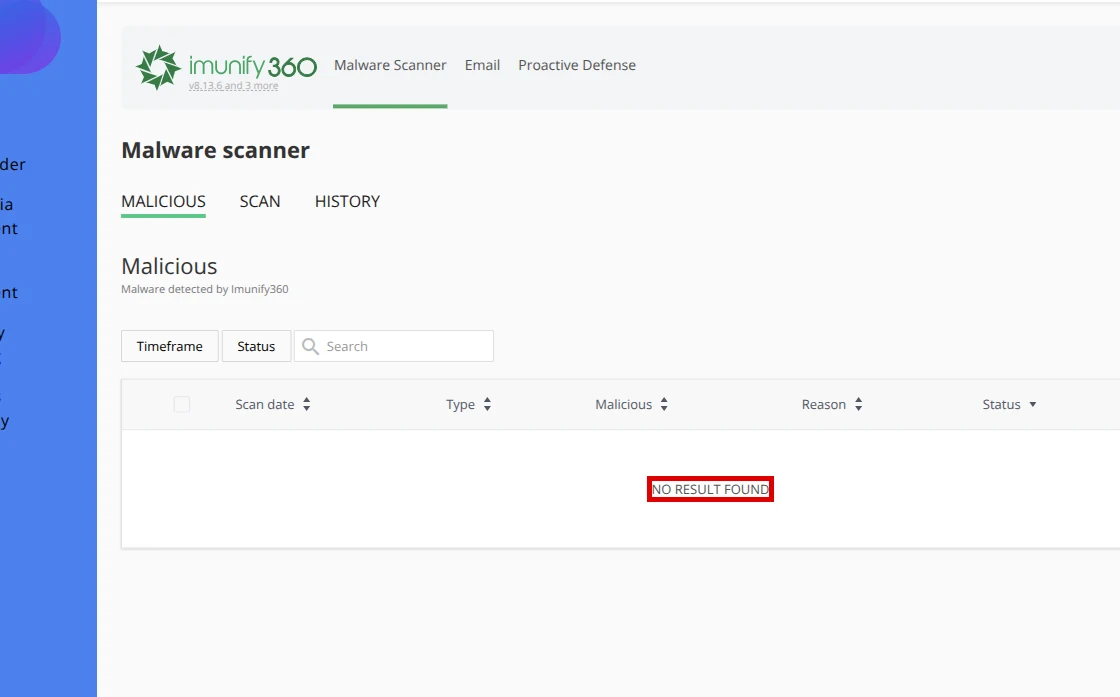
- In Imunify360, open the Malware Scanner module.
- Review the MALICIOUS tab. This is where Imunify360 lists files it marks as suspicious or infected.
- If the table shows NO RESULT FOUND, there are no visible detections in that view at that moment.
- If rows appear, read the full path and review the Scan date, Type, Malicious, Reason, Status, and Actions columns before touching any file.
- Use SCAN only if your account allows it and you need to start a manual review; some plans keep scheduled scanning under server control.
- Check HISTORY if you need to confirm previous scans or recent changes.
Decide whether to clean, replace, or ask support
- If Imunify360 offers a cleanup or quarantine option under Actions, review exactly which file it will touch before confirming.
- If the file belongs to a plugin, theme, or CMS core, consider replacing it from an official source instead of editing it by hand.
- If the file is an image, a user-uploaded file, or a file you do not recognize, download it only if you need to review it and do not run it on your computer.
- If the detection affects configuration files such as
wp-config.php,.htaccess, or files insideadministrator,wp-admin, orvendor, ask for help before deleting them.
Verify the site after cleanup
- Imunify360 no longer shows new detections for the same paths.
- The site opens in a private window without new browser warnings.
- The CMS dashboard loads and lets you update plugins, themes, or extensions.
- The file you cleaned or replaced has a recent date and does not reappear with strange content.
Common errors
- You deleted a CMS file and the site shows error 500: restore the backup or reinstall the plugin, theme, or core from an official source.
- The detection returns after cleaning: there may be a backdoor, vulnerable plugin, or compromised password left; change access credentials and request a review.
- Imunify360 does not appear in cPanel: your account may use another scanner or an internal process; contact support with the domain and affected path.
When to ask for help
Ask for help if the alert affects many files, if the site is on browser blocklists, if you do not have a clean backup, or if the tool does not allow cleanup from cPanel. Share the domain, marked paths, approximate scan time, and any exact message you saw on screen.
Recommended reading
Still need help?
If this guide didn’t solve your issue, our team can help you via ticket.