Update cPanel contact information and notification preferences
Your cPanel contact information is the email address where important account alerts arrive: when disk space is filling up, when an SSL certificate is about to expire, or when your password changes. If that email is empty or out of date, you can miss alerts that help keep your site and mail working.
In this guide you will update your contact address and choose which notifications you want to receive, all from your own cPanel account.
Before you start
Before making changes, have the following ready:
- Access to your cPanel account. If you are not sure how to sign in, see How do I access my Control Panel? (cPanel) .
- An email address you check often that is not inside the same domain you host here. That way, if your domain mail fails, you still receive the alerts.
- A few minutes to confirm the address is typed correctly.
Update contact information
Follow these steps to change the email where you receive alerts:
Sign in to cPanel.
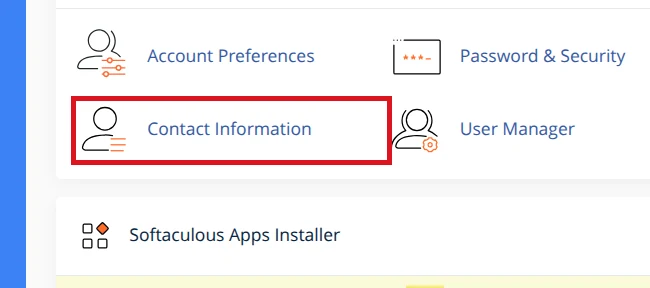
In the Account Preferences section, click Contact Information.
In Email, find the Enter an email address to receive account notifications field and type your address, for example
yourname@gmail.com.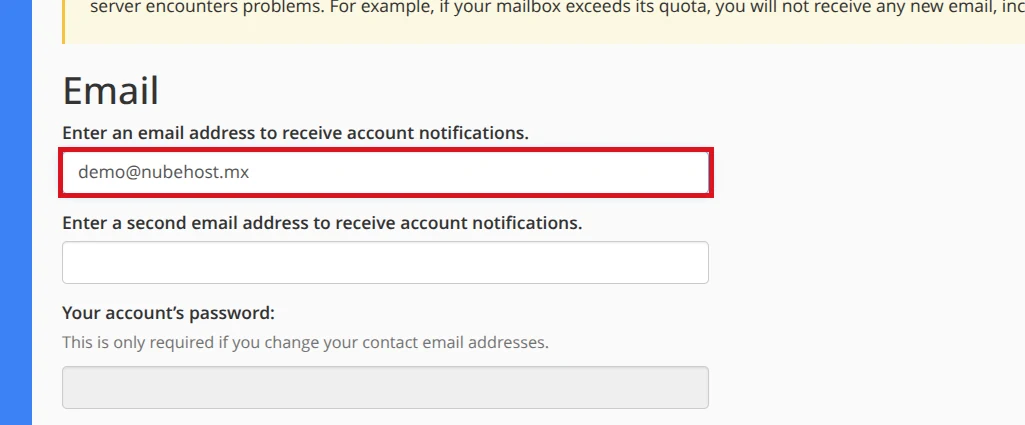
If you want to add a backup address, use the Enter a second email address to receive account notifications field.
If you changed a contact address, cPanel may ask for Your account’s password to confirm the change.
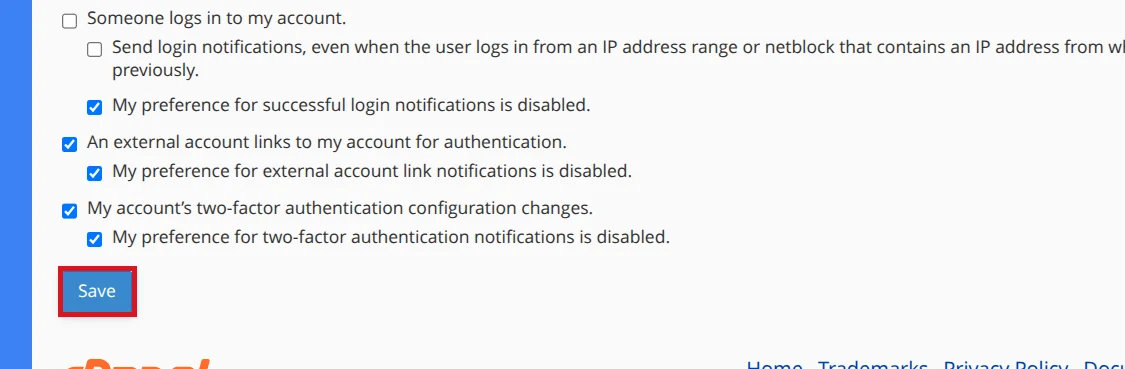
Click Save to apply the contact information.
Choose notification preferences
Once the email is reviewed, decide which alerts you want to receive:
Inside Contact Information, find the Contact Preferences section.
Review the Notify me when: list and keep at least these alerts enabled, which are useful for a shared hosting account:
- My account approaches its disk quota.
- My account’s password changes.
- Any of my account’s email accounts approaches or is over quota.
- SSL certificate expiry.
Click Save to keep your preferences.
Verify alerts are ready
Use this checklist to confirm everything is in order:
- The main Email field shows the correct address, with no typos.
- The contact email does not belong to the same domain you host here.
- The important Contact Preferences alerts are enabled, especially disk space, security, mail quota, and SSL alerts.
- You run a quick test: after a small change, such as updating your password, check your inbox and spam folder to confirm the alert arrives.
Common errors
- No email arrives: check the spam folder and confirm the address is spelled correctly. If you use an email on the same domain you host, a problem with that service can stop the alert from reaching you; use an external address such as
gmail.comor similar instead. - The change does not save: make sure you click Save and that you do not leave the email field empty.
- You cannot find Contact Information: use the cPanel search box and type
contact; in some themes, it appears under Account Preferences. - You get too many emails: go back to Contact Preferences and turn off the alerts you do not need.
Recommended reading
Still need help?
If this guide didn’t solve your issue, our team can help you via ticket.