My domain shows "pending ICANN verification": how to reactivate it
Your domain isn’t lost or expired, and your files and email are untouched. The registrant just needs to confirm their email address. As soon as you click the verification link, the domain reactivates on its own. You don’t need to pay anything or open a ticket.
Why this happened
ICANN requires registrars to confirm the email address of the registrant (domain owner) for generic domains like .com, .net, .org or .info. It’s requested in two cases:
- You registered the domain recently and nobody clicked the verification email.
- You changed the registrant’s first name, last name or email, and the new data hasn’t been confirmed.
If nobody confirms the email within 15 calendar days, the registrar suspends the domain. From then on, anyone visiting your site sees this page instead of your website:
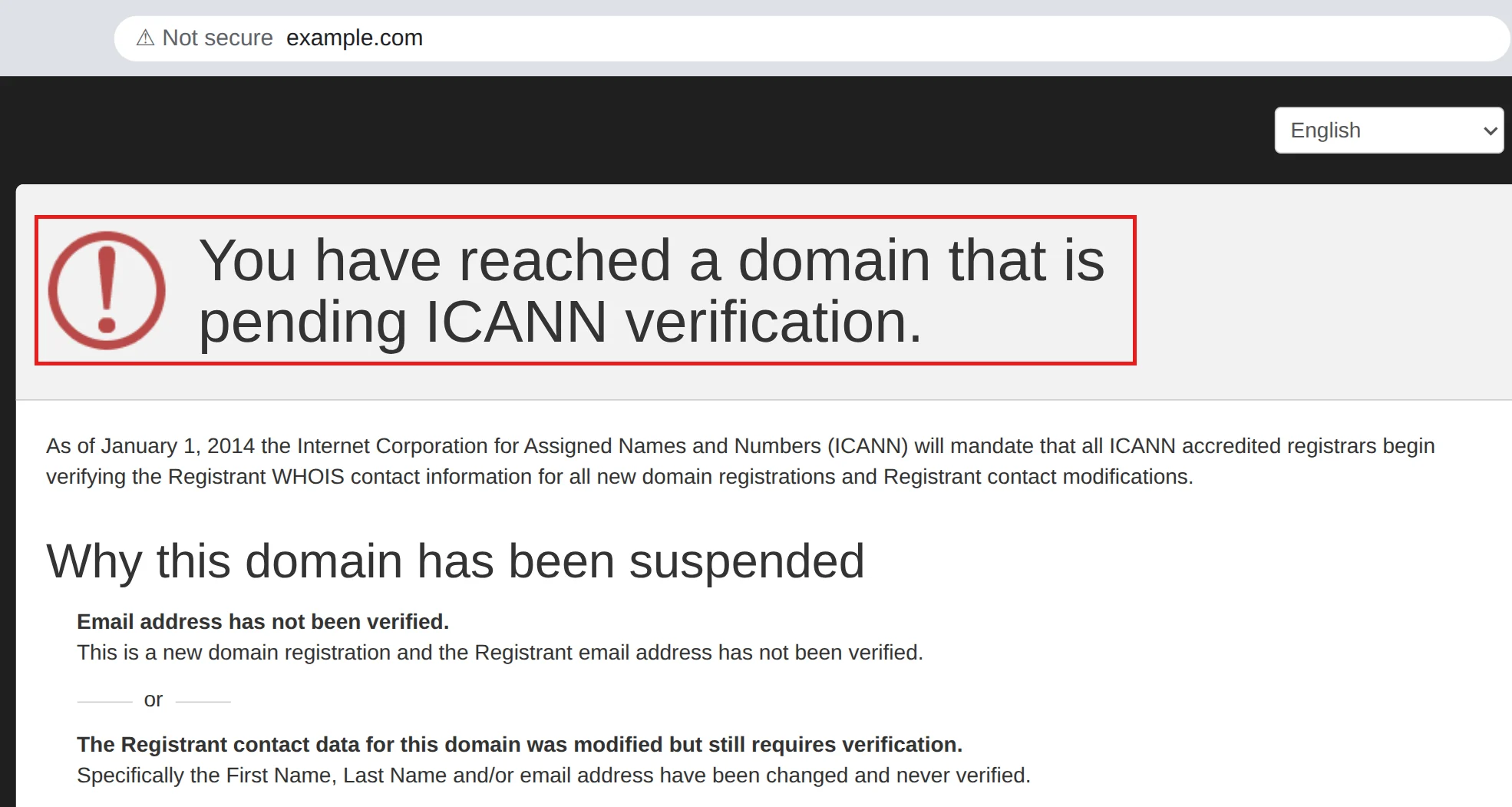
.mx and .com.mx domains don’t have this verification. If your Mexican domain stopped working, the cause is something else, for example it expired.
How to reactivate it
Look for the verification email in the domain registrant’s inbox. It’s sent from
donotreply@name-services.comand often lands in Spam or, in Gmail, the Promotions tab. If you’re not sure which address that is, see Which email gets the verification? below.In Gmail you can search spam directly by typing this in the search box (replace
example.comwith your domain):in:spam example.comIf you find it there, mark it as Not spam and add
donotreply@name-services.comto your contacts or safe senders list, so the next resend reaches your inbox.If you can’t find it, request a new one: open your domain in a browser (for example
http://example.com). The suspension page has a language selector at the top right.Type the numbers from the image into the Enter the numbers above seen field and click Resend Verification Email.
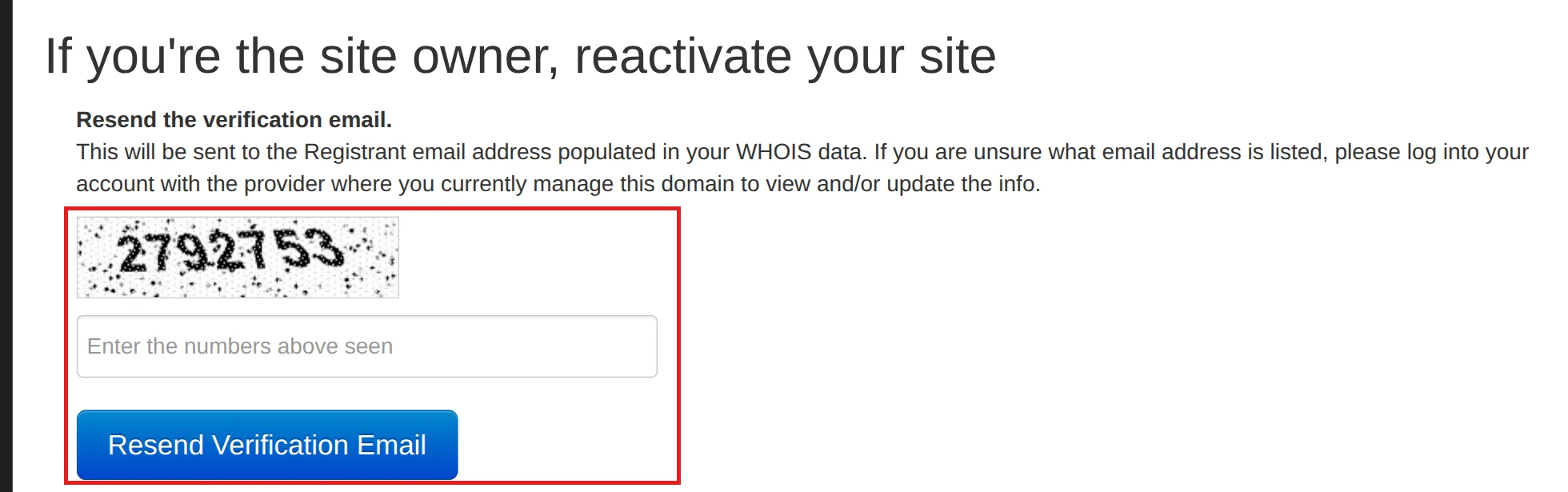
Open the email you receive and click the link. That completes the verification.
According to the registrar, the site comes back online within 24 to 48 hours. It’s usually much sooner, but your computer or internet provider may keep showing the suspension page for a while because of caching. Try another browser or your phone’s mobile data.
Which email gets the verification?
It goes to the domain’s Registrant contact email, which isn’t always the same email as your NubeHost account. To check or fix it:
- Log in to https://portal.nubehost.cloud/clientarea.php?language=english.
- Go to Domains > My Domains and click your domain.
- Under What would you like to do today?, click Update the WHOIS contact information for your domain.
- Check the email of the Registrant contact. If it’s wrong or you no longer have access to that mailbox, correct it and click Save Changes.
When you save a new email, the registrar sends a new verification to that address. Click the link just like in step 4 above.
Heads-up: changing the registrant’s name or email starts a new verification and can lock the domain against transfers to another provider for 60 days. Only change what’s actually wrong.
Check the status in ICANN Lookup
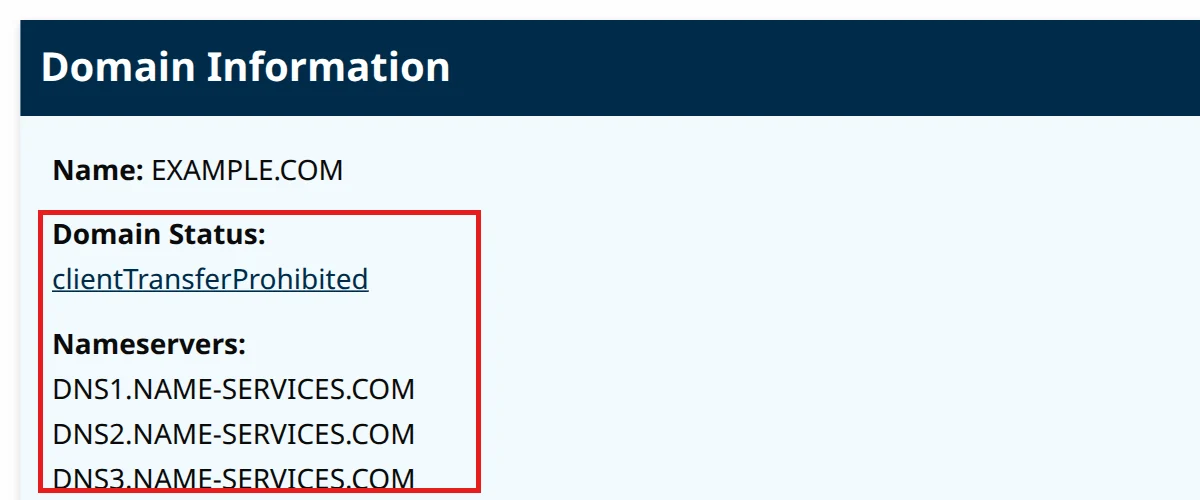
If you want to confirm the domain’s public data, look it up in ICANN’s official tool: https://lookup.icann.org/en. Type your domain (for example example.com) and click Lookup.
Keep in mind:
- Don’t expect to see the word “suspended”. During a verification suspension, the Domain Status can look normal, for example just
clientTransferProhibited. The reliable way to know whether it’s still suspended is to open your site and see if the verification page shows up. - The registrant email almost never appears, because registrars hide it for privacy. To find out which address gets the verification, check the portal as described above.
- Registrar Information should show eNom, the registrar we use for these domains.
The same data is available raw (JSON) straight from the .com registry: https://rdap.verisign.com/com/v1/domain/example.com. Replace example.com with your domain. status shows the status and events shows the date of the last change (last changed). For a .net, replace /com/ with /net/ in the address.
If you still can’t reactivate it
- The email doesn’t arrive after resending: check spam and Promotions again (resends can land there too) and make sure the registrant email is correct (previous section). If the mailbox is on the same suspended domain (for example
contact@example.com), it most likely can’t receive email while the suspension lasts. Change the registrant email to one on another domain, like Gmail or Outlook, and then verify. - The link says it expired: request a new one from the suspension page and use the most recent email.
- You already verified and more than 48 hours have passed: open a ticket with the domain name and we’ll check it with the registrar.
Recommended reading
Still need help?
If this guide didn’t solve your issue, our team can help you via ticket.