How to configure your cPanel email account on iPhone
You can set up your cPanel email account on iPhone with the automatic iOS profile or by entering the IMAP/SMTP settings manually. In the current cPanel interface, the correct path is Email Accounts → Connect Devices.
Before you start
Have these details ready:
- Your full email address, for example
user@yourdomain.com. - The password for that email account.
- Access to cPanel.
If your main cPanel account appears as the system account, cPanel may show the username as a domain email address. For a regular mailbox, always use the full email address.
Steps in cPanel
- Log in to cPanel and open Email Accounts in the Email section.
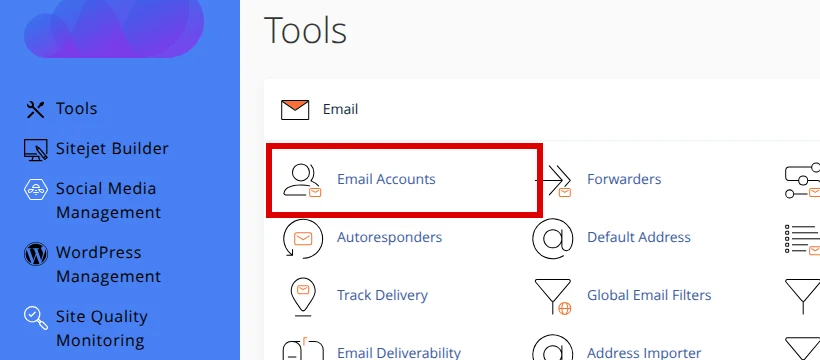
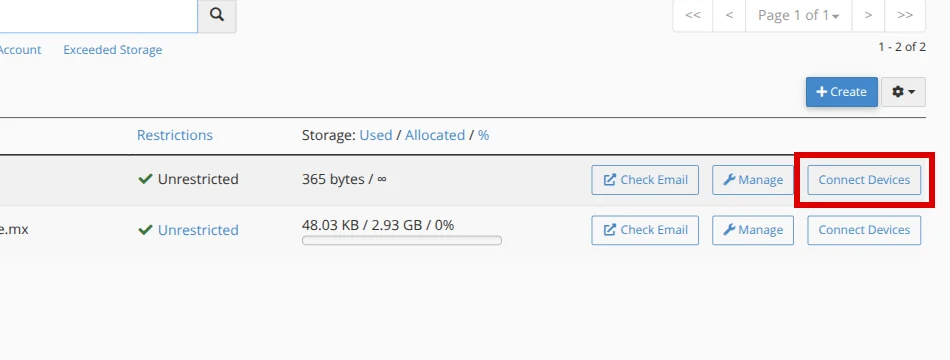
- Find the mailbox you want to configure and click Connect Devices.
- On the Set Up Mail Client page, review the Mail Client Automatic Configuration Scripts table. For iPhone, use the iOS for iPhone/iPad/iPod and MacOS® Mail.app® row and the IMAP over SSL/TLS link.
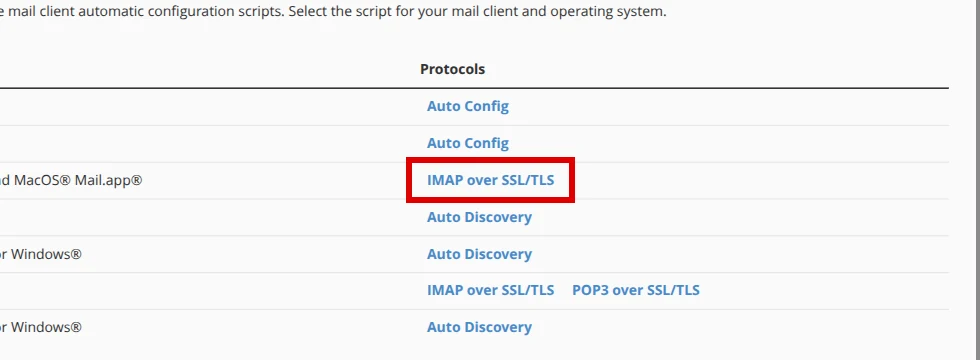
- If you are browsing from the iPhone, download the profile and follow the iOS prompts to install it. You will usually see it in Settings as a downloaded profile; install it and enter the mailbox password when iOS asks for it.
- If you downloaded the profile on a computer, transfer it to the iPhone using a secure method and do not send it together with the password.
Manual setup if you do not use the profile
If iPhone does not install the profile or you prefer to enter the details manually, use Mail Client Manual Settings on the same page. cPanel recommends Secure SSL/TLS Settings (Recommended).
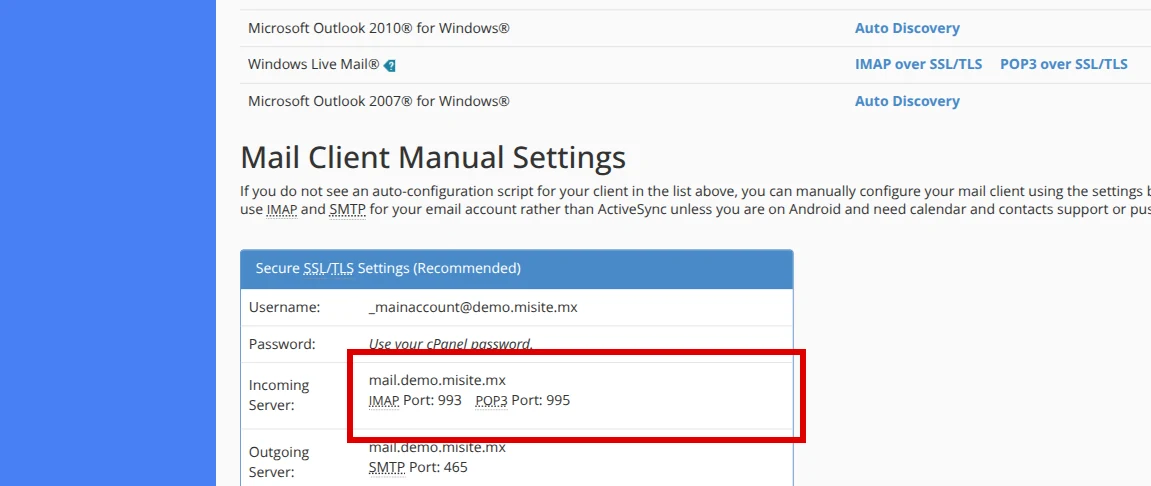
On iPhone, add the account as an Other mail account and copy these values from cPanel:
- Username: your full email address.
- Password: the password for that email account.
- Incoming Server: the value shown by cPanel, usually
mail.yourdomain.com. - IMAP Port:
993with SSL/TLS. Use IMAP unless you specifically need POP3. - Outgoing Server: the value shown by cPanel, usually
mail.yourdomain.com. - SMTP Port:
465with SSL/TLS. - Authentication: IMAP, POP3, and SMTP require authentication.
Save the account and send a test email. If iPhone reports a username or password error, confirm that you are using the full email address, not only the part before the at sign.
Recommended readings
Still need help?
If this guide didn’t solve your issue, our team can help you via ticket.