How to back up and download a Moodle course
Before making major changes to a course, migrating it, cleaning it up or redesigning it, it’s a good idea to keep a backup. In Moodle you can create a backup of an entire course and download it to your computer as an .mbz file, all from the interface, with no SSH or server access required. In this guide you’ll learn how to generate the backup, download it and verify it came out correctly. These instructions target Moodle 5.2 or a recent version installed on your NubeHost hosting, for example under a subfolder such as /moodle/.
Before you start
Check the following before backing up the course:
- Moodle is already installed and running on your domain or subfolder (for example
https://yourdomain.com/moodle/). - You can log in with an administrator account or a teacher account with permission over the course.
- You can identify the course you want to back up.
- You have available space on your hosting plan and on your computer for the backup file.
A backup can include course content and user-related data (enrolments, grades, messages) depending on the options you choose. Treat it as sensitive information and store it in a safe place.
What a course backup includes
During the process, Moodle lets you choose what to include. In general terms:
- Course content: topics, activities, resources, files and the overall structure.
- User data: enrolments, grades, attempts and messages. This data is optional and increases the file size.
- Blocks, filters and comments: configuration elements you can include or exclude.
If you only want to reuse the course structure (for example, for a new term), you can exclude user data and get a lighter file.
Steps
- Log in to Moodle with your administrator or teacher account.
- Open the course you want to back up.
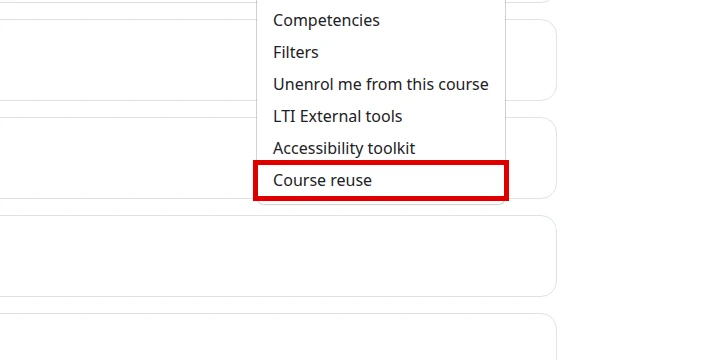
- Open the course More menu at the top of the course and select Course reuse.
- In the course reuse menu, choose Backup.
- In Initial settings, check or uncheck what to include (for example, enrolled users, activities, blocks and files). If you only want the structure, leave user data unchecked. Click Next.
- In Schema settings, review the list of sections and activities; you can exclude anything you don’t need. Click Next.
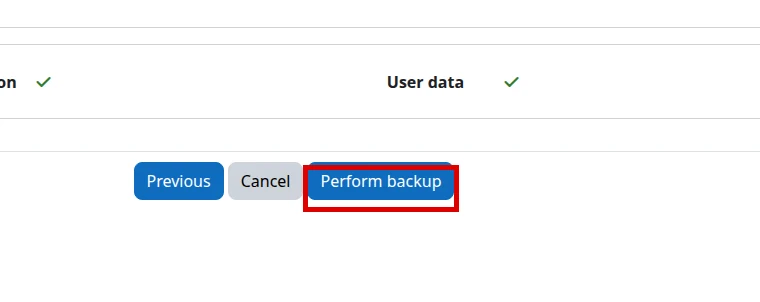
- In Confirmation and review, check the Filename and the summary of what will be included. If everything looks right, click Perform backup.
- Moodle may show The backup process is pending and continue the work in the background. In that case, open the restore page link or return to Course reuse → Restore after a few minutes to check the progress.
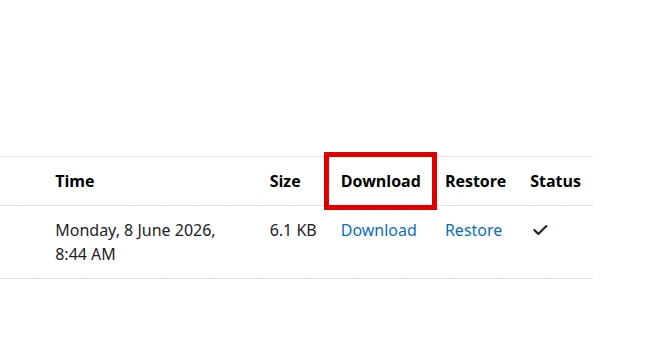
These screenshots were taken in the English Moodle 5.2 demo to confirm the backup and download flow:
Download the backup file
- On the Restore page, look for the Course backup area. You can also reach it from Course reuse → Restore.
- Find your file in the list. It should have the
.mbzextension, a recent date and a real size (not0 KB). It may also appear in the User private backup area if you generated a private backup. - Click Download next to the file to save it to your computer.
- Store the
.mbzin a safe folder. This is the file you’ll use to Restore the course later if you need to.
Final verification
Confirm the backup came out correctly:
- The
.mbzfile appears in the course backup area with a recent date and time. - The download completes without errors and the file has a sensible size (not 0 KB).
- The filename reflects the course and the backup date.
- If you need it later, you can go to Restore, upload the
.mbzand preview the content without having to complete the restore.
Common errors
- You can’t find the backup option: make sure you’re inside the course and have an administrator or teacher role with permission; look for the More or Course reuse menu.
- The download fails or the file is very small: generate the backup again; a 0 KB file means the process didn’t finish properly.
- Timeout or memory error on large courses: try excluding user data or heavy files to reduce the size; if it persists, review your plan’s limits.
- No space to store the file: free up space on your computer or hosting before generating large backups.
Recommended reading
Still need help?
If this guide didn’t solve your issue, our team can help you via ticket.