How to change the site name and site home in Moodle
When you install Moodle with Softaculous on your NubeHost hosting, the site keeps a generic name and a default site home page. Before you invite your students, it is worth changing the site name and deciding what appears on Site home, both for visitors and for users who are already logged in.
In this guide you will change the full and short site names and adjust the Site home items from the Moodle admin area. You do not need to edit server files or use SSH: everything is done from the Moodle panel installed in a subfolder such as /moodle/.
Before you start
- You need an account with the administrator role in Moodle.
- Have your Moodle URL ready, for example
https://yourdomain.com/moodle/. - Decide the name you want to display and a short name; Moodle uses it as a brief site label in different parts of the interface.
- If you share administration with someone else, let them know before you change Site home.
Steps
Open Site home settings
- Log in to your Moodle with your administrator account.
- Open Site administration.
- Go to Site administration → General → Site home → Site home settings. If your language pack changes the labels, look for the section related to Site home.
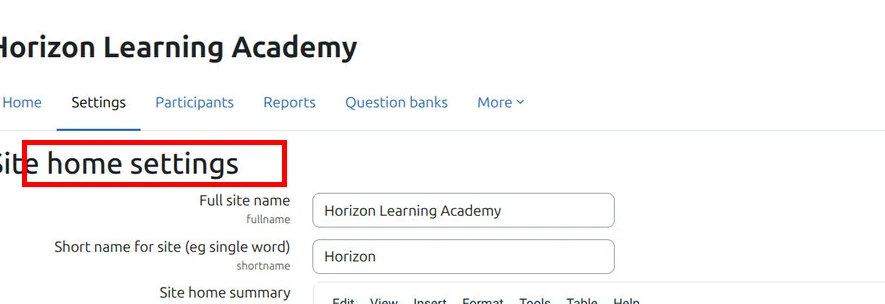
Update the site name
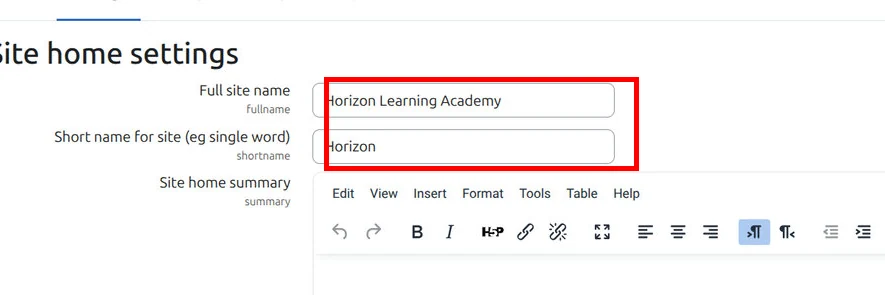
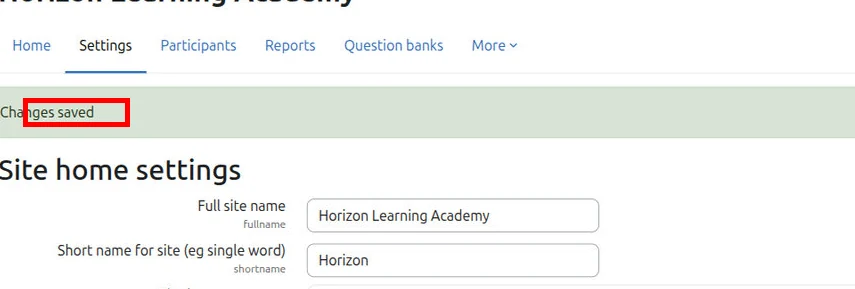
- In the Full site name field, type the name your visitors will see, for example “Horizon Learning Academy”.
- In Short name for site (eg single word), type a brief version, for example “Horizon”; Moodle uses it as a short navigation label.
- Optionally, add text in Site home summary to describe your site.
- Scroll to the bottom of the page and click Save changes.
Choose what appears on Site home
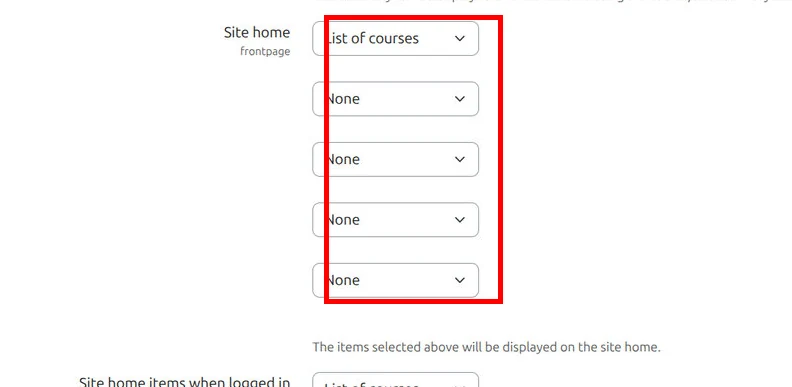
- On the same screen, find the Site home and Site home items when logged in lists.
- Site home controls what people who are not logged in see. You can show options such as Announcements, List of courses, List of categories, Combo list, Course search box, or None.
- Site home items when logged in controls what authenticated users see when they reach Site home; it can also include Enrolled courses.
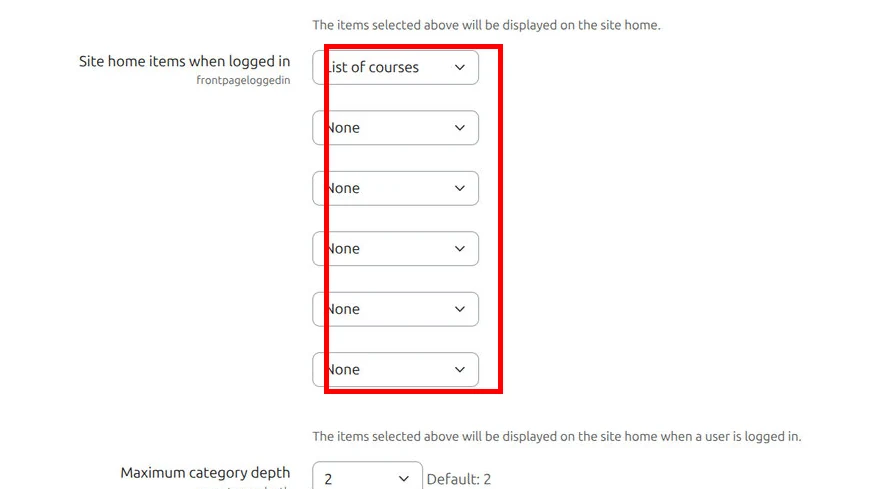
- Select the options you want in each list and leave empty the ones you do not need.
- Click Save changes again.
Final verification
- Open your site in a private window or log out to see Site home as a visitor.
- Confirm that the Full site name appears as the site heading.
- Check that Site home only shows the items you chose.
- Log back in and verify that the Site home items when logged in are correct.
Common errors
- Changes are not saved: make sure you click Save changes at the bottom of the page; closing the tab will not apply them.
- Confusing full name and short name: the full name is the visible one for your users; the short name is a brief label Moodle uses in navigation and other areas.
- Site home looks empty: if you do not select any item in the lists, Site home will be nearly blank. Enable at least one item, such as courses, categories, or the summary.
- The change is not showing: if your site uses caching, go to Site administration → Development → Purge all caches, or wait a few minutes and reload the page.
Recommended reading
Still need help?
If this guide didn’t solve your issue, our team can help you via ticket.