How to tell whether Moodle's cron is running and which tasks fail
Moodle does almost nothing on its own: sending forum emails, reminding students about due assignments, calculating grades, cleaning temporary files and creating course backups. All of that is done by cron, a process the server runs every minute. If cron stops, Moodle still opens normally, but your students stop getting notifications and grades stop updating. That’s why your monthly report checks it.
Check whether cron runs
- Log in to your Moodle as an administrator.
- Go to Site administration → Notifications.
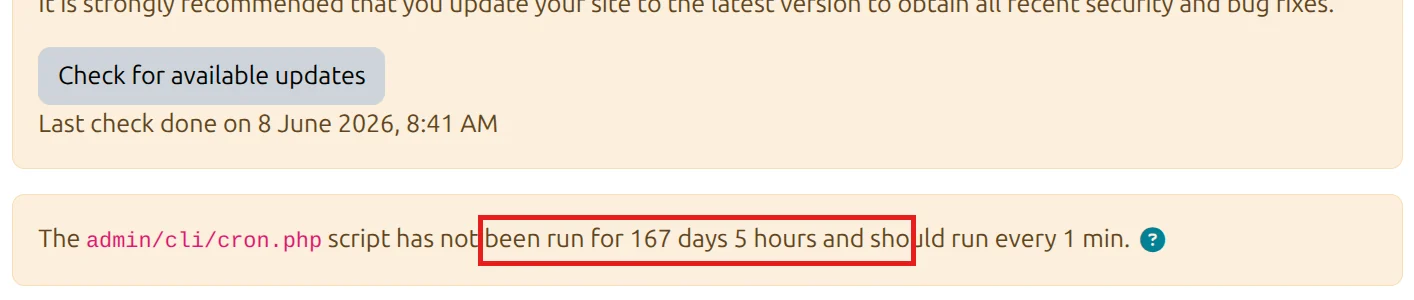
- If cron hasn’t run recently, Moodle shows a notice at the top saying how long it’s been since it ran and how often it should run. If you don’t see any notice about cron, it’s running fine.
Check which tasks fail
Even when cron runs, a task can fail again and again. Moodle keeps retrying it at longer intervals.
- Go to Site administration → Server → Tasks → Scheduled tasks.
- Check the Fail delay column. Failing tasks have a number there.
- Click the task’s icon in the Logs column (or go to Site administration → Server → Tasks → Task logs) to see the error message from the last run.
With the task name and the error message you know where it comes from. If the task belongs to a plugin (shown in the Component column), the plugin is usually out of date or missing a setting, such as an external service key. If it’s a core Moodle task, open a ticket with the name and message and we’ll look into it.
Check the cron job in cPanel
If Moodle says cron isn’t running, the job in cPanel is wrong or missing.
Log in to cPanel and open Cron Jobs.
In Current Cron Jobs there should be a job that runs every minute (
* * * * *) with a command like:/usr/local/bin/php /home/youruser/public_html/moodle/admin/cli/cron.phpCheck that the path points to your Moodle’s real folder. If you moved Moodle to another folder or reinstalled it, the job may point to a path that no longer exists.
If the job doesn’t exist, create it with the guide to cron jobs in cPanel, with the Once Per Minute frequency. If it exists but fails, the same guide explains how to read the error.
With Moodle hosting we set up cron during installation and keep an eye on it.
If you still have problems
- Cron runs but emails don’t arrive: the problem is sending mail, not cron. Open a ticket and we’ll review your Moodle’s outgoing mail settings.
- A task fails after upgrading Moodle: update third-party plugins to a compatible version too.
Recommended reading
Still need help?
If this guide didn’t solve your issue, our team can help you via ticket.