How to create an Assignment in Moodle for student submissions
The Assignment activity is the standard way to collect work in Moodle: the student uploads a file or types directly in the browser, Moodle records the date and time of the submission, and you see in one place who submitted and who did not. Unlike a forum or a file resource, an Assignment keeps each submission private between the student and the teacher. In this guide you will create an Assignment from scratch on a Moodle installed on your shared hosting (for example, under a subfolder such as /moodle/), without touching anything on the server.
Before you start
- Sign in to your Moodle with an account that has the Teacher (or Administrator) role inside the course you will work on.
- Open the course. If it does not exist yet, create it first: an Assignment always lives inside a course.
- Check that the course has at least one section or topic where you can place the activity; Moodle creates a general section by default.
- Have the instructions for the student ready: what they must submit, in which format, and with which file name.
- If you expect large files, check your hosting upload limit beforehand; how to spot it is explained below.
What to define before creating it
Decide these four points before you open the form, because they are the ones most often corrected afterwards:
- Submission type. File submissions if you expect PDF, DOCX, or images; Online text if it is enough for students to type in an editor inside Moodle. You can enable both.
- How many files per student. A single file is easier to review; several files make sense when the work includes attachments.
- Due date and what happens afterwards. Due date flags submissions as late but still accepts them; Cut-off date stops submissions entirely.
- Whether you will grade with a number. A numeric grade out of 100 is the default and works well; if you only want to collect files, you can set the grade type to None.
Steps
Inside the course, turn on editing with the Edit mode switch at the top right. Some themes show it as a Turn editing on button.
Scroll to the section or topic where you want the work to appear and click Activity or resource. Some themes still show the longer Add an activity or resource label.
In the activity picker, choose Assignment. If you do not see it at a glance, type
assignmentin the picker’s search box.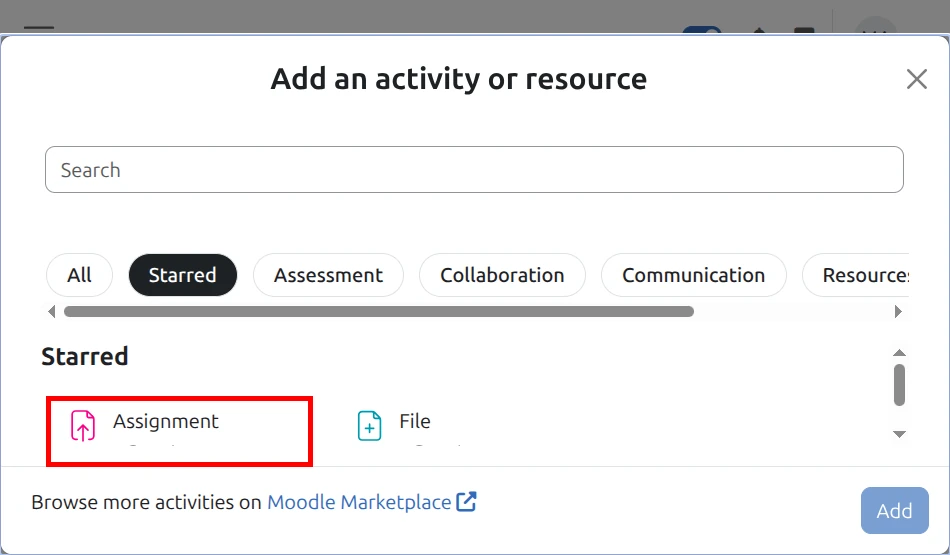
In Assignment name, write a title the student understands straight from the course page, for example
Essay 1: case analysis.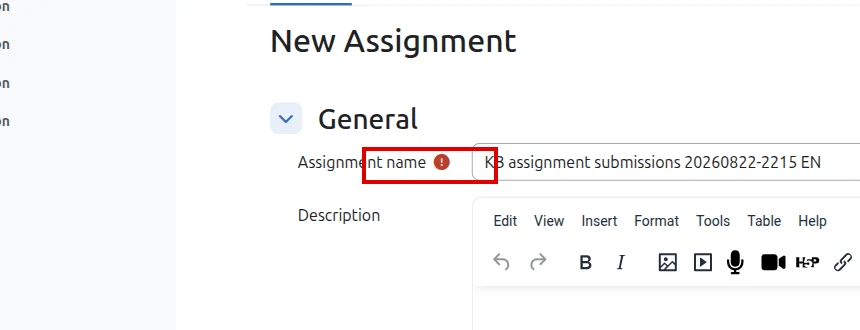
In Description, write the full instructions: what to submit, length, accepted file format, and how to name it. If you want that text to be readable without opening the activity, tick Display description on course page.
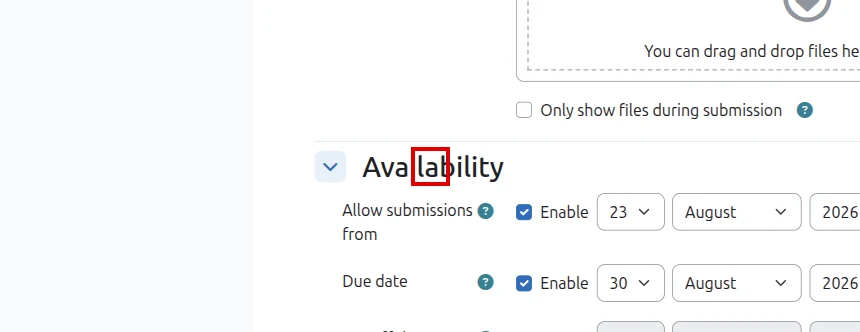
Open the Availability section and set the dates:
- Allow submissions from: the date from which the student can upload their work. Before that date they see the assignment but cannot submit.
- Due date: the normal deadline. Later submissions are flagged in red as late.
- Cut-off date: optional. After this date Moodle blocks submissions. Leave it unticked if you want to keep receiving late work.
- Remind me to grade by: the date Moodle uses to remind you about pending grading on your dashboard.
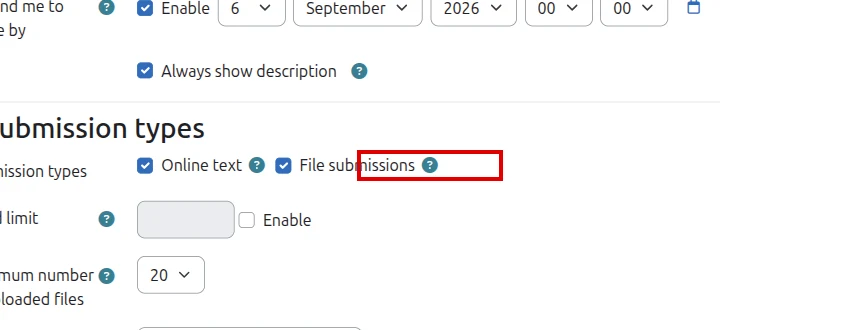
Open Submission types and tick what you decided earlier:
- File submissions to upload documents. Adjust Maximum number of uploaded files and Maximum submission size.
- Online text if the student will type directly in Moodle. With Word limit you can cap the length.
- Under Accepted file types, use Choose to restrict to specific formats, for example PDF document only. If you leave it empty, any format is accepted.
In Maximum submission size, keep in mind that the list only shows values equal to or below the site upload limit. If the maximum Moodle offers is lower than what you need, raise
upload_max_filesizeandpost_max_sizefirst in the PHP editor in cPanel and then come back to this form.Open Grade and set Grade → Type. Leave the type as Point and set Maximum grade to the maximum you use (100 is typical), or switch the type to None if this assignment only collects files.
If you work with teams, open Group submission settings and enable Students submit in groups only when the course already has groups created; with that option a single submission counts for the whole team.
Scroll to the bottom of the form and click Save and return to course to go back to the course page, or Save and display to open the assignment you just created.
Turn off Edit mode to leave the course looking the way a student will see it.
Final verification
Open the assignment from the course page and confirm that the description and the correct Due date are shown.
Inside the assignment, check the Grading summary block: it should state how many participants there are and how many submissions have been received.
Open the Submissions tab and check the area where Moodle lists submitted work.
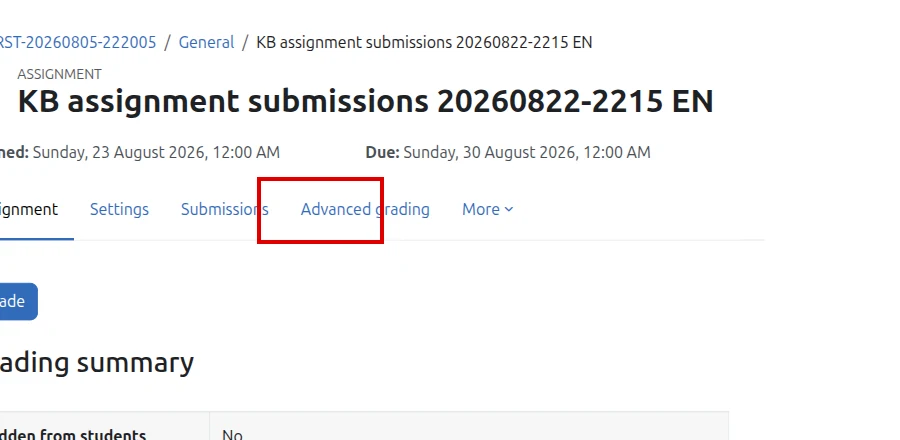
Check the student view. If you have a test student account enrolled in the course, sign in with it and confirm the Add submission button appears. Alternatively, from your teacher account, open your profile menu and use Switch role to… → Student; when you finish, go back with Return to my normal role.
Upload a test file with the student account and verify that the status changes to Submitted for grading and that the file is visible under Submissions. Then delete that test submission from the submissions table.
If the assignment should stay hidden until a certain day, check on the course page that it no longer says Hidden from students once you want students to see it.
Common errors
- The Activity or resource button does not appear: edit mode is off, or your account does not have the teacher role in that course. Turn on Edit mode; if the switch is missing, ask your Moodle administrator to assign you the teacher role in the course.
- The Assignment activity is not in the list: an administrator disabled it under Site administration → Plugins → Plugins overview. Enable it there with a Moodle administrator account.
- The student sees the assignment but cannot submit: it is almost always a date. Check that Allow submissions from has already passed and that the Cut-off date has not expired. Also confirm you ticked at least one option under Submission types.
- The student does not see the assignment: it may be hidden on the course page, or the student is not enrolled. Enrol them in the course and review the activity availability in the assignment’s Edit menu.
- Moodle says the file is too large: the file exceeds the assignment’s Maximum submission size or your hosting’s PHP upload limit. First raise
upload_max_filesizeandpost_max_sizefrom the PHP editor in cPanel, then adjust the value inside the assignment. - Neither you nor the students receive email alerts: Moodle notifications depend on the site having outgoing mail configured and on the Moodle scheduled task running regularly. If your Moodle has no SMTP configured, state the due date in writing in the description and do not rely on automatic email.
- The form will not save and marks fields in red: check that Assignment name is not empty and that the Due date is later than Allow submissions from; Moodle rejects reversed dates.
Recommended reading
Still need help?
If this guide didn’t solve your issue, our team can help you via ticket.