How to create a course category in Moodle
If you run a Moodle site with several programs or subjects, organizing your courses into categories helps students and teachers find everything faster. A category works like a folder: it groups related courses together, for example “High School”, “Diplomas”, or “English”.
In this guide you will create a course category from Moodle’s administration area, with options such as parent category, visibility, and description, and you will confirm that it appears in course management. This applies to your Moodle installed in a subfolder such as /moodle/ on your shared hosting. The interface labels were verified in Moodle 5.2 using the English demo.
Before you start
- You need an account with an administrator or manager role in Moodle.
- Decide on the category name and, if it applies, which parent category it belongs under.
- Have your Moodle URL open, for example
https://yourdomain.com/moodle/. - You do not need SSH or server access; everything is done from the Moodle panel.
Steps to create the category
- Sign in to your Moodle (for example,
https://yourdomain.com/moodle/) with your administrator account. - Go to Site administration.
- Open the Courses tab.
- Click Manage courses and categories.
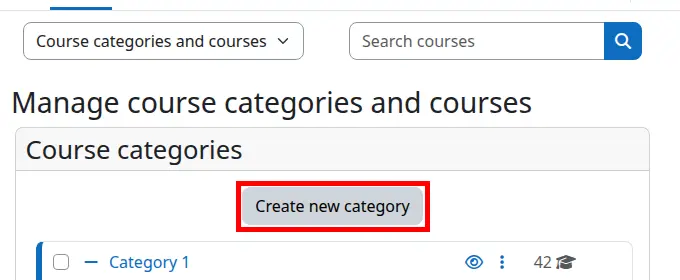
- In the category panel, click Create new category.
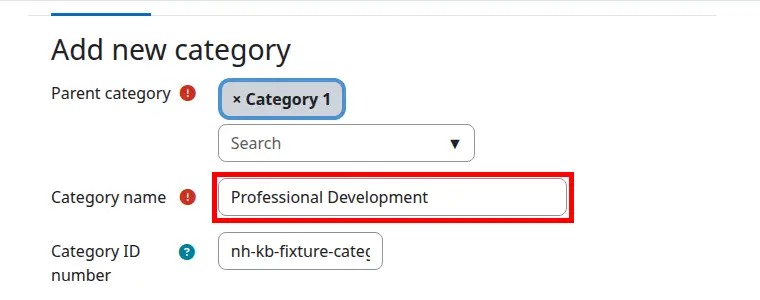
- On the Add new category page, fill in the form:
- Category name: enter a clear name, e.g. “Diplomas”.
- Parent category: confirm where the category will be placed. Moodle may keep the category you entered from selected, for example Category 1; if it will be a main category, change the selection to Top; if it will be a subcategory, choose the correct parent category.
- Category ID number: optional, useful if you integrate Moodle with other systems.
- Description: optional, briefly explain which courses it will contain.
- Click Create category to save.
Hide or show the category (optional)
If you don’t want the category to be visible to students yet:
- Go back to Manage courses and categories.
- Find your category in the list.
- Use the visibility control, such as the eye icon or the Hide/Show option. A hidden category is not shown to users without permission, but administrators can still see it.
Final verification
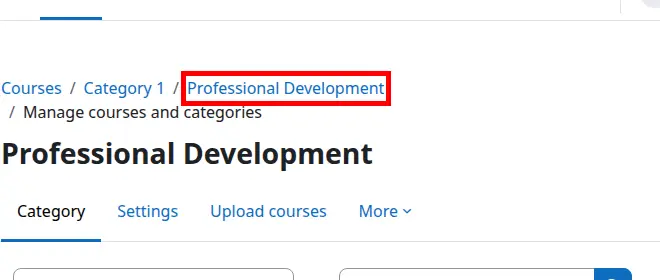
- In Manage courses and categories you can see the new category in the list or open its category page.
- When creating a course with Create new course, your category appears in the Course category menu.
- If you created a subcategory, it is shown nested under its parent category.
- If you left it hidden, it appears dimmed or marked as hidden for administrators.
Common errors
- “Create new category” doesn’t appear: confirm you signed in as an administrator or manager; other roles don’t see this option.
- The category doesn’t appear when creating courses: check that it isn’t hidden and reload the page.
- Duplicate or confusing name: use unique, descriptive names so teachers don’t pick the wrong category.
- Subcategory in the wrong place: edit the category with the pencil icon or Edit option and fix the Parent category, or move it from the list if your theme supports dragging.
Recommended reading
Still need help?
If this guide didn’t solve your issue, our team can help you via ticket.