How to create a Moodle user and enrol them in a course
After creating your first course in Moodle, the next step is to give your learners access. In this guide you will create a manual user account and enrol it as a student in a course, all from the Moodle interface installed on your shared hosting (for example, under a subfolder such as /moodle/). These instructions are verified in Moodle 5.2.
Before you start
- Sign in to your Moodle with an administrator account.
- Have ready the course where you will enrol the user; if you don’t have one yet, create it first.
- Decide the username, email, and an initial password for the person you are adding.
Steps
Create the user
- Go to Site administration → Users → Accounts → Add a new user.
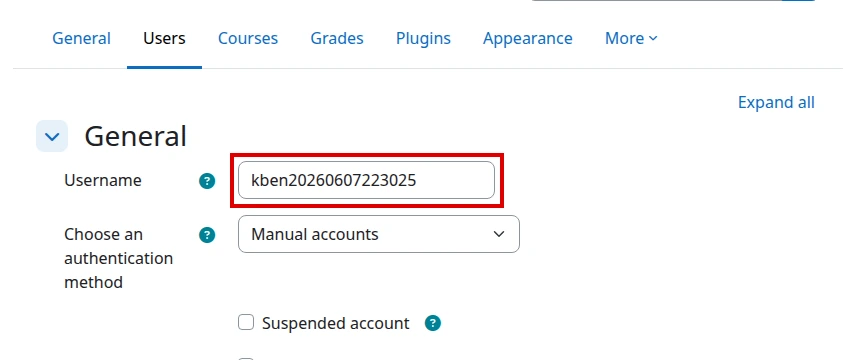
- Fill in Username and, in New password, define an initial password.
- If you want the person to change their password at first login, enable Force password change.
- Fill in First name, Last name, and Email address.
- Click Create user to create the account.
Enrol the user in the course
- Open the Course where you want to enrol the user.
- Open Participants from the course menu.
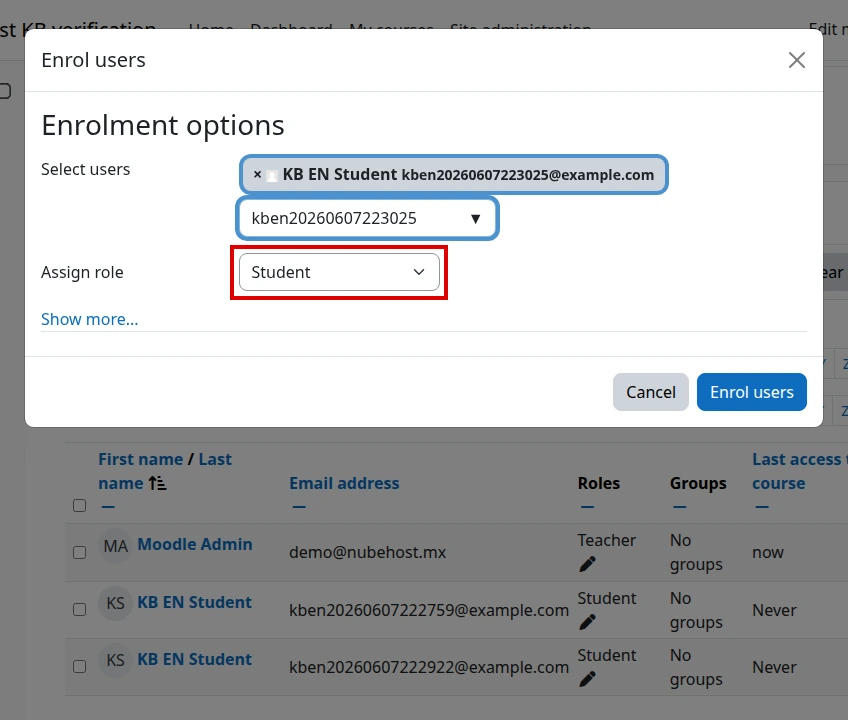
- Click Enrol users.
- Search for and select the user you just created.
- Under Assign role, choose Student and confirm with Enrol users.
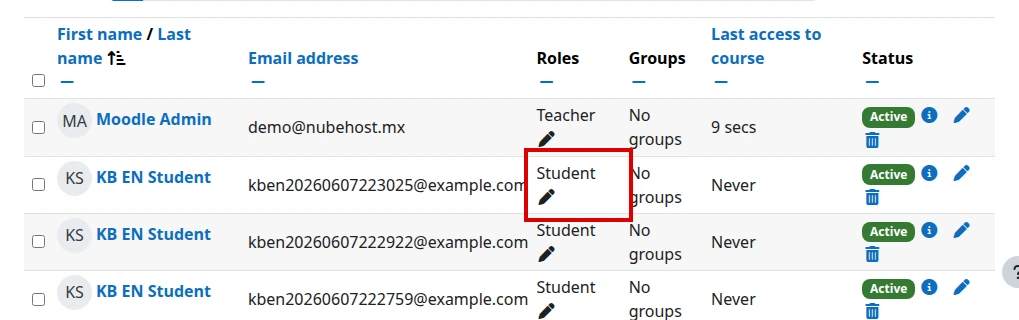
These screenshots were taken in the English Moodle 5.2 demo to confirm the user creation and enrolment flow:
Final verification
- Confirm the user appears in the course Participants list with the Student role.
- Check that the email and name look correct in their profile.
- Ask the person to sign in with their username and initial password.
Common errors
- The user doesn’t appear when enrolling: confirm the account was saved and that you are in the right course.
- The student can’t see the course: check that they have the Student role and that the enrolment is active.
- Duplicate email: Moodle does not allow two accounts with the same email address; use a different one.
- Password rejected by policy: adjust the initial password so it meets the site’s minimum requirements.
Recommended reading
Still need help?
If this guide didn’t solve your issue, our team can help you via ticket.