How to reset a Moodle user's password
When a student or teacher forgets their password, as an administrator you can reset it from the Moodle interface itself. In this guide you will change a user’s password by setting a temporary one and forcing a change at the next sign-in, all from Moodle installed on your shared hosting (for example, under a subfolder such as /moodle/).
Before you start
- Sign in to your Moodle with an administrator account.
- Confirm the identity of the person requesting the change before touching their access.
- Have ready a strong temporary password that meets the site’s policy.
- Decide a secure channel to deliver the temporary password; never send it over insecure channels.
Steps
Find the account
- Go to Site administration → Users → Accounts → Browse list of users.
- Use Search or Filters to locate the person by First name / Last name or Email address.
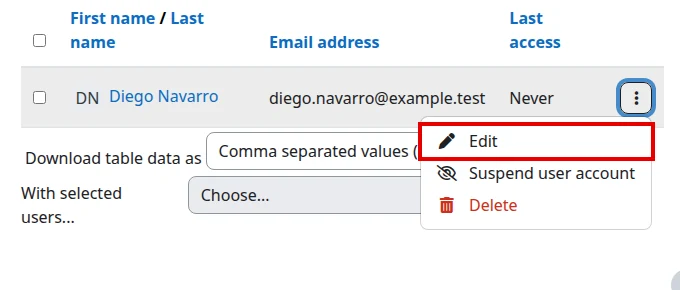
- In the Actions column, open Edit for the correct user. Also check whether the profile shows Suspended account before changing access.
Change the password
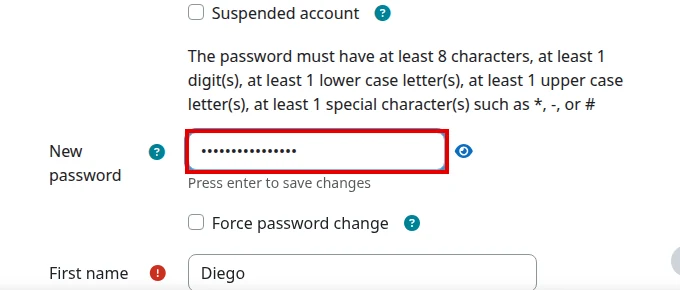
- In Edit profile, under General, locate Username and the New password field.
- In New password, click Click to enter text and enter the strong temporary password.
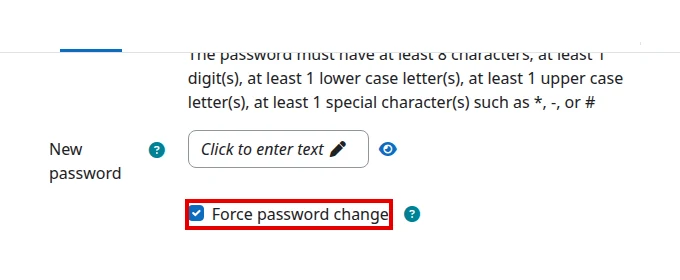
- Enable Force password change so the person sets a new one at sign-in.
- Click Update profile.
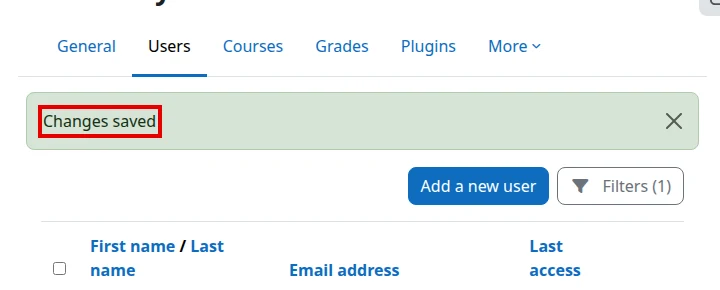
After saving, Moodle returns to the accounts list and shows Changes saved. Verify that you are still working on the correct account.
Hand over access securely
- Share the temporary password only through a secure, direct channel with the person.
- Ask them to sign in and change the password immediately.
- If you prefer not to handle the password yourself, and the site email works, tell them to use the Forgotten your username or password? flow from the login page.
Final verification
- Confirm the person can sign in with the temporary password.
- Verify they are prompted to change the password if you enabled the forced change.
- Check that, after the change, the account stays active and with the correct role.
Common errors
- The password is rejected: adjust it so it meets the length and characters required by the site’s policy.
- You can’t see the password option: confirm you opened Edit profile for the right user and that you have admin permissions.
- The account still has no access: check whether it has Suspended account enabled, is unconfirmed, or uses an external authentication method that does not accept a local password.
Recommended reading
Still need help?
If this guide didn’t solve your issue, our team can help you via ticket.