How to restore a Moodle course from a backup
When you migrate, clone or recover content, you need to restore a course from an .mbz backup file. In Moodle you can do this from the interface, uploading or selecting the backup and choosing where to restore it, with no SSH or server access required. In this guide you’ll learn how to restore a course, pick the right destination and verify it came out correctly. These instructions target Moodle 5.2 or a recent version installed on your shared hosting, for example under a subfolder such as /moodle/.
Before you start
Check the following before restoring the course:
- Moodle is already installed and running on your domain or subfolder (for example
https://yourdomain.com/moodle/). - You can log in with an administrator account or a teacher account with permission to restore courses.
- You have the
.mbzfile you want to restore, generated on a trusted Moodle site and version. - If you’re restoring over an existing course, you have a recent backup of that course in case something goes wrong.
A backup can include course content and user data (enrolments, grades, messages). Restoring user data into the wrong site can mix sensitive information, so double-check the destination and options before continuing.
What happens when you restore a course
When you restore, Moodle lets you choose the destination. In general terms:
- New course: creates a course from scratch with the backup content. This is the safest option because it doesn’t touch existing courses.
- Existing course, merging: adds the backup content to the current course without deleting what’s already there. Useful for combining materials.
- Existing course, deleting first: removes the current course content and replaces it with the backup. Use it carefully, because it’s irreversible without a prior backup.
If you only want to review or reuse the content, restoring into a new course is usually the best choice.
Steps
- Log in to Moodle with your administrator or teacher account.
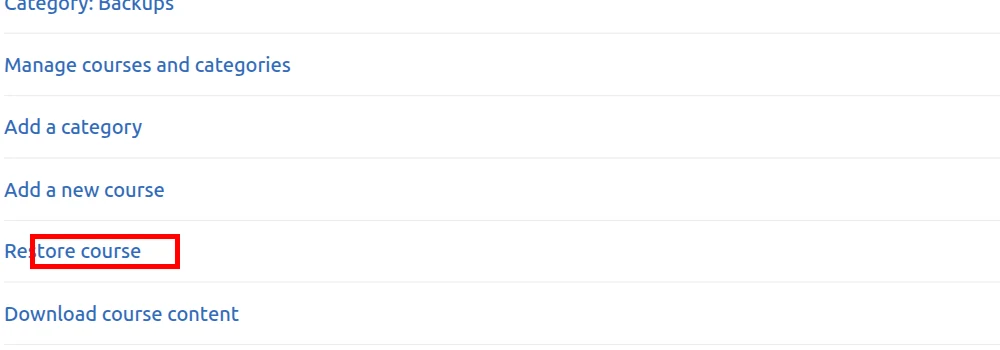
- Open the restore area: as an administrator, go to Site administration → Courses → Restore course. From inside a course, you may also see a similar path under More → Course reuse → Restore, depending on your theme.
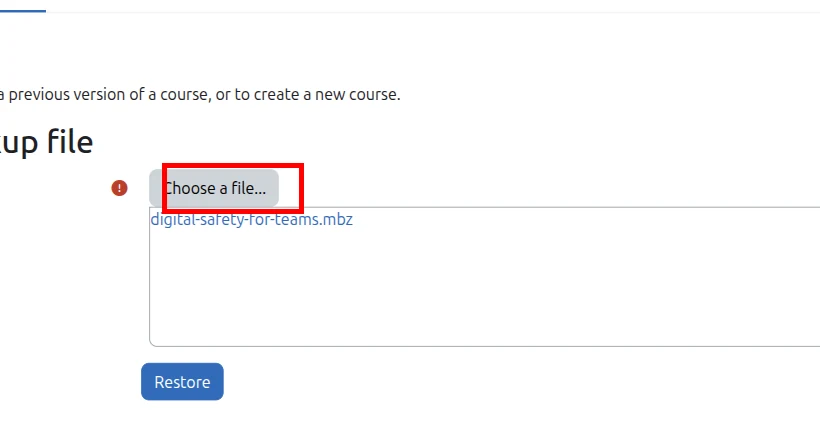
- In Upload a backup file, use Choose a file… or drag your
.mbzfile into Backup file, then click Restore. If the file already appears in the Course backup area or User private backup area, use the Restore link in that table.
- On the Confirm step, review the backup details (Moodle version, date, content) and click Continue.
- In Destination, choose where to restore: select Restore as a new course and a category, or use Restore into an existing course and choose Merge the backup course into the existing course or Delete the contents of the existing course and then restore. Click Continue.
- In Settings, check or uncheck what to include (for example, user data, activities, blocks). Click Next.
- In Schema, adjust the course name, start date and which topics or activities to include. Click Next.
- In Review, check the restore summary. Before continuing, confirm that the course name, category, sections and user-data choices match what you intend to recover.
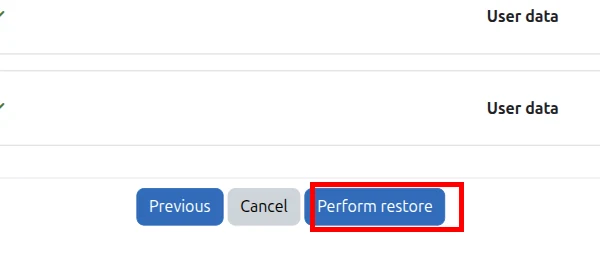
Click Perform restore. Moodle may finish immediately or queue the restore in the background; if it stays pending, wait for Moodle cron and check the restore page again. If Moodle instead shows This backup file has been created with one development version of Moodle backup (2008111700). Minimum required is 2010072300. Cannot be restored., stop and use a compatible .mbz file.
After restoring
- After it finishes, Moodle takes you to the restored course. If you first saw Process pending, come back after the background task completes and confirm the title and category are correct.
- Check that the topics, activities and resources appear in the expected order.
- Adjust the course start date and the activity dates if they shifted during the restore.
- If you restored without user data, re-enrol the participants who need access.
Final verification
Confirm the restore came out correctly:
- The restored course appears in the chosen category with the expected name.
- The course topics, activities and files open without errors.
- Internal links and uploaded resources work inside the course.
- If you chose to restore user data, enrolments and grades appear as you expected.
Common errors
- You can’t find the restore option: make sure you have an administrator or teacher role with permission; look for the More → Course reuse → Restore menu.
- The
.mbzfile won’t upload because of its size: the backup exceeds the upload limit; reduce the file or raise the limit (see the MultiPHP INI Editor article). - Incompatible version error: an
.mbzfrom an unsupported, much newer or development Moodle backup version may fail to restore; use a backup created on the same stable Moodle version or an older compatible version. - The process stays pending: some hosting setups process backups and restores through Moodle cron. Wait a few minutes and check the restore page again; if it never advances, confirm that Moodle cron is configured in your hosting panel.
- You restored into the wrong course: if you merged or deleted by mistake, restore your prior backup of the affected course to recover the previous state.
Recommended reading
Still need help?
If this guide didn’t solve your issue, our team can help you via ticket.