Slow Moodle: settings that actually help on shared hosting
If your Moodle loads slowly, especially on phones, check a few settings first. They’re easy to leave in the wrong state, for example after changing the theme or after someone debugged an error, and they make every page build from scratch. Checking them takes 10 minutes and doesn’t require touching the server.
1. Turn off theme designer mode
With this mode on, Moodle regenerates the theme’s styles on every visit. It’s meant for someone designing a theme and should never stay on.
- Go to Site administration → Appearance → Advanced theme settings.
- Make sure Theme designer mode is unchecked.
- Click Save changes.
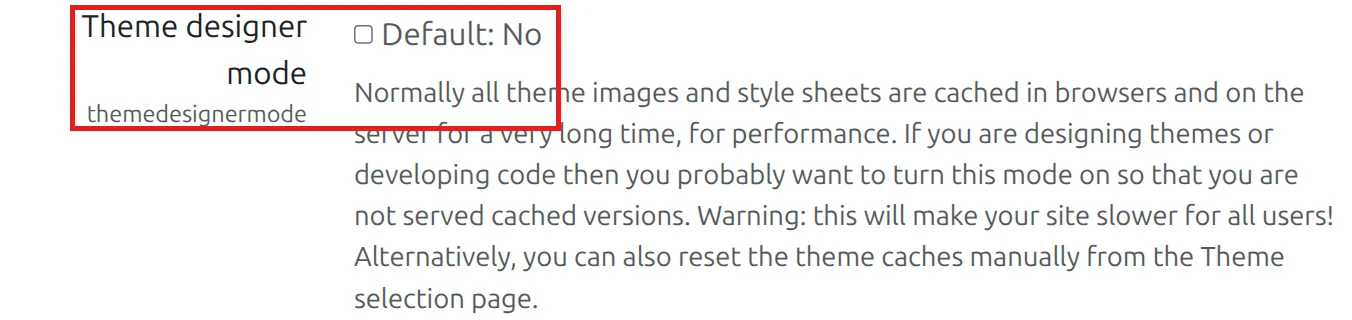
2. Turn on JavaScript caching
- Go to Site administration → Appearance → AJAX and Javascript.
- Make sure Cache Javascript is checked and save.
3. Turn off debugging
Showing debug messages makes Moodle slower and also shows internal details to your students.
- Go to Site administration → Development → Debugging.
- In Debug messages, choose NONE (or NORMAL if you’re investigating something) and uncheck Display debug messages.
- Save.
4. Check that cron runs
If cron doesn’t run, cleanup tasks pile up and then run together, and the site slows down right then. See how to tell whether Moodle’s cron is running.
5. Limit how long you keep logs
Activity logs are the table that grows the most. Over time they slow down reports and grades. In Site administration → Plugins → Logging → Standard log, set Keep logs for to a period such as 365 days. More details in site slow because of the database.
6. Lighten the front page and course images
- Course cover images show up on the front page and in My courses. Upload them as WebP or JPG no wider than 1200 pixels, not the original camera photo. Same for theme banners.
- If your front page lists every course and you have hundreds, switch it to categories or featured courses.
After changing settings
Go to Site administration → Development → Purge caches and click Purge all caches. The first visit afterwards takes a bit longer while Moodle rebuilds the cache; the next ones are fast.
If it’s still slow
If everything above is fine and the site slows down mostly when many students log in at once (an exam, the start of classes), your plan may be short on resources at those moments. Check in cPanel Resource Usage whether you hit the limits. Moodle hosting plans are sized by the number of students connected at the same time. If you’re not sure which one fits, open a ticket and we’ll review it with your numbers.
Recommended reading
Still need help?
If this guide didn’t solve your issue, our team can help you via ticket.