How to upgrade Moodle to a supported version
Each Moodle version gets security fixes for a limited time. When that period ends, newly found flaws are no longer fixed, and on a site with student data that’s a real risk. If your monthly report says your Moodle is no longer supported or is about to lose support, here’s which version you have, which one to move to and how to do it without losing courses.
Which version you have and how long it’s supported
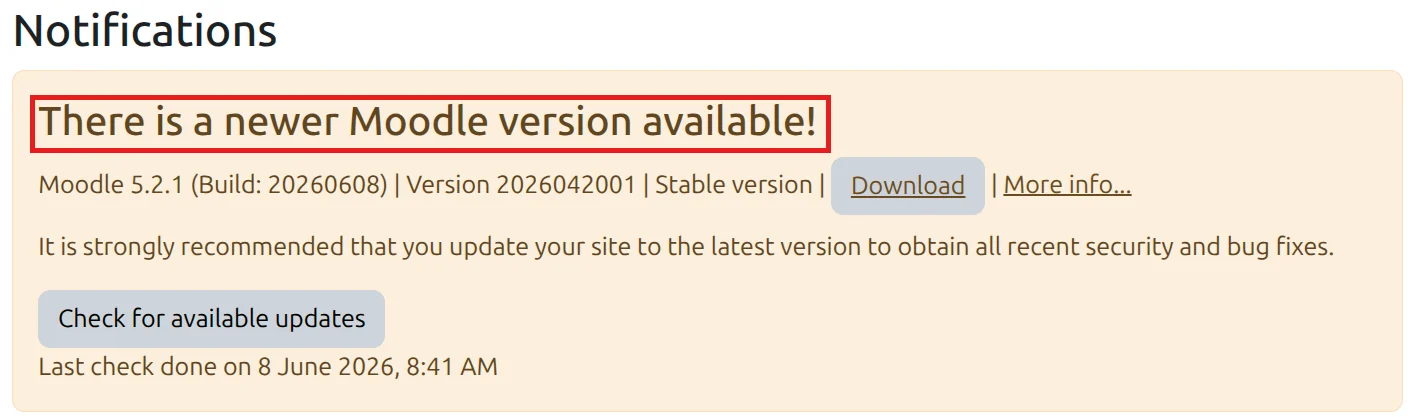
Log in as an administrator and go to Site administration → Notifications. If a newer version is available, Moodle says so at the top, and the installed version appears at the bottom of the page, for example Moodle 4.4.3 (Build: ...).
| Version | Security fixes until |
|---|---|
| 4.4 | Already ended (December 2025) |
| 4.5 (LTS) | October 2027 |
| 5.0 | Already ended (October 2026) |
| 5.1 | April 2027 |
| 5.2 | October 2027 |
If you’re upgrading, the calmest option is 4.5 LTS (long-term support) or the latest 5.x.
Before upgrading
- Back up everything. You need the Moodle folder, the data folder (
moodledata) and the database. The simplest is a full backup from cPanel (how to download it). Don’t rely only on course backups: they don’t include users or site settings. - Check your PHP version. Moodle 4.5 needs PHP 8.1 or newer; Moodle 5.0 and 5.1, PHP 8.2; Moodle 5.2, PHP 8.3. Change it first if needed (how to change your PHP version).
- Check your plugins. Every third-party plugin (themes, activities, blocks) needs a version compatible with the new Moodle. Look them up on moodle.org/plugins. A plugin without a compatible version can stop the upgrade.
- Pick a time without classes or exams. The site goes into maintenance during the upgrade.
Upgrade with Softaculous
If you installed Moodle with Softaculous from cPanel, upgrading is the simplest:
- In cPanel open Softaculous Apps Installer and go to Installations (the list icon at the top right).
- Find your Moodle. If there’s a new version, an upgrade icon appears next to the installation.
- Click it, keep the option to back up before upgrading checked and confirm.
- When it finishes, log in to Moodle as an administrator. If Moodle asks you to finish the database upgrade, click Upgrade Moodle database now.
If you didn’t install it with Softaculous
A manual upgrade means replacing Moodle’s files with the new version’s, without deleting config.php or your plugins, and then letting Moodle upgrade the database. Also, since Moodle 5.1 the folder structure changed, and in some cases the domain’s target folder has to be adjusted. If you haven’t done it before, it’s easy to get wrong. We recommend asking us: for NubeHost customers the upgrade is free.
Moodle also doesn’t let you jump straight from a very old version to the newest. In Site administration → Server → Environment you can check whether your server meets the requirements of the version you want.
After upgrading
- Check Site administration → Notifications: it should show the new version and no warnings.
- Open a course, log in as a test student and check an activity and a grade.
- Confirm cron is still running (how to check it).
Would you rather we do it? If your Moodle is at NubeHost, the upgrade is free: open a ticket with your Moodle’s address, and we’ll check your plugins, change PHP if needed and upgrade it at the time you tell us. With Moodle hosting, your monthly report warns you before your version loses support.
Recommended reading
Still need help?
If this guide didn’t solve your issue, our team can help you via ticket.