How to make your site always open with https
Having an SSL certificate isn’t enough: if someone types yourdomain.com without https://, your site can open in the version without the padlock, and the browser marks it “Not secure”. To send everyone to the secure version, turn on one switch in cPanel. No file editing needed.
Recommended: Force HTTPS Redirect in cPanel
Log in to cPanel. From the client area, on your service page click Login to cPanel.
In the Domains section, open Domains.
Find your domain in the list and, in the Force HTTPS Redirect column, click the switch that says Off.
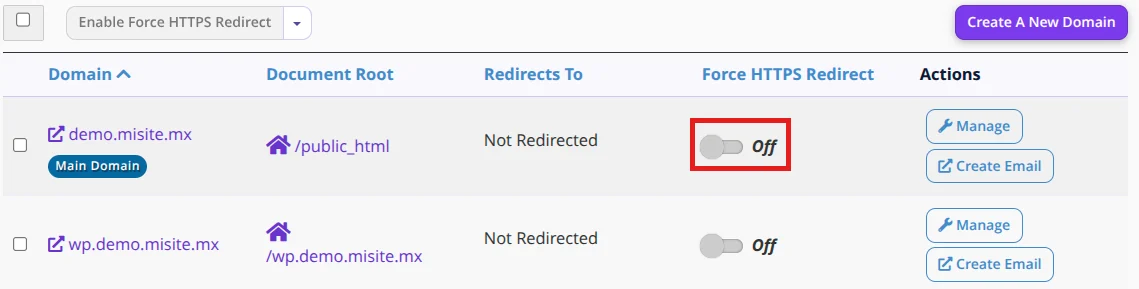
Open
http://yourdomain.comin a private window. It should switch tohttps://on its own.
Repeat step 3 for each domain or subdomain you use. The change applies right away.
If you can’t turn the switch on, or the site shows a certificate error afterwards, the domain doesn’t have a valid certificate yet. See why your SSL certificate isn’t issued or renewed. Once the certificate is active, the switch works.
If your site is WordPress
WP Toolkit warns you when the redirect is missing: your site card shows an orange SSL/TLS label. Click it and then Turn on redirect to HTTPS; it does the same as the cPanel switch.
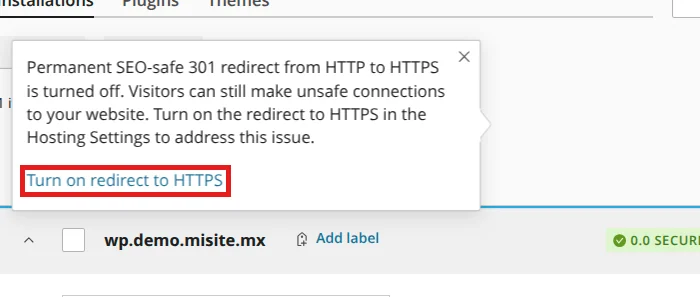
Besides the redirect, WordPress needs to know its address starts with https://. Otherwise you may see “mixed content” warnings or a redirect loop. Follow the guide to switch WordPress to https.
Alternative: redirect with .htaccess
Use this method only if you need something the switch doesn’t do, such as forcing https on a single folder. If you already turned on Force HTTPS Redirect, don’t add these lines too.
- In cPanel open File Manager and go to
public_html. If you don’t see the.htaccessfile, click Settings and turn on Show Hidden Files. - Download a copy of
.htaccessbefore you touch it. - Add at the top of the file:
RewriteEngine On
RewriteCond %{HTTPS} !on
RewriteCond %{REQUEST_URI} !^/\.well-known/
RewriteRule (.*) https://%{HTTP_HOST}%{REQUEST_URI} [L,R=301]
The .well-known line lets certificate validation through. Without it, AutoSSL may fail to renew.
To force https on a single folder only, put an .htaccess file with the same lines inside that folder.
If something goes wrong
- The browser says “too many redirects”: two rules are fighting, for example the switch plus a plugin or
.htaccessrules. Keep only one. In WordPress, check that the address in Settings → General starts withhttps://. - You still see the version without the padlock: clear your browser cache (how) or try a private window.
- A 500 error appears after editing
.htaccess: restore the copy you downloaded.
Would you rather we do it? Open a ticket with your domain and we’ll turn it on for you.
Recommended reading
Still need help?
If this guide didn’t solve your issue, our team can help you via ticket.