Turn on automatic plugin updates in WordPress
Most hacked WordPress sites don’t fall because of a weak password, but because of a plugin with a known flaw that nobody updated. If your report says you have plugins without automatic updates, you can turn them on in a minute, plugin by plugin or for the whole site at once.
Option 1: from WordPress, plugin by plugin
Log in to your WordPress dashboard (
yourdomain.com/wp-admin) and go to Plugins → Installed Plugins.In the Automatic Updates column, click Enable auto-updates on each plugin.
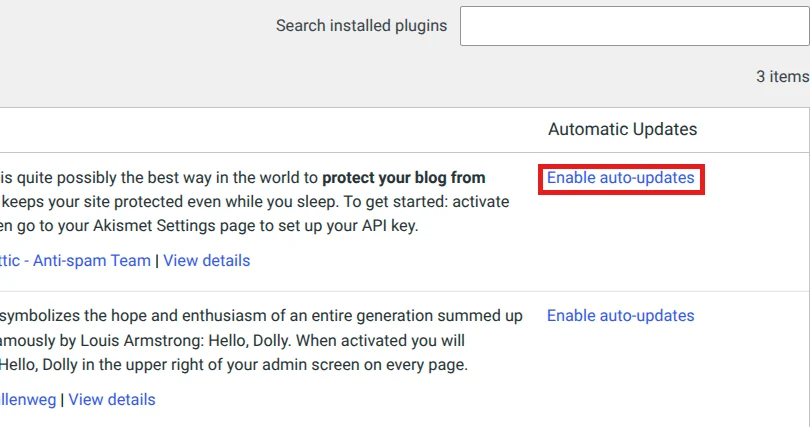
To do several at once, tick the plugins’ checkboxes, choose Enable Auto-updates in Bulk actions and click Apply.
If a plugin doesn’t show the link, it doesn’t update from WordPress.org (paid plugins or ones downloaded elsewhere). Those update through the vendor’s license. Check their settings page.
Option 2: from WP Toolkit, for the whole site
With WP Toolkit you set it once and it also applies to plugins you install later.
Log in to cPanel and open WP Toolkit (in the left menu it appears as WordPress Management).
At the bottom of your site card, click Autoupdate settings.
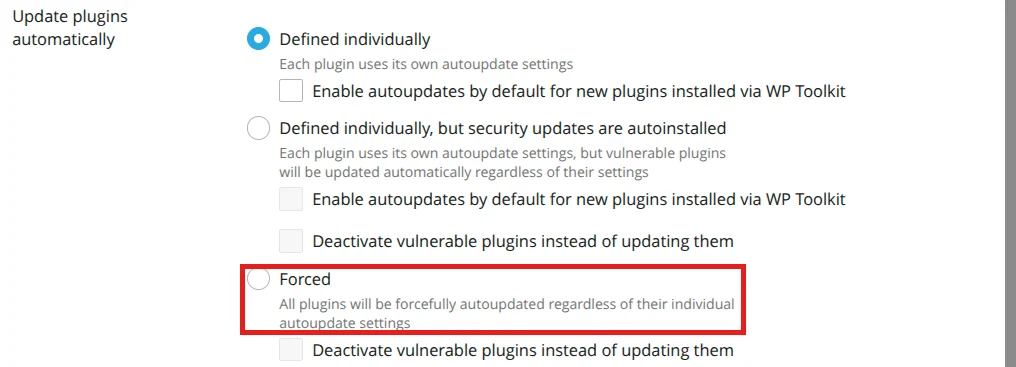
In Update plugins automatically, choose an option:
- Forced: every plugin updates on its own. This is the one we recommend.
- Defined individually, but security updates are autoinstalled: if you’d rather be more careful, only security fixes install on their own.
Click Save.
Next to that link is the Smart Update switch. With it, WP Toolkit makes a copy of the site, tests the update there and only applies it if nothing breaks. Turn it on for sites that make you money, like a store.
What if an update breaks my site?
It’s rare, but it happens. That’s why:
- Keep a recent backup. NubeHost plans make daily backups. If an update breaks something, you can restore the previous day from cPanel or ask us to do it.
- If you see an error or a blank screen after an update, follow the guide to the 500 error in WordPress: deactivating the plugin that was just updated almost always fixes it.
Would you rather not keep an eye on this? With WordPress hosting we update WordPress, themes and plugins for you.
Recommended reading
Still need help?
If this guide didn’t solve your issue, our team can help you via ticket.