Switch WordPress to https and fix mixed content
If your report says “WordPress configured without https”, your site has a certificate, but WordPress still stores its address as http://. That’s why the browser may show a broken padlock or “Not secure”, and your internal links point to the unencrypted version. You can fix it in two minutes from the WordPress dashboard.
Before you start
Open https://yourdomain.com in your browser. If you see the padlock, or the site opens even with a “mixed content” warning, go ahead. If the browser says “Your connection is not private”, your certificate isn’t active: first check your SSL in cPanel. If you switch WordPress to https without a certificate, the site stops opening.
Change the address in Settings → General
Log in to your WordPress dashboard (
yourdomain.com/wp-admin).Go to Settings → General.
In WordPress Address (URL) and Site Address (URL), change
http://tohttps://. Don’t change anything else in the address.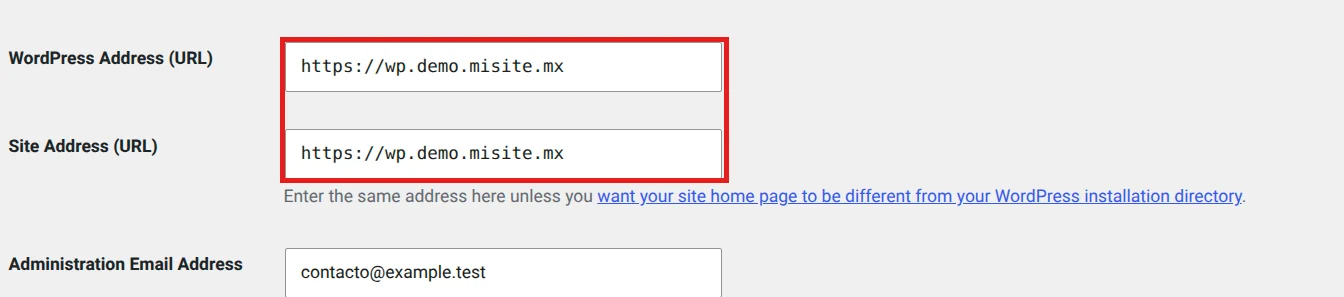
Click Save Changes. WordPress logs you out: log back in, now through
https://.
If both fields are grayed out and can’t be edited, the address is fixed in the wp-config.php file (the WP_HOME and WP_SITEURL lines). Change it there with File Manager, or use the phpMyAdmin method if you can’t get into the dashboard anymore.
Make visitors always arrive through https
Changing the address in WordPress doesn’t redirect people who type http://. For that, turn on Force HTTPS Redirect in cPanel, or in WP Toolkit click your site’s orange SSL/TLS label and then Turn on redirect to HTTPS, as explained in how to make your site always open with https.
Fix mixed content
“Mixed content” means the page loads over https, but some images, scripts or fonts are still requested over http://. The browser removes the padlock even if everything else is fine. It happens because the old addresses are written inside your posts, pages and theme settings.
To fix it, replace the old addresses with the new ones across the database with a search-and-replace plugin such as Better Search Replace: search for http://yourdomain.com and replace it with https://yourdomain.com. Make a backup first. In WP Toolkit you can do that from Back Up / Restore on your site card.
To find what’s left, open the page with the broken padlock, press F12 and check the Console tab. Every file loaded without https shows up there.
If something goes wrong
- The browser says “too many redirects”: make sure you don’t have an SSL plugin,
.htaccessrules and the cPanel switch all at once. Keep only the cPanel or WP Toolkit redirect. - You can’t get into wp-admin anymore: set the address back to
http://from phpMyAdmin with this guide and check your certificate before trying again. - Only one image or the logo is still without the padlock: upload them again from Appearance → Customize. Some themes store that address separately.
Would you rather not deal with it? With WordPress hosting we leave your site on https from the migration.
Recommended reading
Still need help?
If this guide didn’t solve your issue, our team can help you via ticket.